
Overview
QTRACA includes a full-featured rich text editor for writing and formatting document content. The editor supports headings, lists, tables, images, and more — providing a familiar word-processor experience directly in your browser.
Who can access this: Admin Quality Manager Document Manager
Navigation:
Navigation:
The Editor Interface
When you open a document and navigate to the Document Content tab, you'll see the document editor with a toolbar at the top and the content area below.
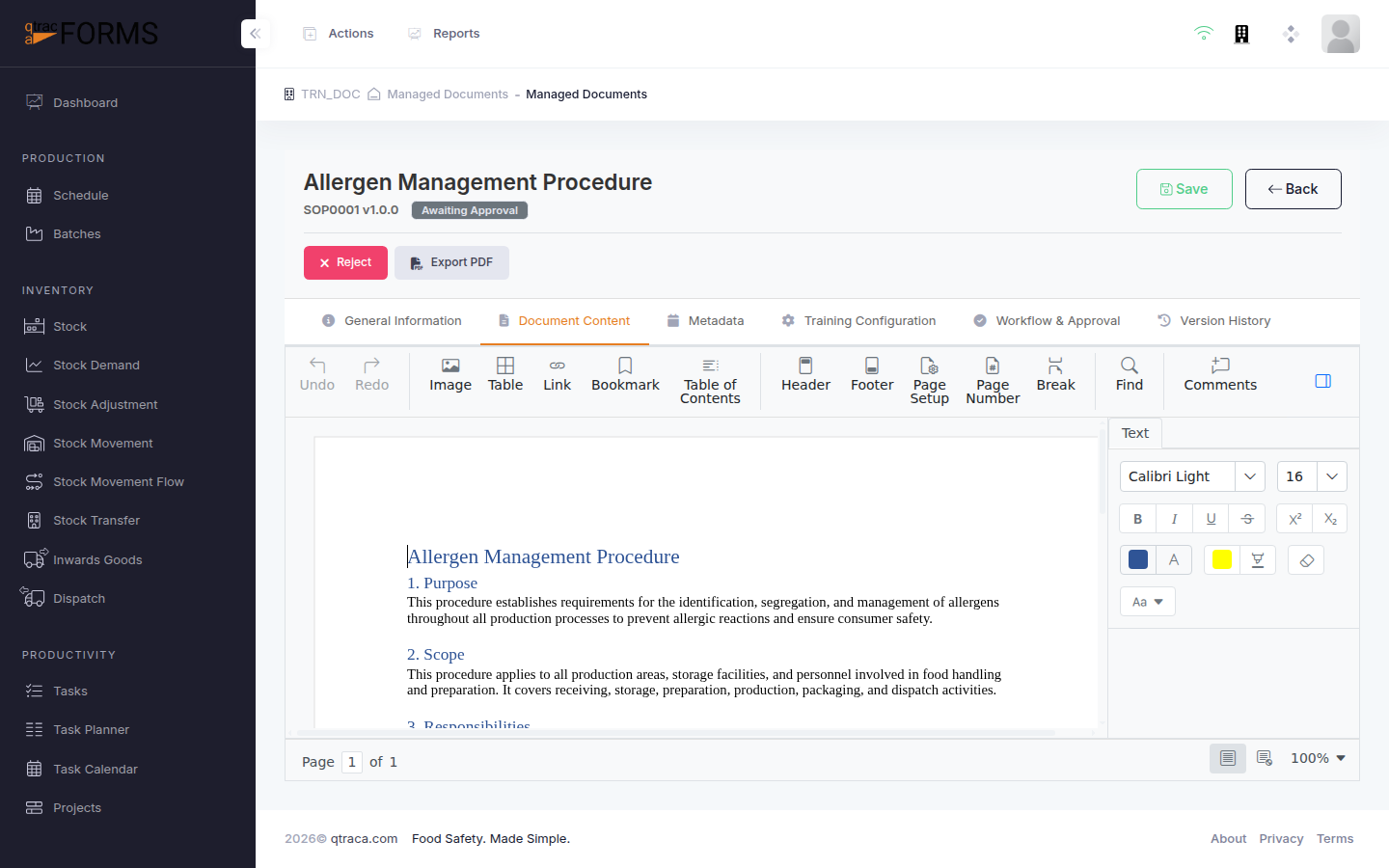
Toolbar Features
| Tool Group | Features |
|---|---|
| Text Formatting | Bold, Italic, Underline, Strikethrough, Font size, Font colour |
| Paragraph Styles | Heading 1-6, Normal text, Block quote |
| Lists | Numbered lists, Bullet lists, Multi-level lists |
| Tables | Insert table, Add/remove rows and columns, Cell formatting |
| Insert | Images, Links, Page breaks, Section breaks |
| Layout | Page margins, Orientation, Headers and footers |
Step-by-Step Instructions
Open any document in Editing status by clicking the edit icon (pencil) in the document list.
Click the Document Content tab to open the editor.
Start typing your content. Use the toolbar to apply formatting:
- Select text and click a formatting button (Bold, Italic, etc.)
- Use the paragraph style dropdown to apply headings
- Click the table icon to insert a table
The editor auto-saves your changes. You can also click the Save button in the toolbar to manually save at any time.
Tip: Use Heading styles (Heading 1, Heading 2, etc.) to structure your document. This creates a clear hierarchy and makes the document easier to navigate, especially when exported as PDF.
Note: The document editor is only available when the document is in Editing status. Published documents must have a new version created before content can be modified.