
Overview
Create a new document from scratch by selecting a category, entering the title and details, then writing content in the built-in document editor. This is the standard method for creating SOPs, policies, forms, and other controlled documents.
Navigation:
Step-by-Step Instructions
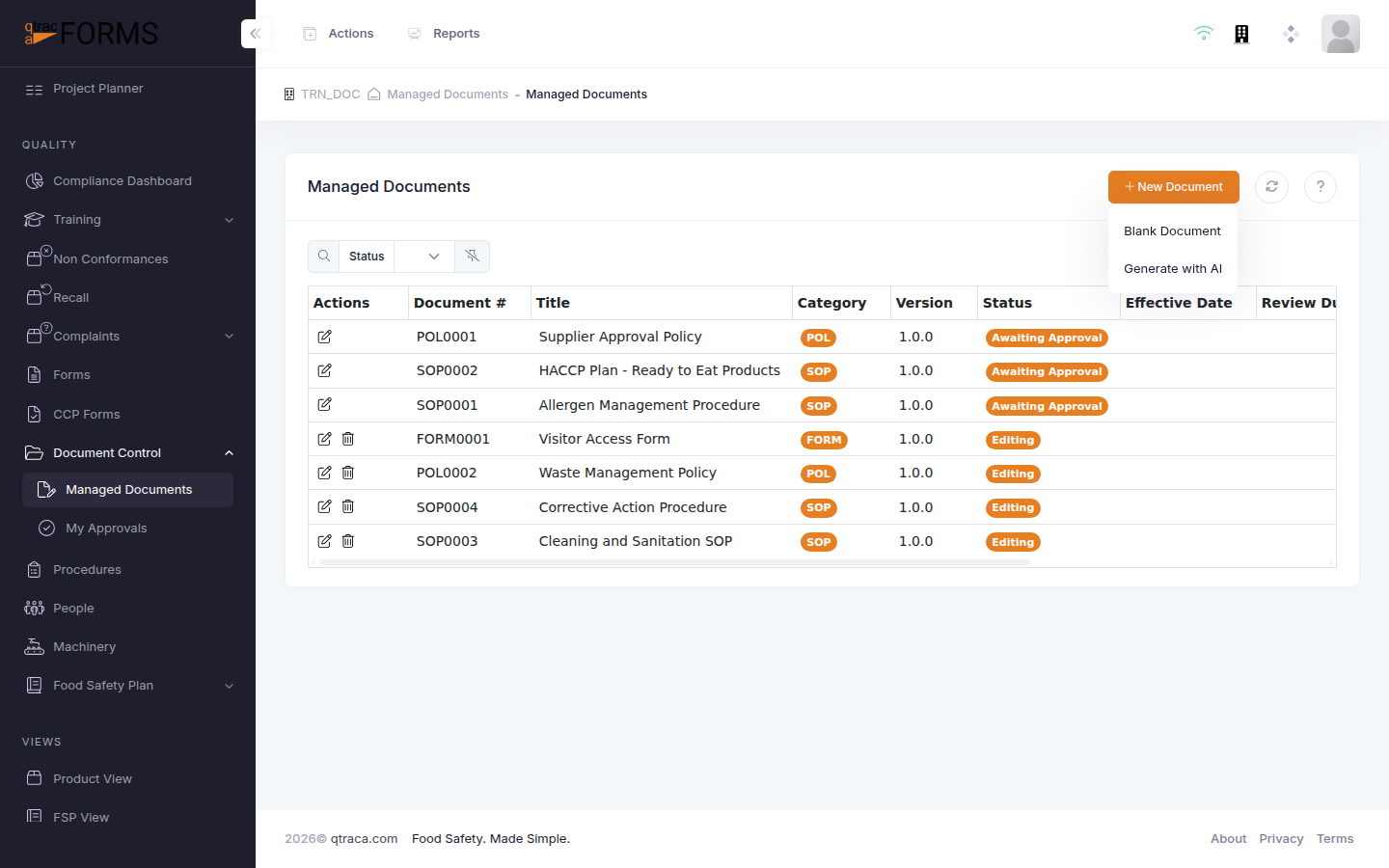
Navigate to Managed Documents and click the + New Document button, then select Blank Document.
You will be taken to the document detail page with the General Information tab active. Fill in the required fields:
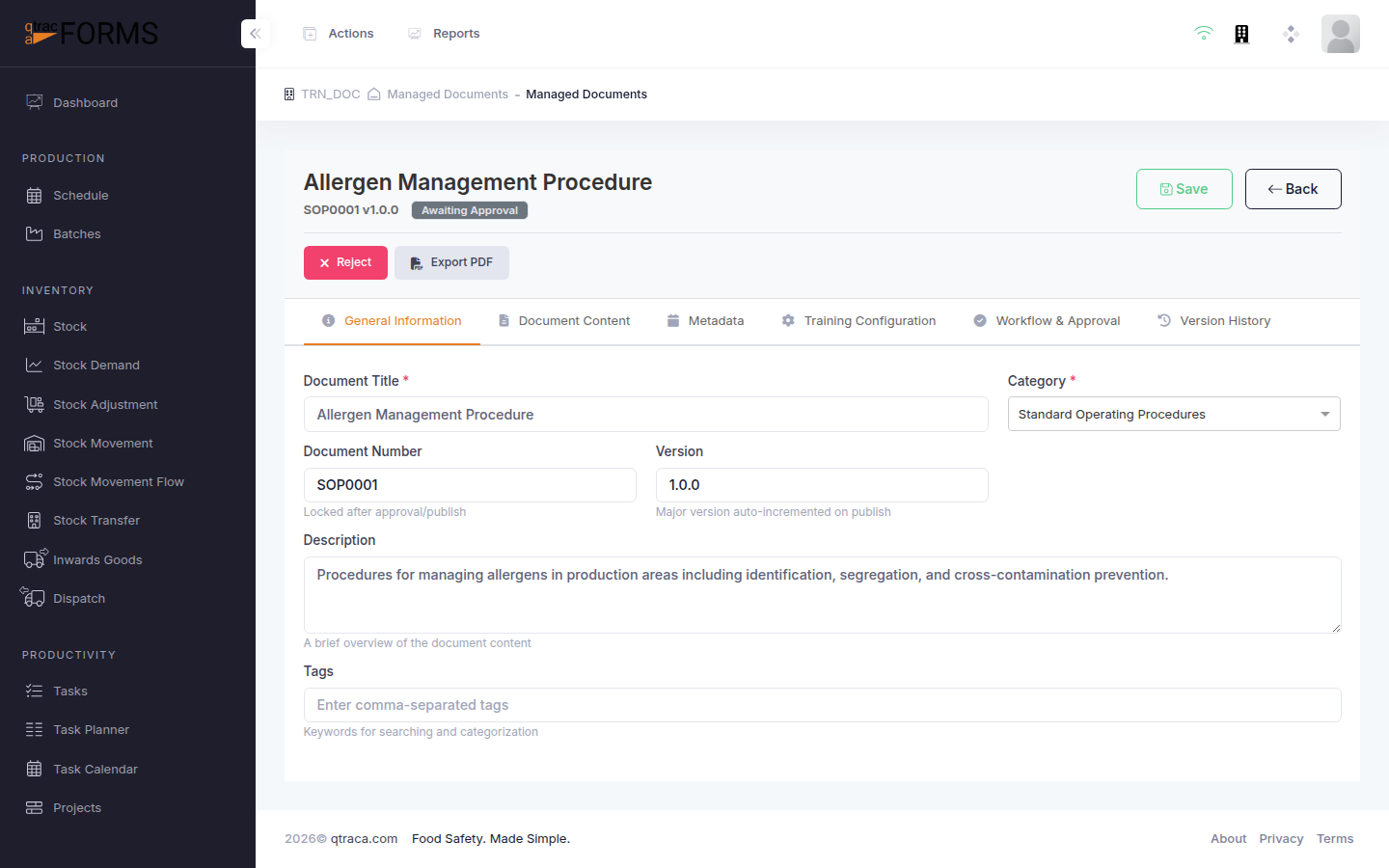
Field Description Required Title The document name — be descriptive and consistent with your naming conventions Yes Category Select the document category (SOP, POL, FORM, etc.). This determines the document number prefix. Yes Description A brief summary of the document's purpose and scope No Language The document language Yes The Document # is automatically generated based on the category prefix and the next available sequence number (e.g., SOP0005).
Click Save to create the document. The document will be created in Editing status.
After saving, you can navigate to the Document Content tab to start writing (see Using the Document Editor).