
Once in the Chirpstack console on your Gateway perform the following steps to add a new device.
Go to Tenant --> Applications and then click on the name of your application.
When on the 'Devices' tab click on 'Add device'.
Enter a name and description to identify the device.
Enter the Device EUI --> The DEV EUI field on your registration sticker, or from device in QTRACA.
Enter the Join EUI --> The APP EUI field on your registration sticker, or from device in QTRACA .
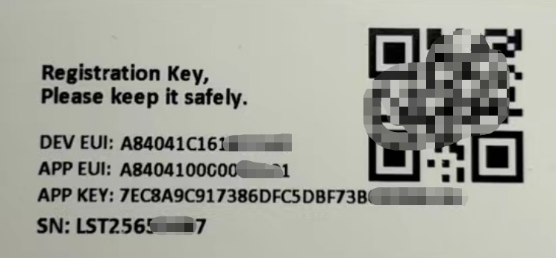
| TIP: Scan the QR code and you will get the text for Serial Number, DEV EUI, APP EUI, APP KEY. Copy and paste this text into the required places. |
Select a device profile for the device.
Click 'Submit' to save the device.
You will now be prompted to enter the Application Key.
Enter the APP KEY from your registration sticker, or from device in QTRACA, in the Application Key field.
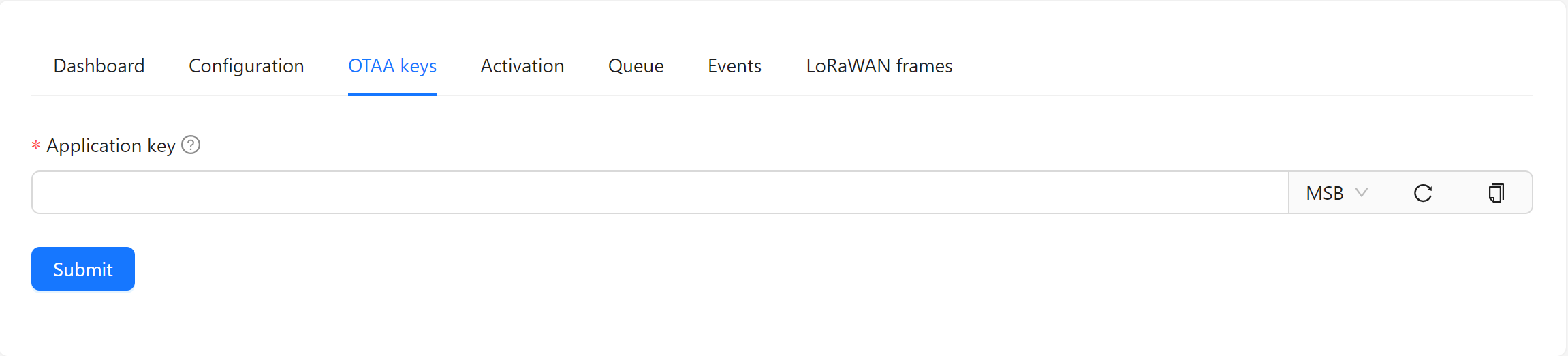
Click 'Submit' to save the application key.
Your device should now join the gateway and starting sending readings to QTRACA.
To verify your device has connected to gateway you can view the 'Last Seen' date from the devices list. If it says 'Never' then device has not connected successfully. Most likely cause is that either your DEV EUI, JOIN EUI, or Application key were keyed in incorrectly.