
Connect to the LPS8V2
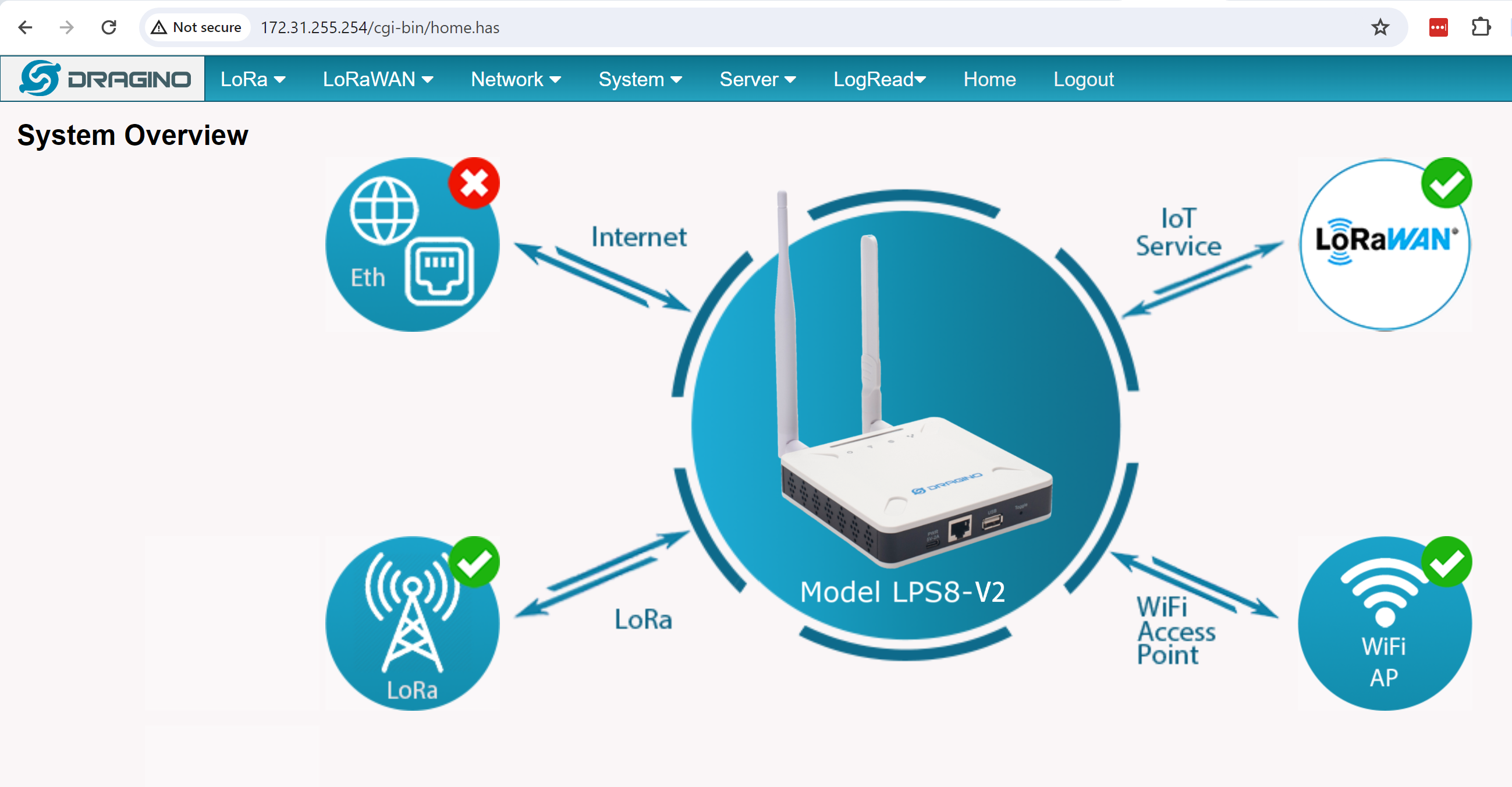
Open a browser on the PC and type the LPS8-V2 ip address (depends on your connect method)
http://IP_ADDRESS or http://172.31.255.254 (Fallback IP)
You will see the login interface of LPS8-V2 as shown below.
The account details for Web Login are:
User Name: root
Password: dragino
Setup LPS8V2
Connect gateway to the internet.
- Use WAN port to access Internet
By default, the LPS8-V2 is set to use the WAN port to connect to an upstream network. When you connect the LPS8-V2's WAN port to an upstream router, LPS8-V2 will get an IP address from the router and have Internet access via the upstream router.
2. Access the Internet as a Wi-Fi Client
In the Wi-Fi Client Mode, LPS8-V2 acts as a Wi-Fi client and gets DHCP from an upstream router via Wi-Fi .
The settings for Wi-Fi Client is under page Network --> Wi-Fi
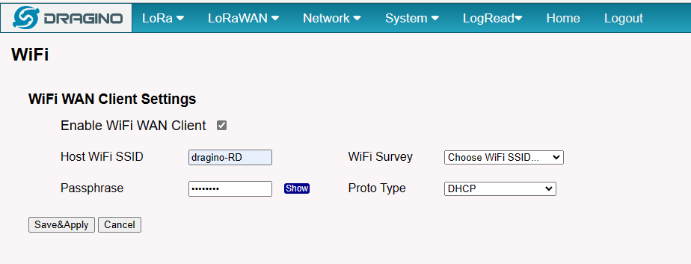
In the Wi-Fi Survey Choose the Wi-Fi AP, and input the Passphrase then click Save & Apply to connect.
Once you have setup your preferred connection check the internet status in the home page:
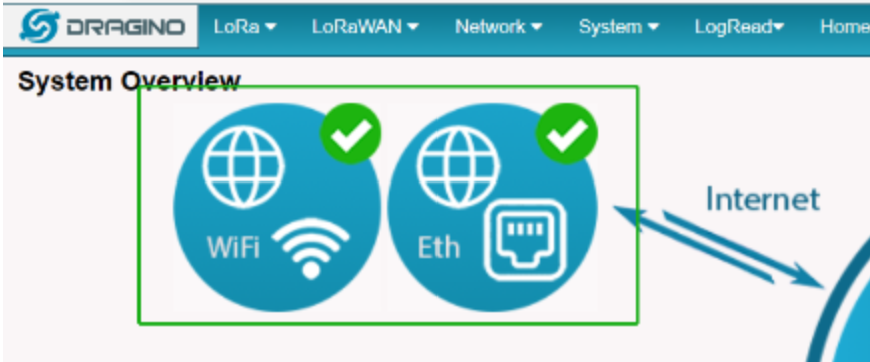
There should be a green tick if it has connected successfully.
Setup LoRa Network
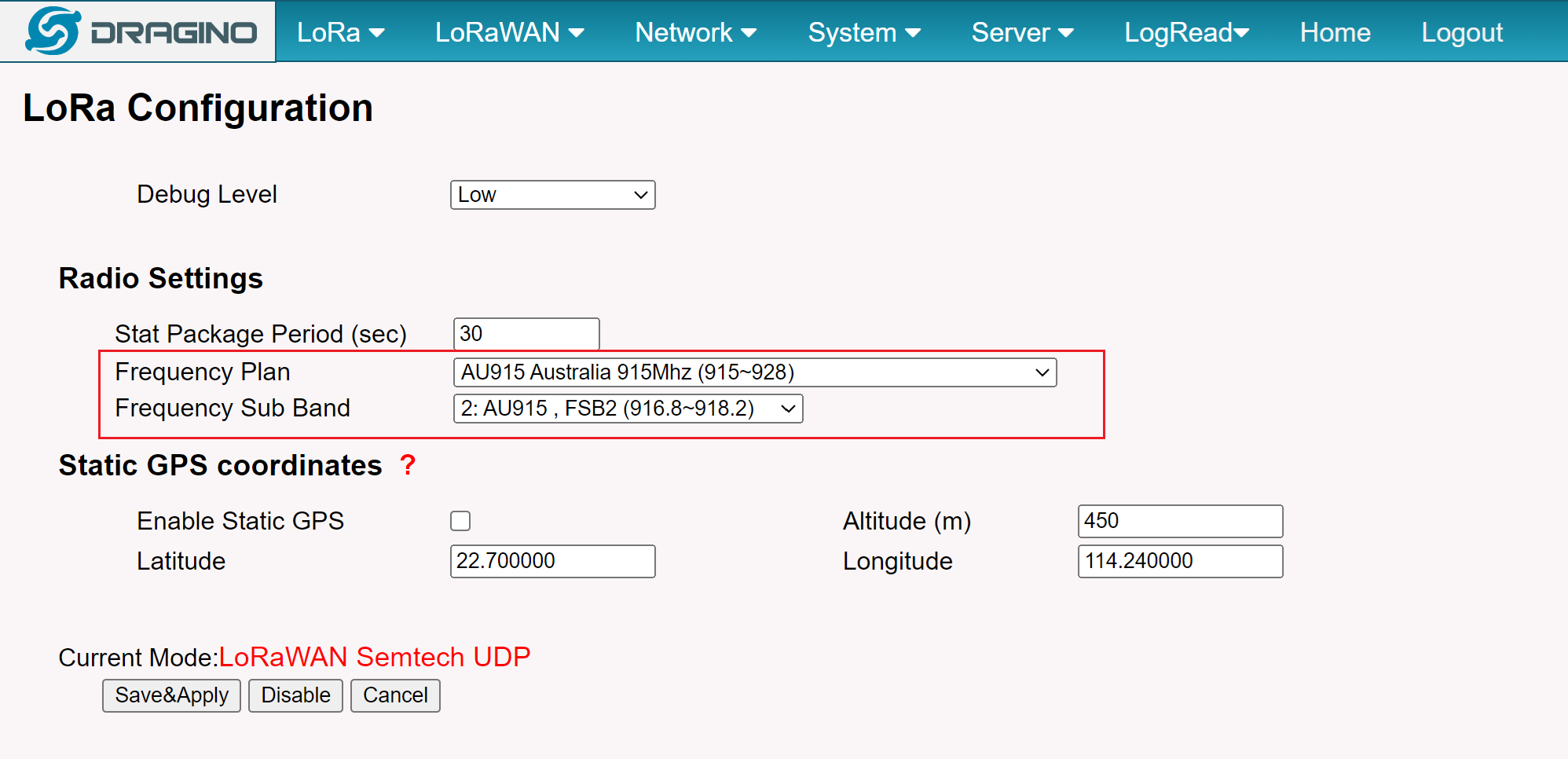
Go to the LoRa --> LoRa page.
Select frequency Plan and and Frequency Sub Plan.
For example, If your region is Australia/New Zealand choose AU915 for the frequency plan, and 2: AU915, FSB2 for the frequency sub band.
Click 'Save&Apply'.
Setup LoRaWAN Semtech UDP
Go to the LoRaWAN --> LoRaWAN Semtech UDP page.
Select the primary LoRaWAN server to be 'Local Host/Built-in Server'.

Click 'Save&Apply'.
Network Server
Go to Server --> Network Server page.
Tick the 'Enable' tick box.
Set the Frequency Plan and Frequency Sub Band
For example, if you are in Australia/New Zealand choose AU915 as the frequency plan, and au915_1 as the frequency sub band.
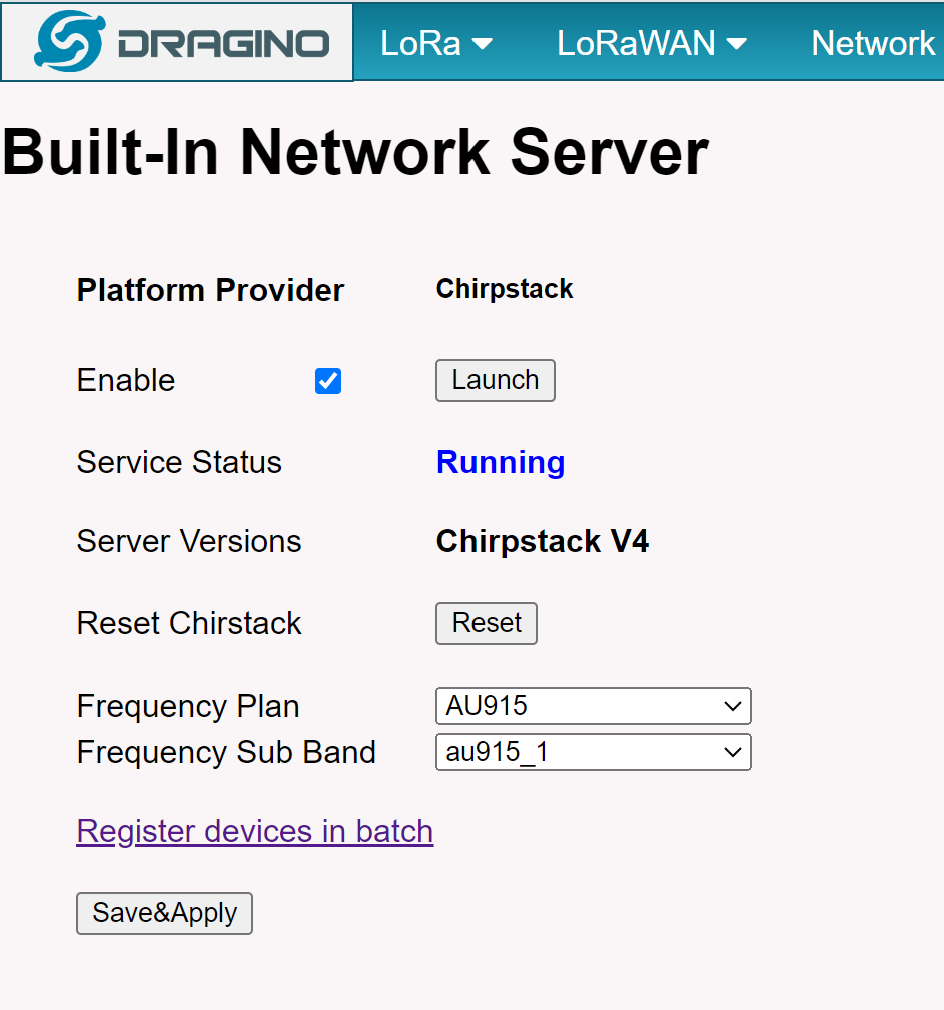
Click 'Save&Apply'.
Full documentation can be found here: LPS8v2
| TIP: After setting up gateway it is recommended you complete these network stability tasks as well: https://qtraca.freshdesk.com/en/support/solutions/articles/47001286927-lps8v2-network-stability-setup-guide |