
To connect to the gateway you can either use an ethernet cable or connect by Wi-Fi.
Cable to Router (Recommended)
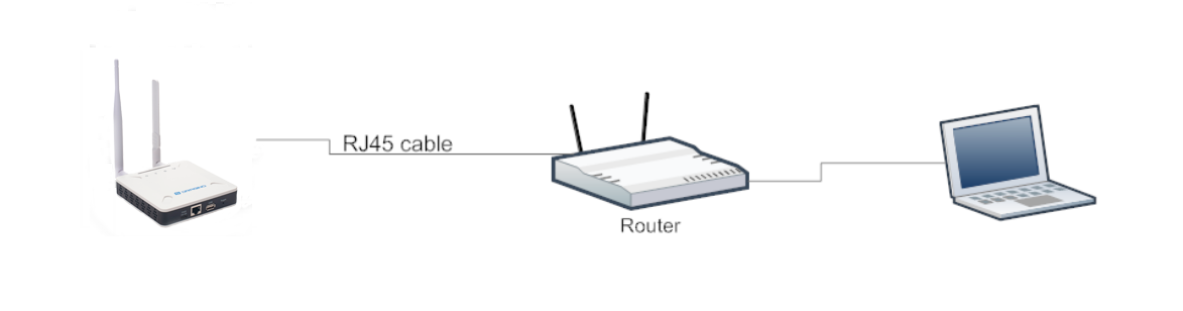
Connect the LPS8-V2 Ethernet port to your router and LPS8-V2 can obtain an IP address from your router. In the router's management portal, you should be able to find what IP address the router has assigned to the LPS8-V2.
Troubleshooting Tip: If your router doesn't display the IP address of the gateway then connect by the Wi-Fi method below, and once connected you will be able to hover over the ethernet connection and see the IP address of the gateway.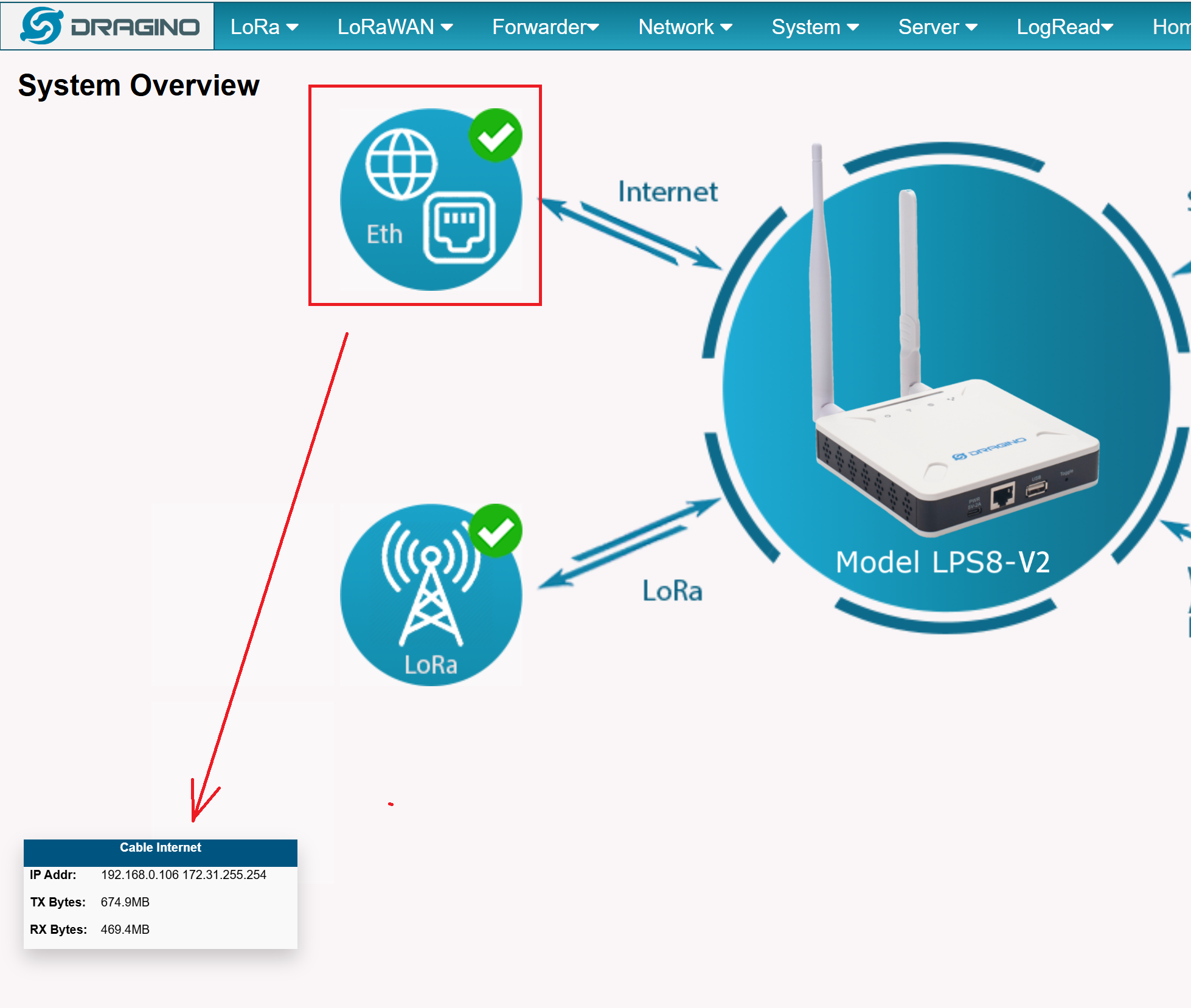 |
Cable to PC
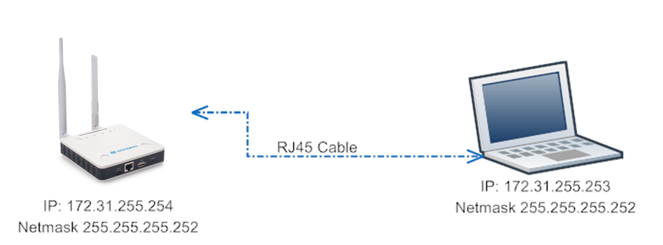
Steps to connect via fallback IP:
1. Connect the PC's Ethernet port to LPS8-V2's WAN port
2. Configure PC's Ethernet port has IP: 172.31.255.253 and Netmask: 255.255.255.252
Settings --> Network & Internet --> Ethernet --> Change advanced sharing options --> Double-click"Ethernet" --> Internet Protocol Version 4 (TCP/IPv4)
As in the below photo:
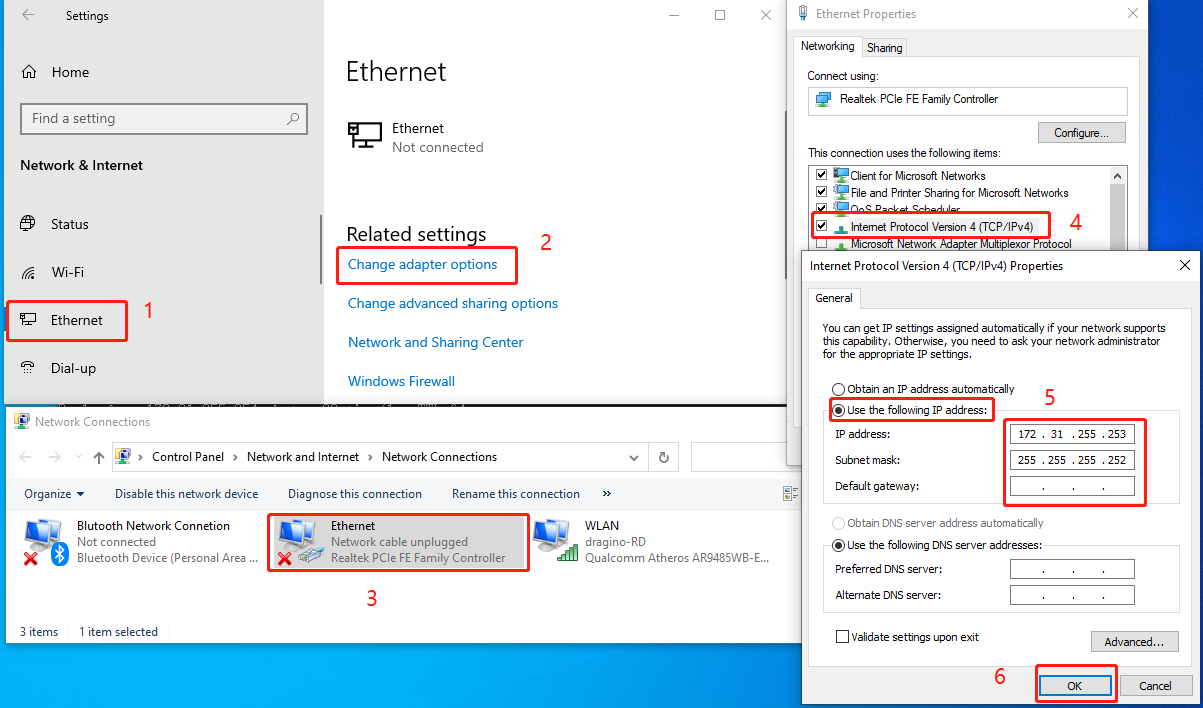
Configure computer Ethernet port steps video: fallback ip.mp4
If you still can't access the LPS8-V2 fallback ip, follow this connection to debug : Trouble Shooting
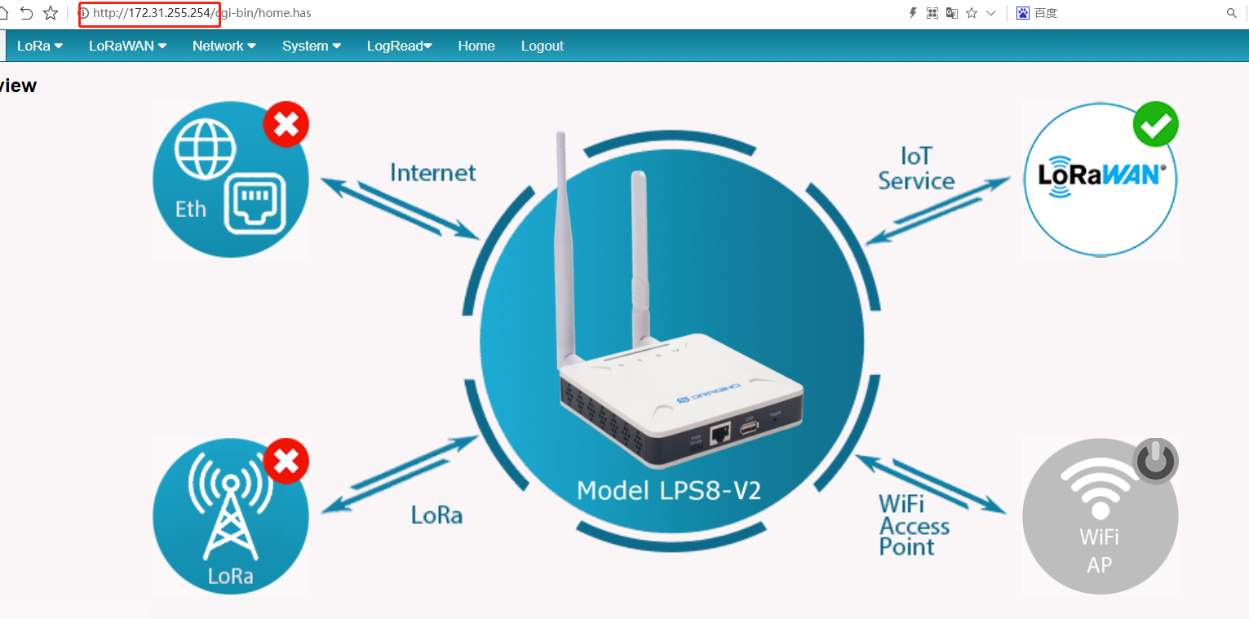
3. In the PC, use IP address 172.31.255.254 to access the LPS8-V2 via Web or Console.
Wi-Fi
At the first boot of LPS8-V2, it will auto generate a Wi-Fi network called dragino-xxxxxx with password:
dragino+dragino
User can use a PC to connect to this Wi-Fi network.
The PC will get an IP address 10.130.1.xxx and the LPS8-V2 has the default IP 10.130.1.1
Full documentation can be found here: LPS8v2