
If you wish operators to be able to login using a pin code to the simplified operator screen then you can setup a device and register the user with this device.
To setup a device perform the following steps:
- Go to User Management --> Devices
- Click on 'New Device' button to add a new device
- Enter a name and description for the device
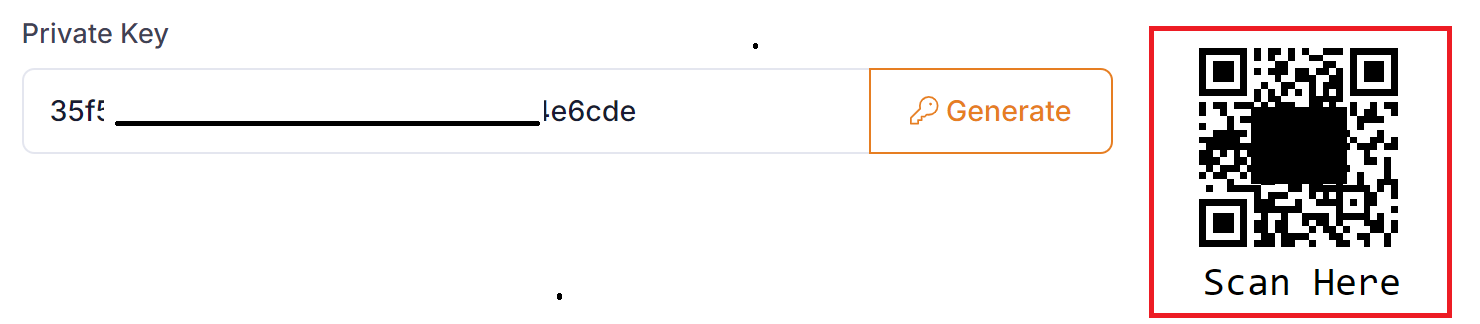
- Generate a new private key by clicking on the 'Key' button
- Click on 'Save' to save the device

Once the device has been added you must assign users to the device. To do this perform the following steps:
- Click on the 'New User' button to add a new user
- Select the user from the dropdown list
- Enter a unique pin-code for the user. Pin-codes must be unique per device
- Click the 'Active' checkbox to make the user active
- Click on the 'Save' button to save the user to the device
If you wish to make a user in-active on the device you can update the 'Active' flag at any time.
Linking a device to QTRACA
Once the device has been setup in QTRACA, on the client side switch to the operator login screen. In order to login you must first setup the private key on the client as this will link the client device to the device in QTRACA,
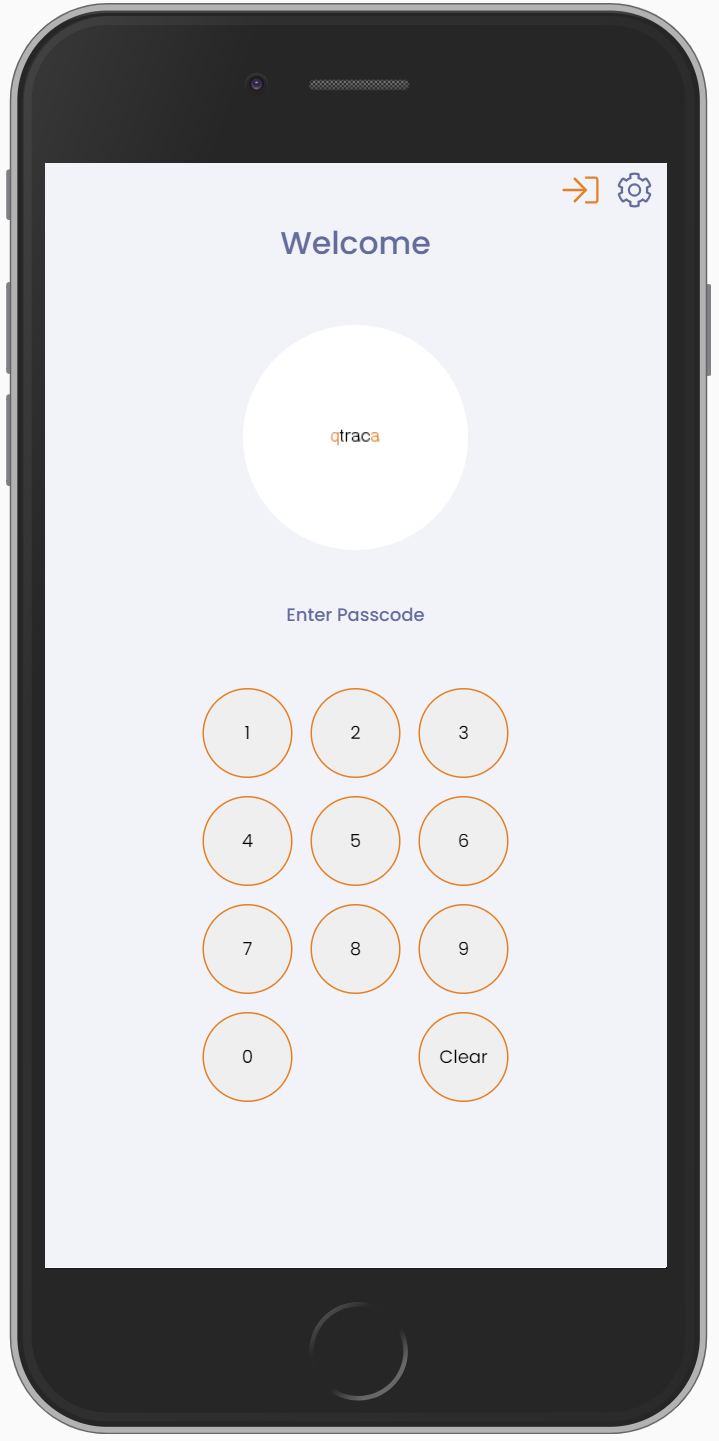
From the login screen click on the cog in the top right of the screen. Enter the device id's private key in the 'Device Id' field, and click on the 'Save' button. The private key can be scanned by clicking on the 'Scan' button, and then scanning the QR code in the device setup screen above.
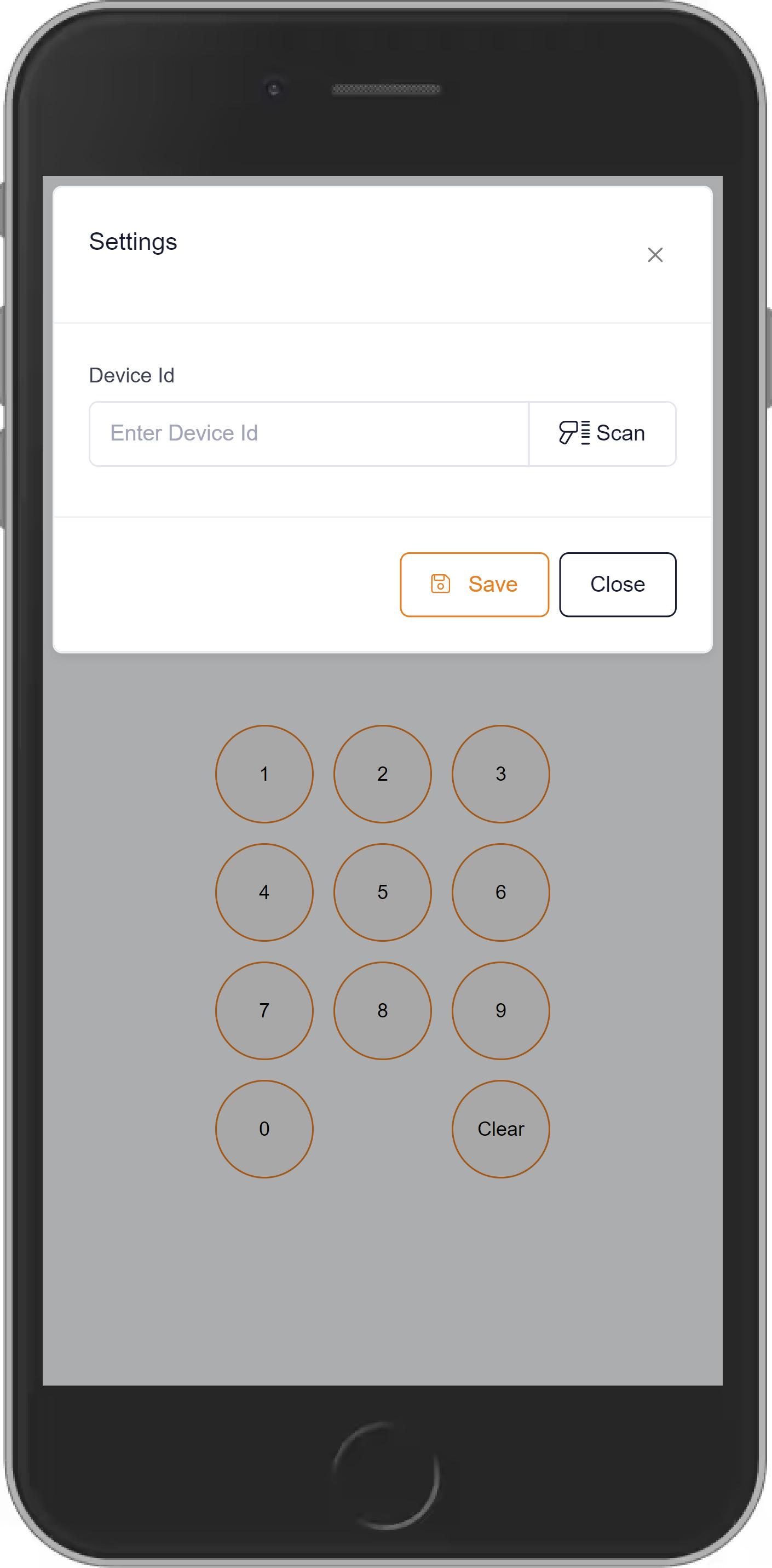
A user will now be able to login in by entering their pin-code.