
Suppliers are used to log raw materials during the receipt of goods, and when they are consumed during production.
When setting up a supplier you also record what raw materials they supply and how they are recorded into QTRACA, for example whether or not to record temperature when receipted.
To setup a supplier perform the following steps:
- Go to Setup ---> Suppliers
- Click the button 'New Supplier'
- On each tab perform the following setup. The detail tab must filled in and saved before you can move to the other tabs.

Details
The detail tab holds the base information for the supplier.
- Enter the name, contact, phone, and email for the supplier
- Save the supplier detail
Products
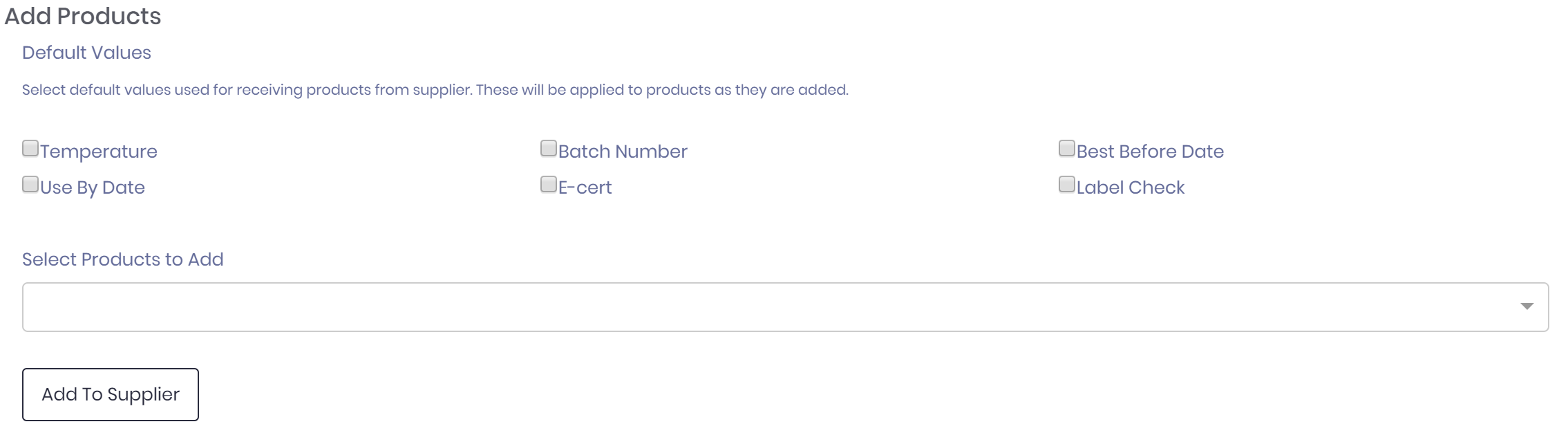
The add products section allows you to quickly add multiple products for the specified criteria. To add products:
- Select the default values to apply to the selected products. For example you might want to check temperature on arrival, collect an e-cert, and use best before date as the identifier to record product by. To do this you would check temperature, E-cert, and Best Before Date.
- Select one or more product you would like to apply the default values to
- Click the add to supplier button to add these products to the supplier
The products that exist against the supplier are displayed in the Current Supplier products section.
Once a product exists against the supplier you can edit or delete it. If you edit the product you can change the selection of your default values.
Care must be taken when you change any default values against a product as these values control how stock is receipts, stored, and then consumed in production. These should therefore not be changed once product has been received from the supplier.
Temperature
Selecting temperature for a product will mean the temperature will be prompted for during inwards goods receipt. When you edit the supplier product record you can also enter the minimum and maximum temperature range to receipt goods. If goods are receipted outside this range then the user will be warned.
| Also look at temperature approvals here: https://qtraca.freshdesk.com/en/support/solutions/articles/47001281343-approval-of-temperatures-on-a-line |
E-cert
Selecting e-cert for a product will mean the e-cert will be prompted for during inwards goods receipt.
Label Check
Selecting label check for a product will mean a check-box will be presented during the inwards goods receipt, and must be checked in order to post the goods.
Allergen Check
Selecting allergen check for a product will enable allergen checking for this product. See Here.
Packaging Check
Selecting packaging check for a product will mean a a user will be presented with the following options during receipt of product:
- Packaging clean and intact, product in good condition
- Minor defects; accept with warning
- Not acceptable; record reason and action in corrective action on header
If 'Not acceptable' is selected the line will not be posted.