
Raw materials are the products you use to create your finished goods. Raw materials will be linked to your supplier and recorded in your production batches in order to gain full traceability of product.
To setup a raw material perform the following steps:
- Go to Setup ---> Raw Materials
- Click the button 'New Raw Material'
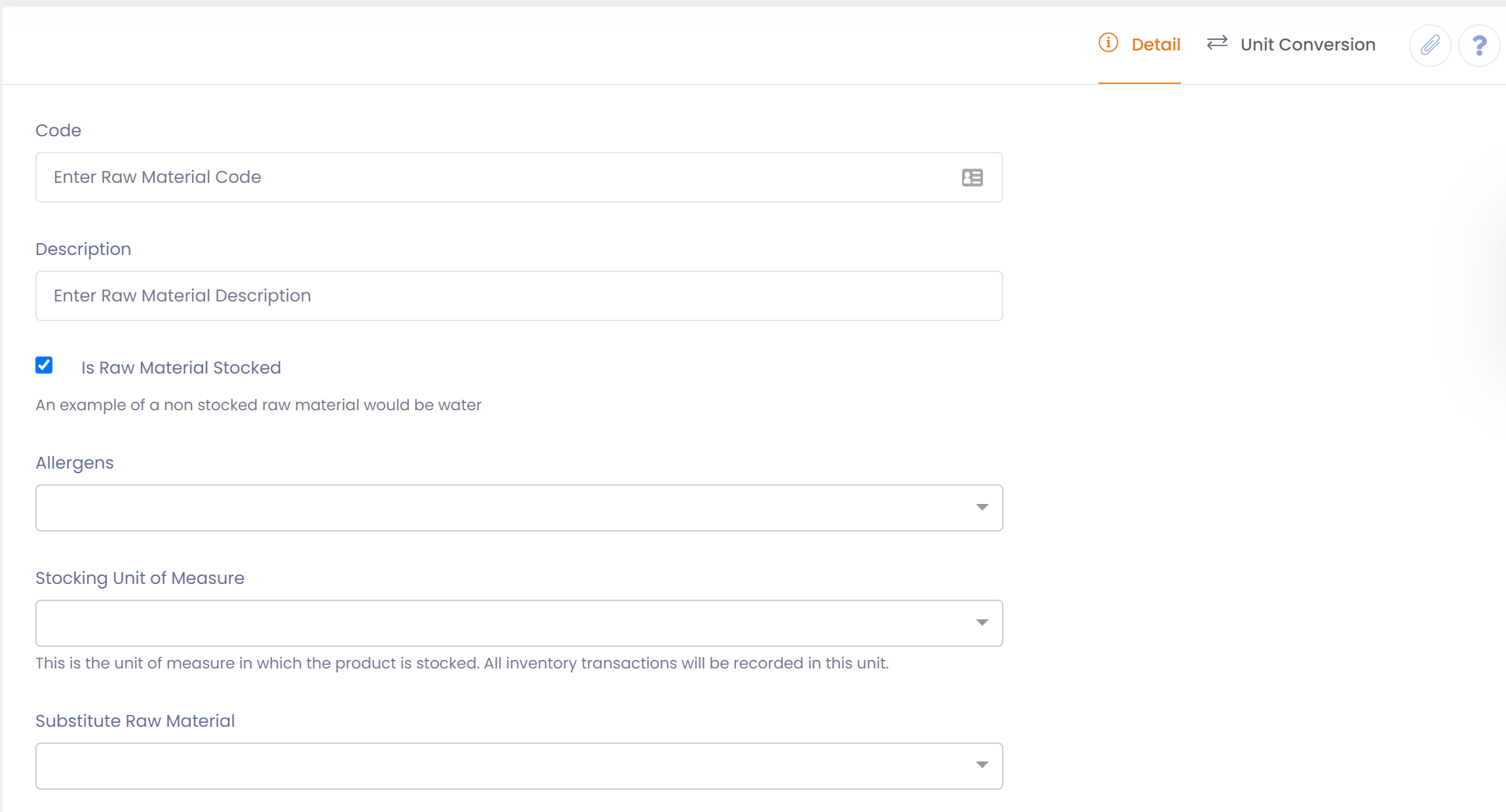
- Enter a unique code to identify the raw material, and a description
- Select whether the raw material is active or not. If raw material is not active it will not be selectable when creating a recipe.
- Specify whether the raw material is stocked. This will usually be the case but for some some raw materials such as water you don't stock. In this case water would be non-stocked and therefore not available to store or track inventory.
- Specify if you want to record any wastage on the ingredient when entering on batch.
- Specify the default unit of measure for inwards goods. If left blank a receipt will default to the stocking unit of measure.
- Enter the unit of measure that you will use to stock this raw material. Inventory transactions will be record in this unit.
- Enter a cost for reporting purposes
- If this raw material can be substituted with another raw material select it here (See assigning batch ingredients for more detail). Note: If you need to substitute by recipe or have more than one substitute ingredient then you can specify the substitute on the WIP/FG recipe rather than here.
- Determine whether the product is allowed a variable quantity when entering quantity on a batch. If it is not variable then the quantity on the recipe must be entered on the batch
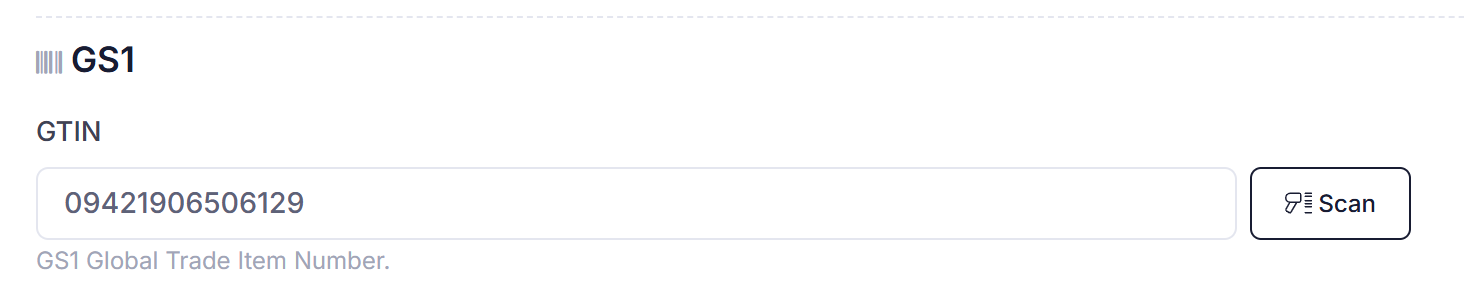
- If using barcode scanning enter or scan a GS1 GTIN here to use during inwards goods receipting.
- Save the raw material
Allergens
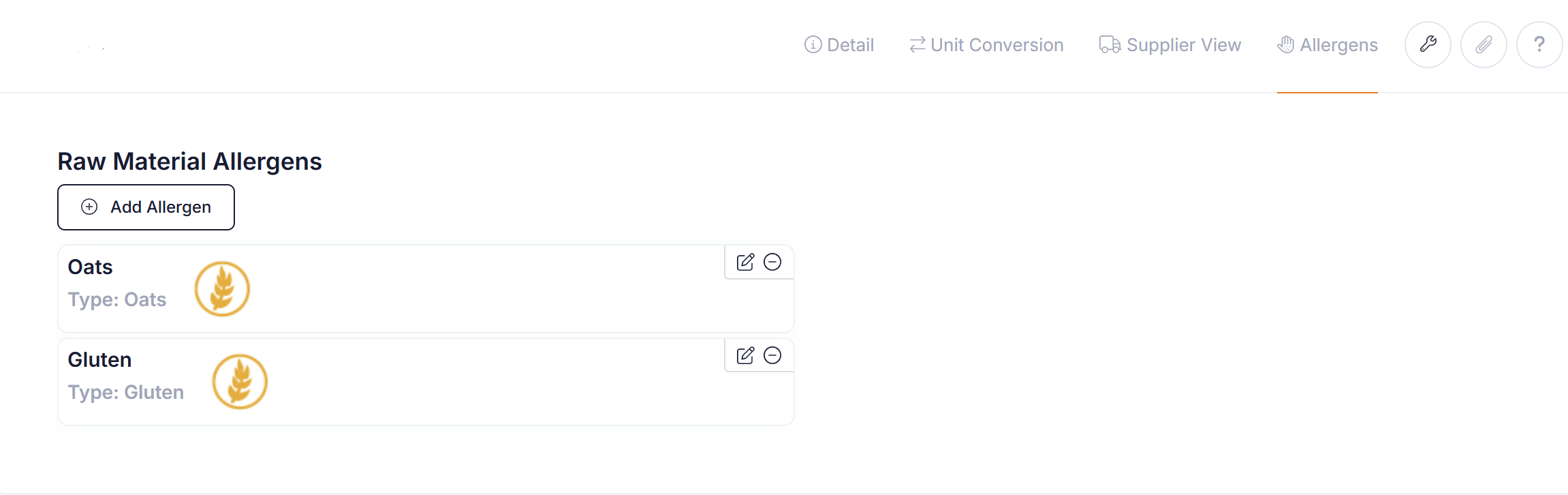
If this raw material contains allergens then add one or more allergens here. These will be highlighted to operators during the production phase, and used for allergen checking during inwards good receipting.
| Allergens can be setup in Setup --> Allergens |
Unit Conversion
If you wish to receipt (Inwards Goods) the raw material into the system in a different unit of measure to that being stocked you may click on the 'Unit Conversion' tab and then add a unit conversion.
- Click the 'Add Unit Conversion' button.
- A unit conversion will be created with default unit of measures.
- Edit this newly created unit conversion and change the unit of measures to that required.
- Enter the conversion factor,
- 'Save' the unit conversion.
Tip: You should always try and enter the unit conversion as a whole number. you can do this by using the switch button to the from and to unit of measures if required.
For example if you have 12 bottles in a case you want to enter a conversion that gives 1 case = 12 bottles, having a conversion factor of 12, rather than 1 bottle = 0.08333 cases, having a conversion factor of 0.08333.
| Once a raw material has been added it should be allocated to one or more suppliers. |