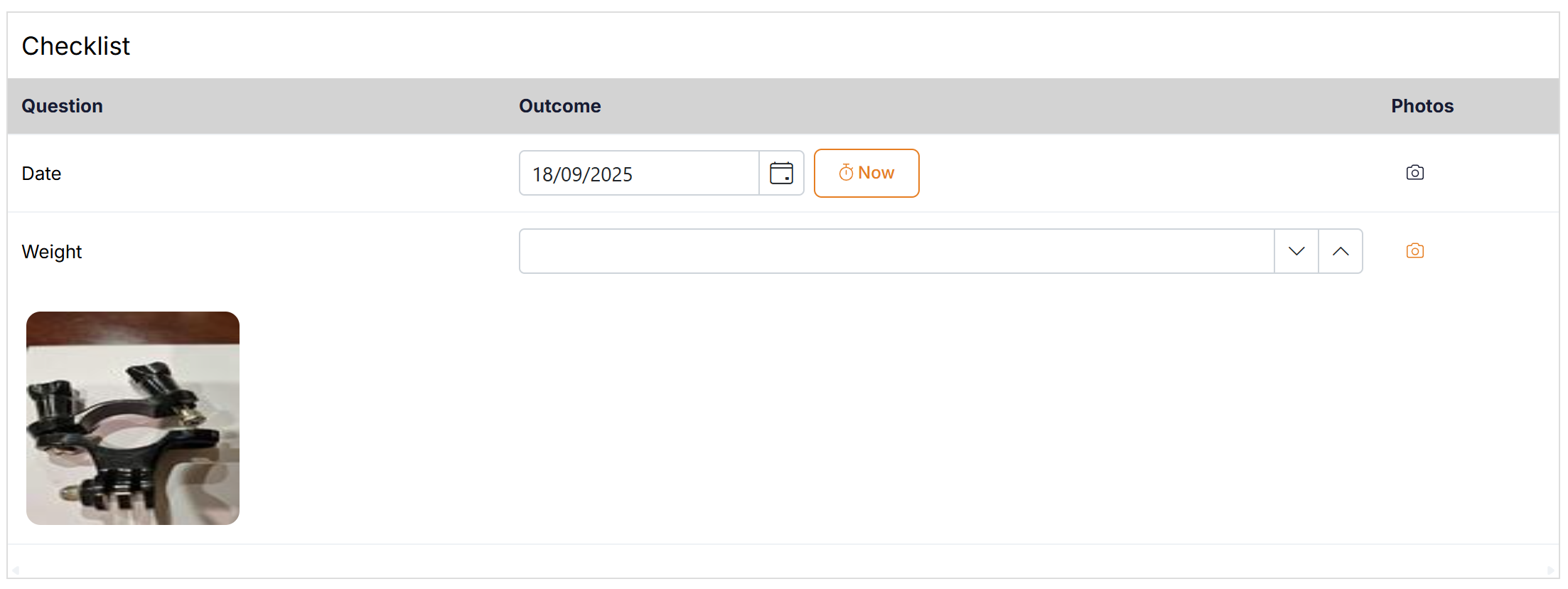
A checklist component lets you create a list of questions and answers in a single column. The main difference between a checklist and a table is that a checklist can have different data types within a column where as a table column must be of the same data type.
For example a checklist could have one row asking for a number and the next row asking for a date.
QTRACA checklists can now score themselves in two different modes, flag individual options as critical findings, and surface the result with colour bands, a critical count, and an Entered / Not Entered status badge on the checklist accordion. This page covers when to use each option, how to configure it in the Form Template editor, and how the scores are read on a completed form.
Where to find it: Form template editor → drop or open a Checklist field → expand its options panel.
Who can use it: Anyone who can build or edit a Form Template. End users see the new score display automatically on any form built with these settings.
Setting up a Checklist
Select the 'Checklist' option to add the checklist on to form canvas.
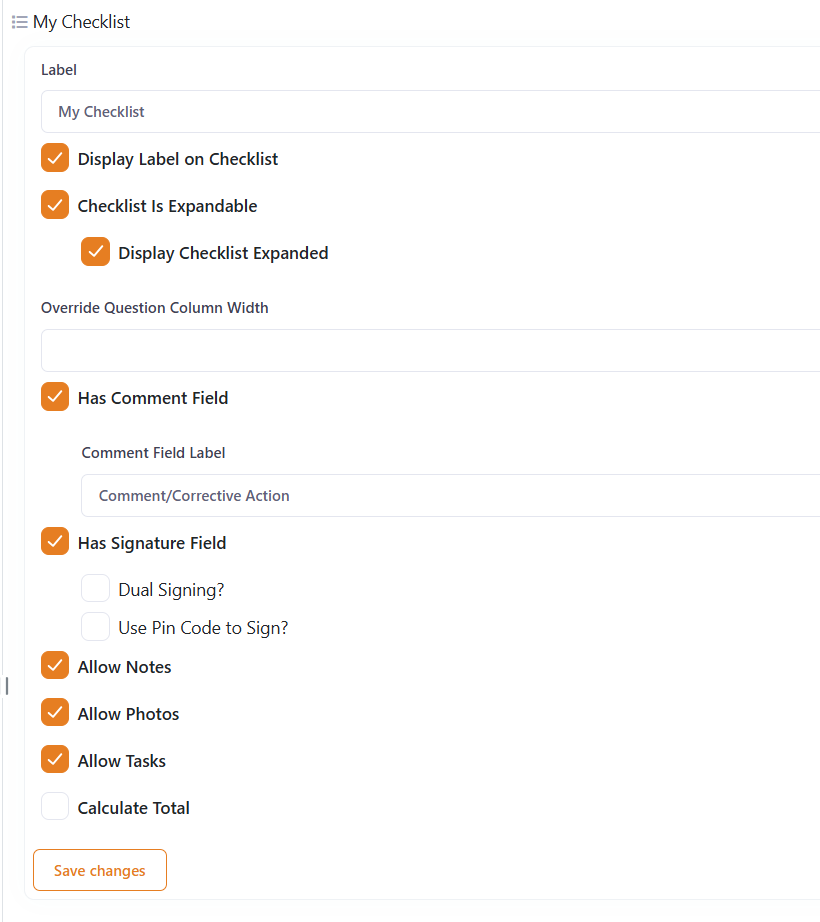
Click on the Checklist and assign the required properties:
- Label your Checklist
- Select whether you wish to display label for checklist when viewing form.
- Select whether you would like to be able to minimize and expand the checklist in the form view.
- If checklist is expandable select whether it should expanded by default.
- Set a custom width for your question column if required
- Select whether you require a comment field.
- Specify comment label if using a comment.
- Specify whether you require this question to be signed.
- If signature required you can have dual signatures
- It is recommended a user use their assigned pin code to sign.
- Turn on Notes for question if required.
- Turn on Photos for question if required.
- Turn on Tasks for question if required.
- Specify whether to display a total score if scoring components used in checklist.
- If calculating total score you will need to enter a number for the total possible score and whether or not the percentage score should also be calculated.
What's new
| Feature | Where you configure it | Where you see it |
|---|---|---|
| Scoring Mode (sum or deduct) | Checklist properties → Scoring Mode dropdown | Checklist score and Checklist Summary field |
| Critical findings | Score field options → Critical finding checkbox | Checklist Summary "Critical" tile |
| Colour bands | Automatic (90 / 75 / 50 %) | Checklist Summary value and progress bar |
| Entered status | Automatic | Expandable-checklist accordion header |
| Inline progress bar | Automatic when Total + Calculate Total enabled | Expandable-checklist accordion header |
All of these are opt-in or automatic — existing checklists that don't change any settings continue to behave exactly as before.
Scoring modes
A checklist field has a new property called Scoring Mode with two choices.
Sum scores (higher scores are better) — default
This is the original behaviour and is selected for every checklist by default. The score starts at 0 and goes up as the user picks options whose sort-order is positive.
- Example: a quality checklist where Excellent = 10, Good = 5, Poor = 1. Selecting Excellent on three rows produces a score of 30, plus whatever you set as the Total Possible.
Use this for surveys, quality assessments, or any case where each row contributes points toward a target.
Deduct from total (lower scores are better)
Select this for checklists where each row starts "perfect" and the user deducts points by recording problems.
- The score begins at the Total Possible value you set on the checklist.
- Each selected option whose sort-order is positive is subtracted from the score.
- The score is floored at zero — it will never go negative even if deductions exceed the starting total.
Typical uses: food-safety audits, vehicle inspections, hygiene inspections — anywhere "no findings = perfect score" is the right semantic.
How to switch modes
- Open the form template in the builder.
- Click a Checklist field to open its properties panel.
- Tick Calculate Total and enter a Total Possible Score.
- From the Scoring Mode dropdown, choose Sum scores or Deduct from total.
The dropdown only appears when Calculate Total is enabled. Existing templates that don't have a scoring mode saved default to Sum scores the next time they're opened, so nothing changes for old forms.
Mixing modes is fine. You can have several checklists in the same template, some in sum mode and some in deduct mode. Each one is calculated independently. The Checklist Summary field totals them all together.
Critical findings
A Critical finding is an individual score option you've marked as severe — for example Major Non-Conformance, Critical Failure or Reject. When a user selects a critical option on any row, the Checklist Summary field displays a Critical count tile.
Marking an option as critical
The Critical finding checkbox is added next to each option on Score fields:

- Inside a checklist, open the Score column you use for the row outcome.
- For each option that should count as a critical finding, tick Critical finding.
- Save the template.
This checkbox is only shown on Score fields. Dropdowns, radio groups, multi-select fields, and any other field type are unchanged — the option editor for those looks identical to before.
How it counts
Every selected option flagged as critical adds 1 to the critical counter on that form. The counter is independent of the scoring mode — if you select the same critical option on three rows, the count is 3.
The critical count appears in the Checklist Summary field (whenever it is > 0) and is always displayed in red, regardless of the overall score band.
Reading the score
Colour bands
The Checklist Summary value and progress bar are coloured by the overall percentage:
| Band | Range |
|---|---|
| Green | 90 % – 100 % |
| Yellow | 75 % – 89 % |
| Orange | 50 % – 74 % |
| Red | 0 % – 49 % |
Thresholds are fixed — they're not configurable per-template in this release.
Enhanced UI layout
When the user is filling in a form, the summary tile group looks like this (with the Critical tile only present when there's at least one critical selection):

Without a critical, the layout collapses back to three tiles (Label, Score, Tasks) and all four still fit on one row when a critical appears.
Expandable checklists
If a checklist has Expandable turned on, the accordion header now shows:

- The progress bar + score (only when Calculate Total is on) gives a quick read on whether the section is complete without having to expand it.
- The Entered / Not Entered pill is green when every non-readonly row has a value and red otherwise. This makes it easy to spot incomplete sections while the accordion is collapsed.
The pill always sits in the same place on the right, regardless of whether the score badge or label is visible.
Behaviour notes
- N/A handling is unchanged. Score options with a negative sort-order still reduce the "out of" total by 1 per selection (in both sum and deduct modes). Use this for "Not Applicable" choices that shouldn't count for or against the score.
- Deduct mode starts at full. A brand-new deduct-mode checklist with a total of 10 shows 10/10 before any selection is made. This reflects the deduct semantic — you start perfect, deductions are recorded as problems are found. Sum mode still starts at 0/10.
- Zero floor. In deduct mode, if total deductions exceed the starting total, the score caps at 0. It will not go negative.
- The stored score string is unchanged. The value persisted to the form record is still the familiar
"X/Y (Z%)"text, so existing reports, FormSummary aggregation, exports and CSV downloads keep working without modification. - No template migration needed. Existing checklists work as before — they're treated as Sum mode with no critical findings. You only see new behaviour where you've turned the new settings on.
Tips & FAQs
Which mode should I pick?
- Sum when each row earns points toward a target — surveys, quizzes, quality assessments.
- Deduct when each row starts perfect and findings deduct points — audits, inspections, compliance walk-throughs.
Can I change the mode after a form has been filled in? You can change the mode on the template, but it won't retroactively change forms that have already been submitted — those keep the score string that was recorded at submission time. New submissions of the updated template will use the new mode.
Can the colour-band thresholds be changed per template? Not in this release. The thresholds are fixed at 90 / 75 / 50 %. If you need different thresholds for a specific use case, let us know via support.
Why doesn't the Critical finding checkbox show on my radio / dropdown / select field? By design — critical findings are a concept on Score fields only. If you want a radio or dropdown choice to be treated as critical for scoring purposes, put it inside a Score column on a checklist.
My existing deduct-mode checklist suddenly shows 10/10 instead of 0/10 when it's empty. Is that a bug? No — that's the new (correct) deduct behaviour. The checklist now reports "no deductions have been made" rather than "no points have been earned". The inline checklist score and the Checklist Summary field both agree on this initial state.
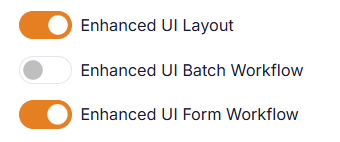
Make Sure Enhanced UI is turned on. To get the full UI experience make sure Enhanced Form UI Workflow is switched on in Account Settings.