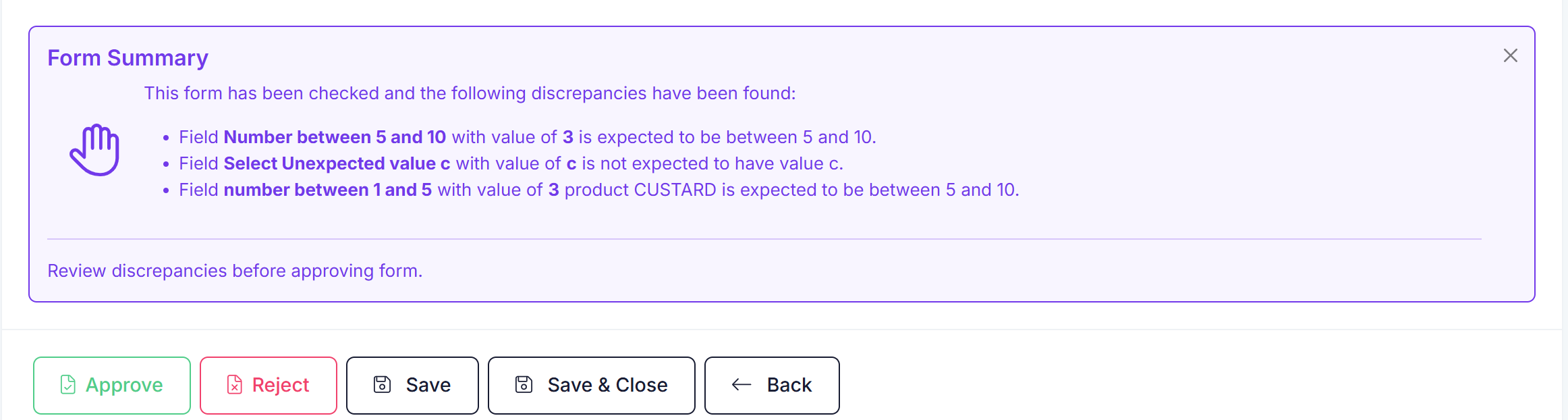
The QA Check function on forms allows you to provide the expected results on a form, and alert you when a form has values outside of the expected results,
QA Check Settings
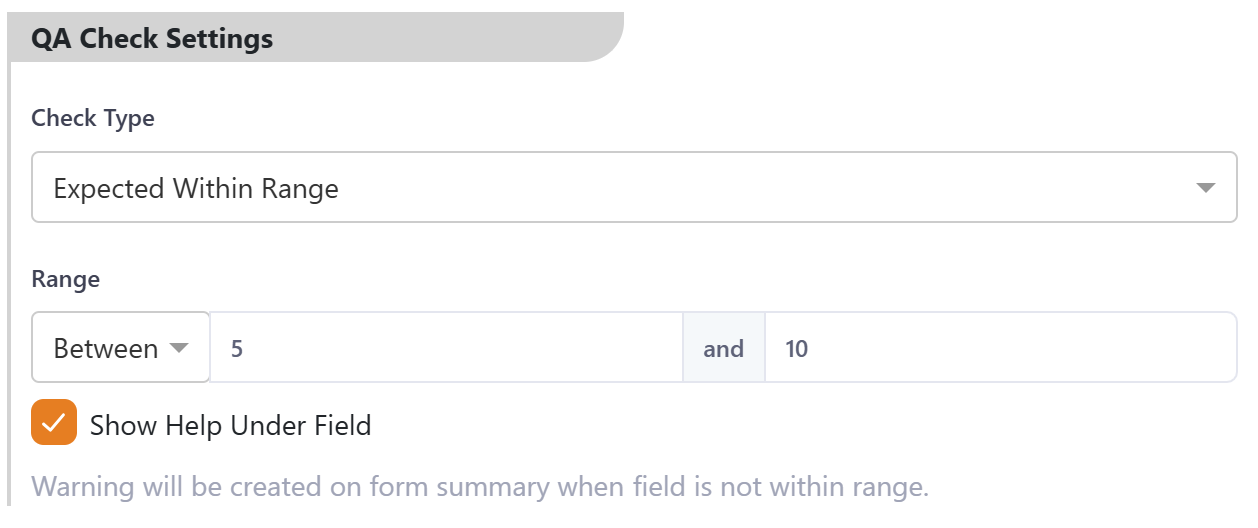
If QA Check is available on a form component then you will be able to apply the following to the field:
Text Fields
Check Types
- Not Checked
- Expected Empty
- The field is expected to be empty, if filled out then will generate a warning.
- Expected Filled
- The field is expected to be filled, if empty then will generate a warning.
Select List Fields & Radio Group Fields
Check Types
- Not Checked
- Has Expected Value
- The expected value will be defined and if entered value is different then a warning will be generated.
- Ha UnExpected Value
- The un-expected value will be defined and if entered value is the same then a warning will be generated.
Checkbox Fields
Check Types
- Not Checked
- Expected All Checked
- If a checkbox is not ticked a warning will be generated.
- Expected All Un-Checked
- If a checkbox is ticked a warning will be generated.
Number Fields
Check Types
- Not Checked
- Expected Within Range
- If value is not within defined range then a warning will be generated,
Ticking the 'Show Help Under Field' flag will give guidance on what the expected value is during data entry,
QA Check Product Setup
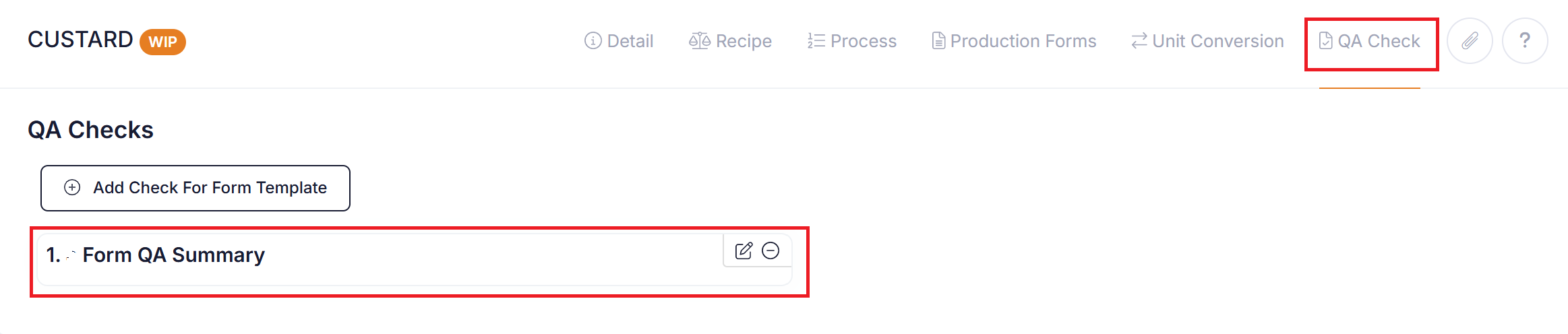
If you are using a table that has a product reference in it then you can further extend the QA Check functionality to be by product. This enables you to have different checks in play at a product level.
When a product is selected for a row in the table then any QA Checks defined against the product will be enforced for that rows data.
The table must contain only one product reference in the table in order to work.
In the product detail 'QA Check' tab you can add checks for multiple form templates. Within each form template you will be able to select fields that exist in a table which has a product reference associated with it and then apply specific product checks for those fields.
Form Summary
When a form is saved the checks will be applied to form and a summary will be created,
If any exceptions are found the record will be highlighted in the list.

During the approval of a form the summary will be displayed to highlight any potential issues with the form.