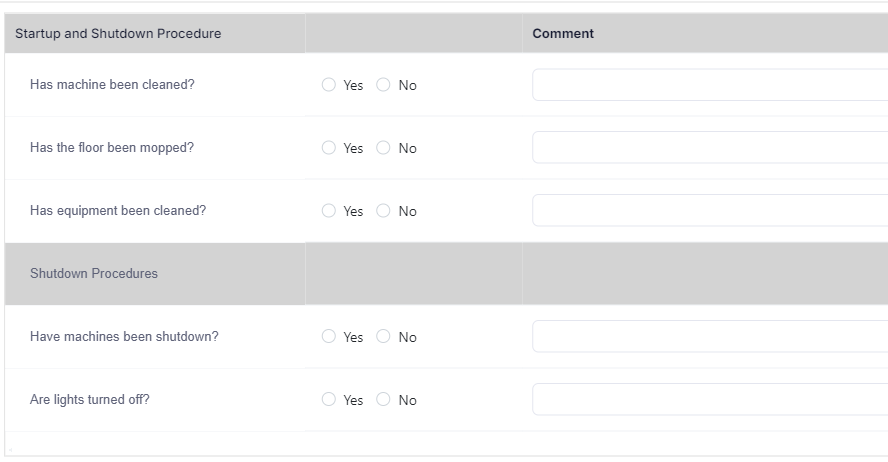
To create a table with fixed rows and a dynamic columns you can use a dynamic table.
| Note: Consider using a Checklist is you only have one column of data. |
In a table component properties, select 'Dynamic Fixed Rows'.
Enter a comma separated list of dynamic columns. Most often you will only have 1 column so enter 1.
If you wanted columns 1, 2 and 5 to be fixed you would enter 1,2,5.
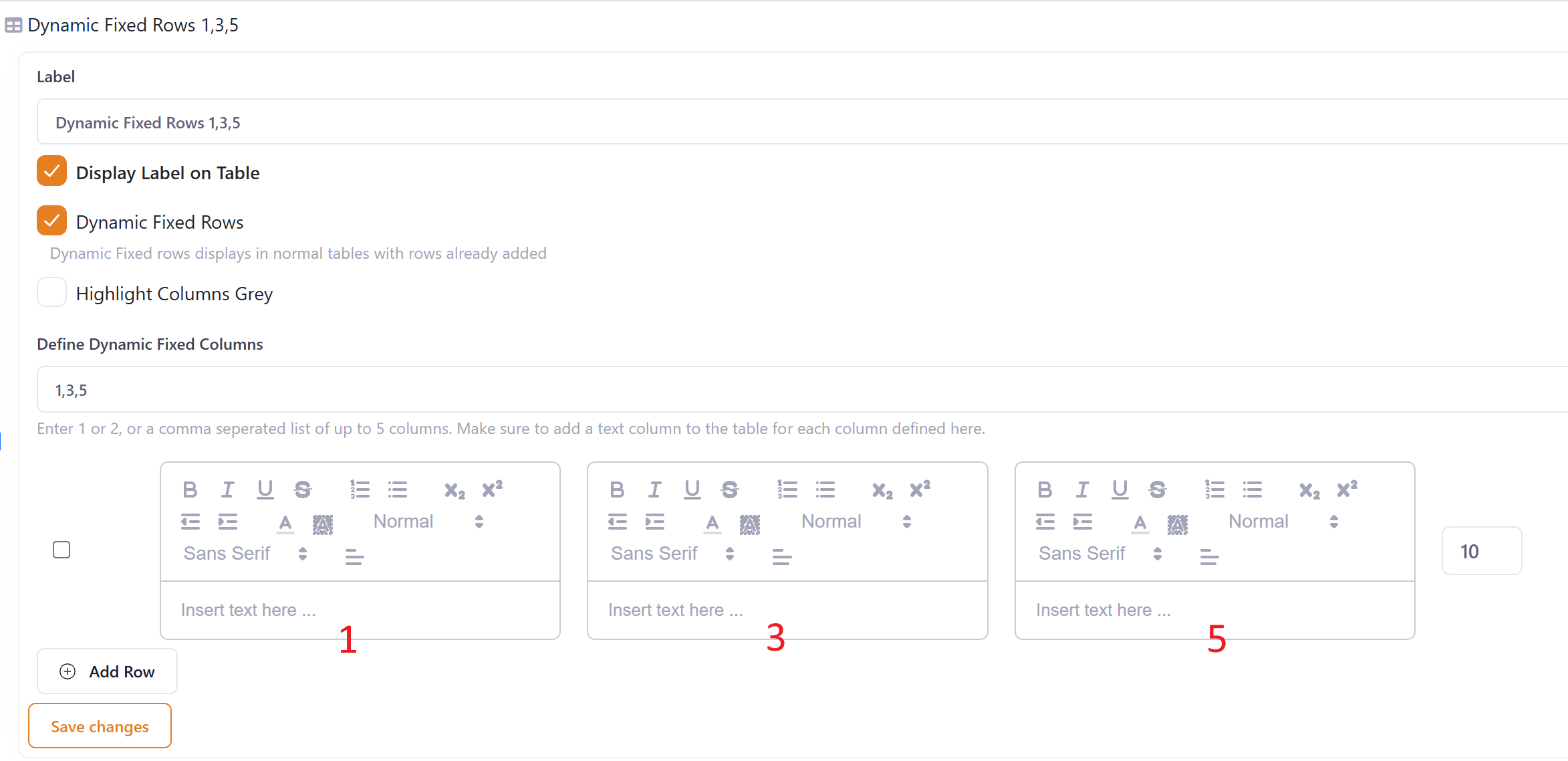
In the table component add a text component into the table for each dynamic column. These text columns are a placeholder for the dynamic column and provide the label for the column. These columns should be placed in the correct place within the component, for example if you had dynamic columns 1,3,5 then the text components should be the first, third and fifth components. Other components required should be slotted into position 2, 4, and 6+.

In the table properties add the labels for each row, or the values for each column.
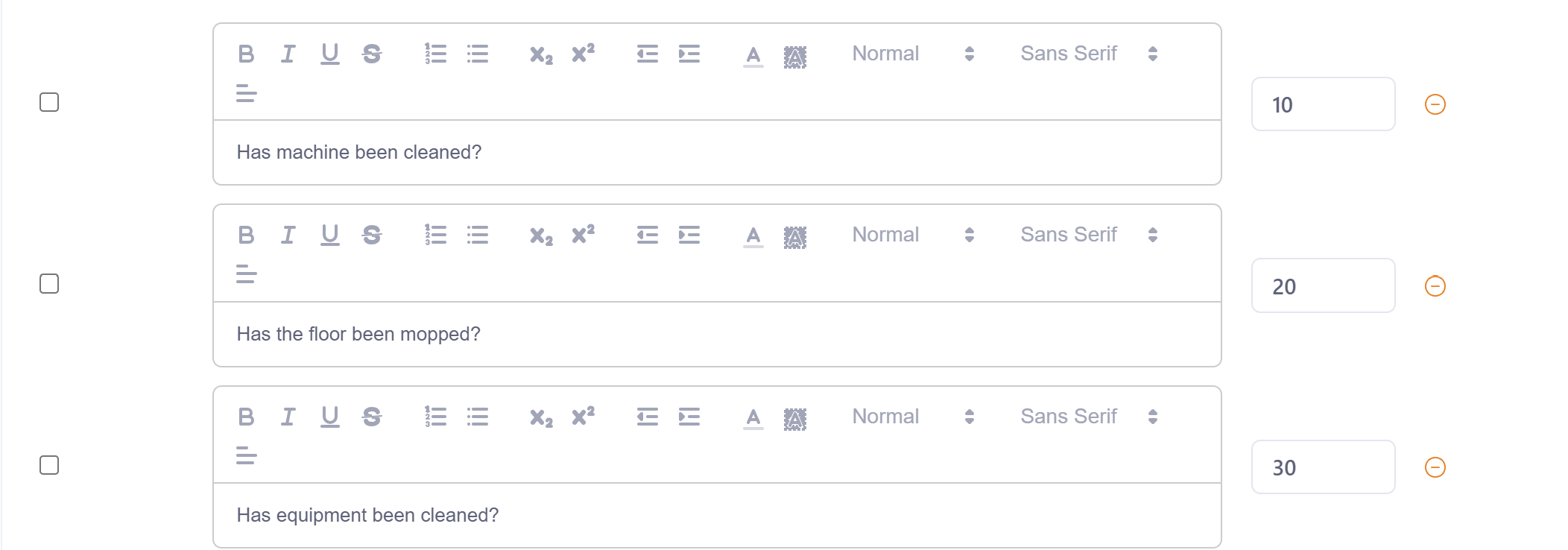
If you want a header row in the table 'check' the checkbox to indicate that this row is a header row.

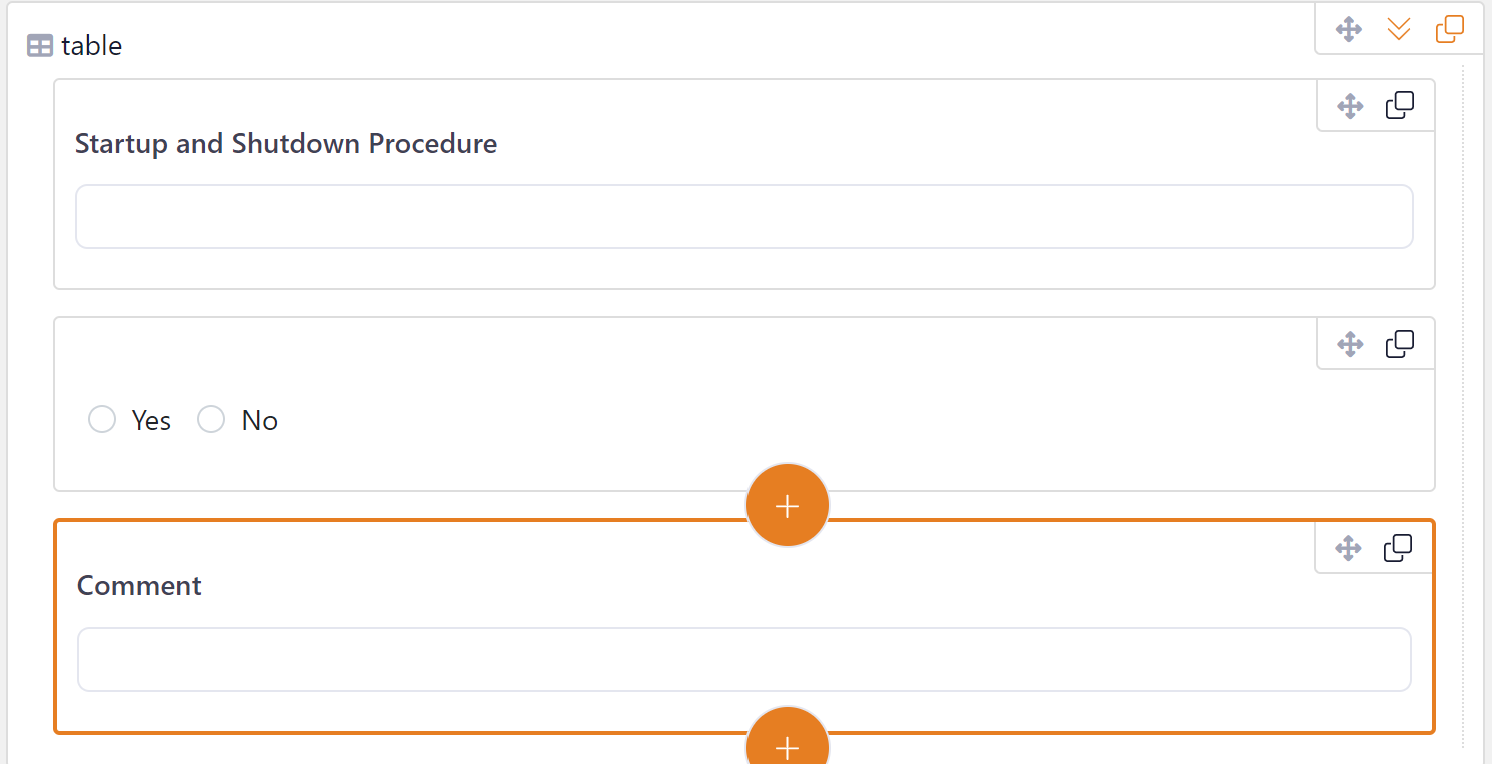
Add the components you want on the table.
Save and publish your form.