
CCP Forms are generated using the CCP Template from forms entered into the system.
To review a CCP form go to 'CCP Forms' in the main menu. From here select the CCP Template you wish to view forms for:
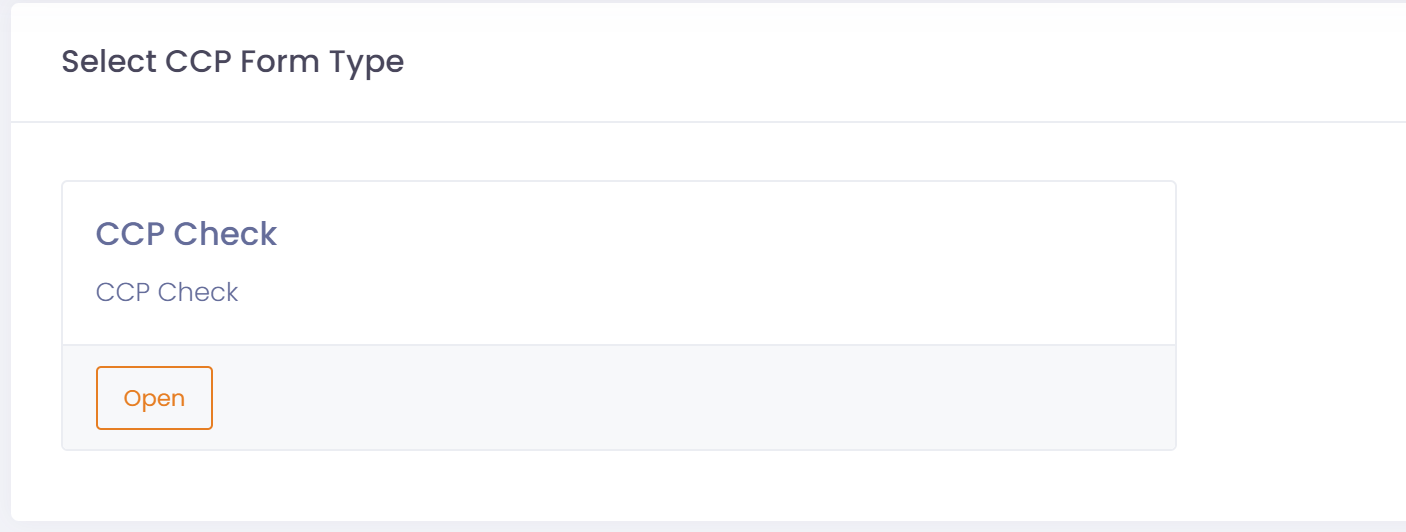
You will then be able to 'open' the CCP Forms for the desired CCP Template.
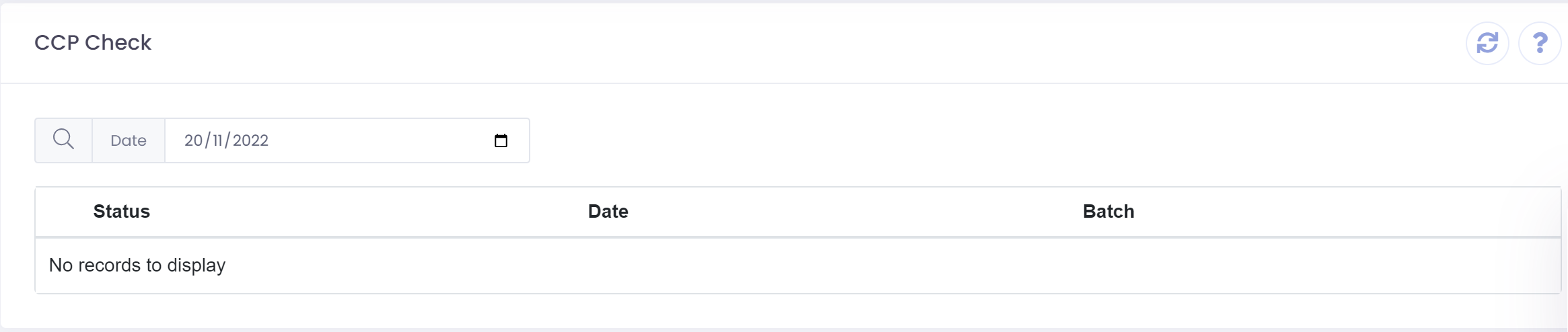
On opening the CCP Form screen it will be automatically filtered by:
- If the CCP Key is a date field then the current date in the system i.e. Today.
- If the CCP Key is a string then a blank string.
If no records are displayed then select the date you require or enter some text to filter to the correct set of records.
If you CCP Form is built from a fixed row table then a CCP Form will be created for each row in the fixed table.
Initially a CCP Form will be in a 'Processing' status until all forms connected to the CCP Form are 'confirmed' and have a status of 'Completed'.
Once all forms are completed the CCP rules for each field will be evaluated and the CCP Form will either be auto released or put on hold.
If the CCP Form goes to a status of 'On Hold' then the QA Manager must either manually approve or reject the CCP Form.
The detail of each CCP Form can be viewed at any time by expanding the row to view the CCP data and whether it is valid (green) or invalid (red). Any invalid CCP's will cause the CCP Form to go on hold.
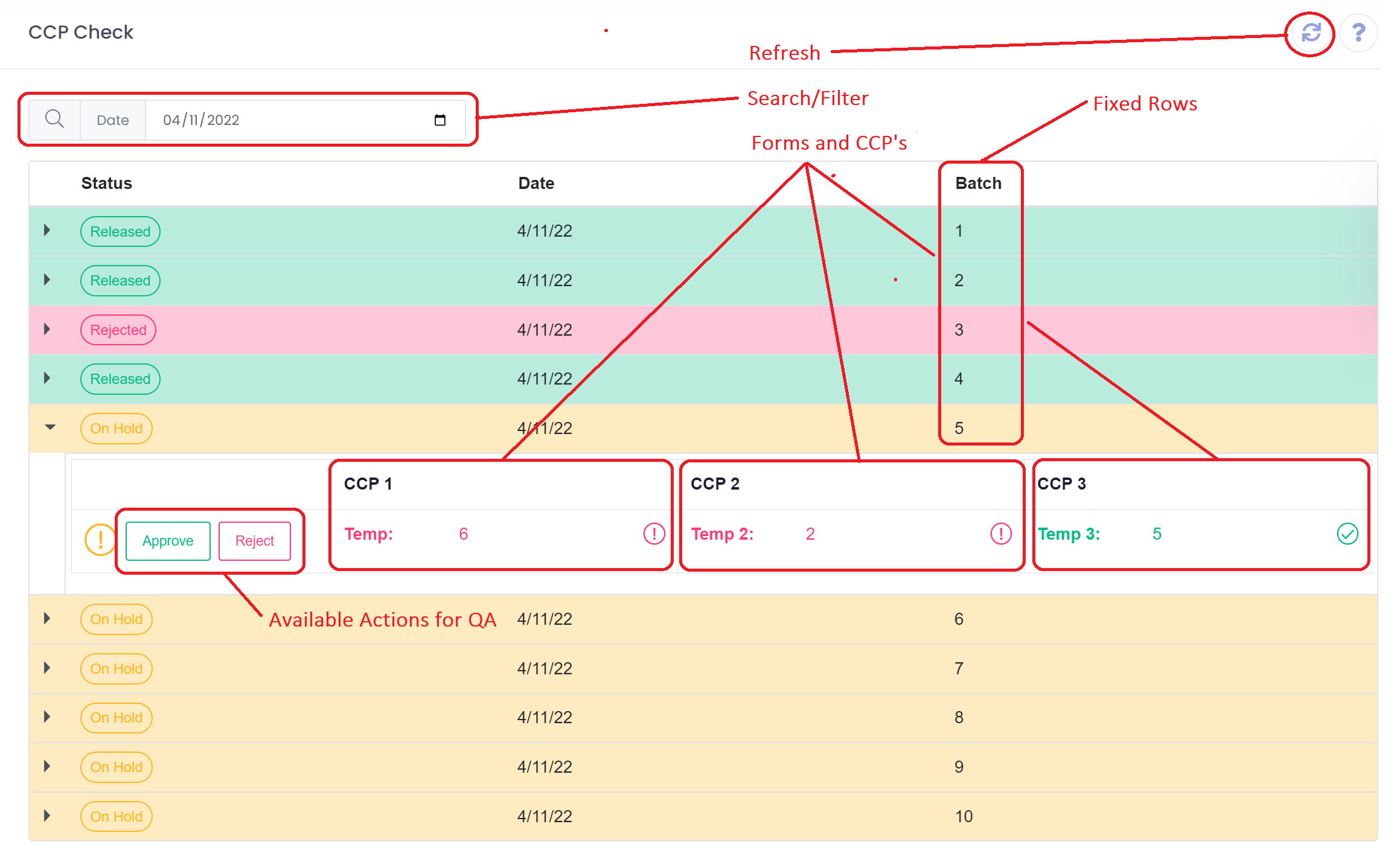
Whilst in the CCP Form screen it will refresh every 60 seconds automatically. The screen can also be refreshed manually at any time by clicking the 'Refresh' button on the top right of form at any time.