
| Available when using the Chrome browser on Windows and Android Devices only. |
QTRACA will work with the Bluetooth products found here, These can be setup using the 'Thermapen' device type within QTRACA remote devices.
To setup a Thermapen, or similar, complete the following steps:
- In QTRACA go to the 'Remote Devices' menu.
- Click on 'New IoT Device' to create a new device.
- Enter a Name for the device, such as 'Thermapen'.
- Enter a Device Id, such as 'Thermapen'.
- Select a Type of 'Thermapen Blue'.
- Enter a default calibration date if required.
- For Value Field Name enter 'value'.
- For Date Field Name enter 'date'.
- Save the device by clicking on 'Save'.
- Making sure your Thermapen is on, click on 'Connect to a Thermapen'.
- Select the Thermapen from the list of Bluetooth devices. (If your device does not appear turn the Thermapen on and off again, or press sync button on the Thermapen)
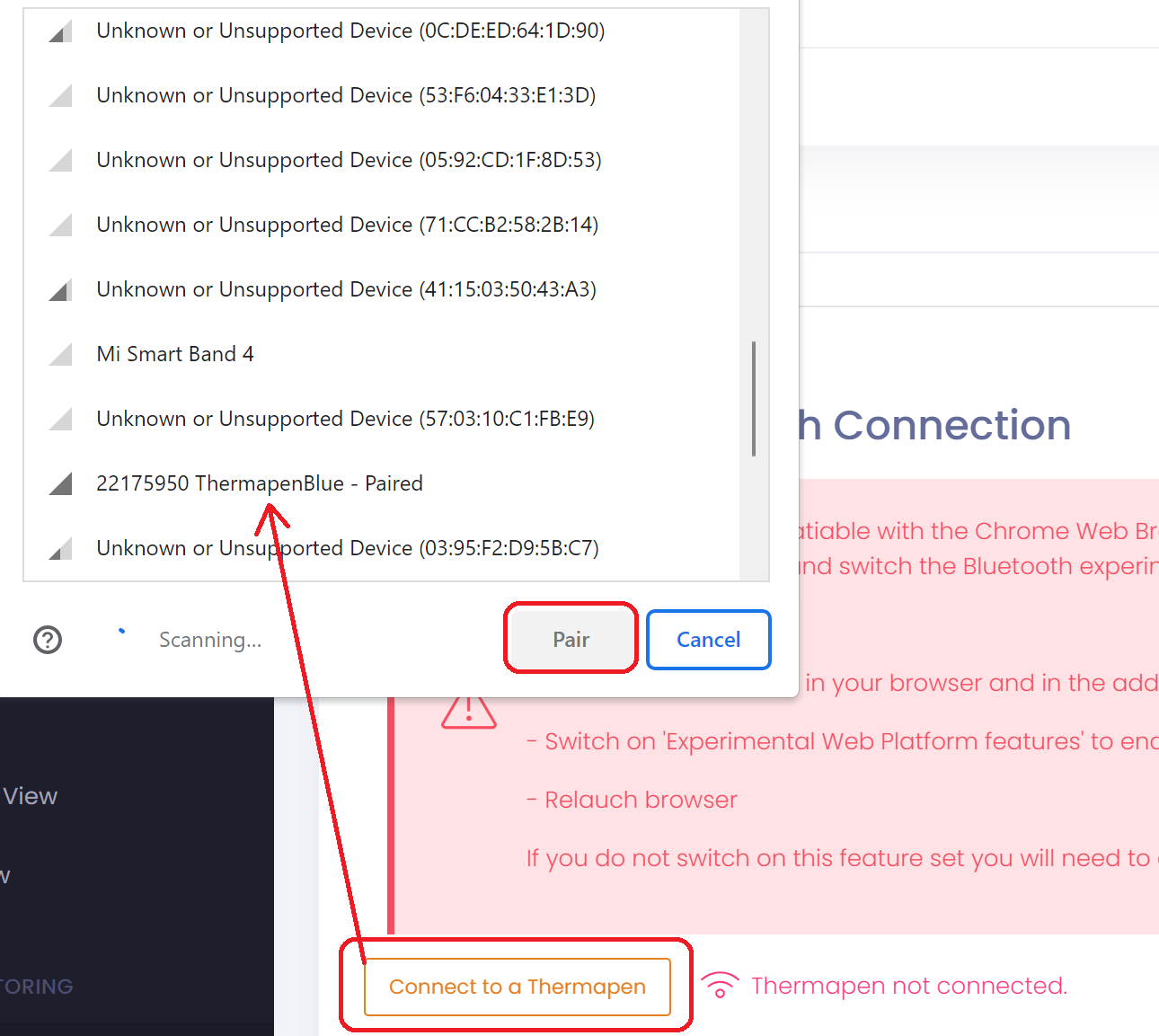
- Save the device by clicking on 'Save'.

- Your Thermapen should now show as connected and setup is complete.
Important information about using Bluetooth Bluetooth is only compatible with the Chrome Web Browser. You may use chrome on Android and Windows devices. Using auto re-connection (Optional) If you would like QTRACA to attempt to reconnect to your Bluetooth device automatically when you open a form then you must use Chrome, and switch the Bluetooth experimental features flag on. To do this follow these steps:
If you do not switch on this feature set you will need to connect to your Thermapen each time you wish to use it. |

