
The Thermapen component allows you to connect to a Bluetooth Thermapen and display the temperature readings on a form.
Firstly, you should setup a Thermapen device as described here.
Once you have dragged a Thermapen component onto the form canvas, give it a label, and then select the Thermapen device you have setup previously.

You can link the Thermapen component to a date field so that when a reading it saved to form the date and time will also be saved to another datetime field on the form.
To to this add a datetime component to the form and copy its name to the clipboard.
Go to the Thermapen component detail and paste the datetime field name into the 'Date Time Field'.

A form with a linked date would then look like this:
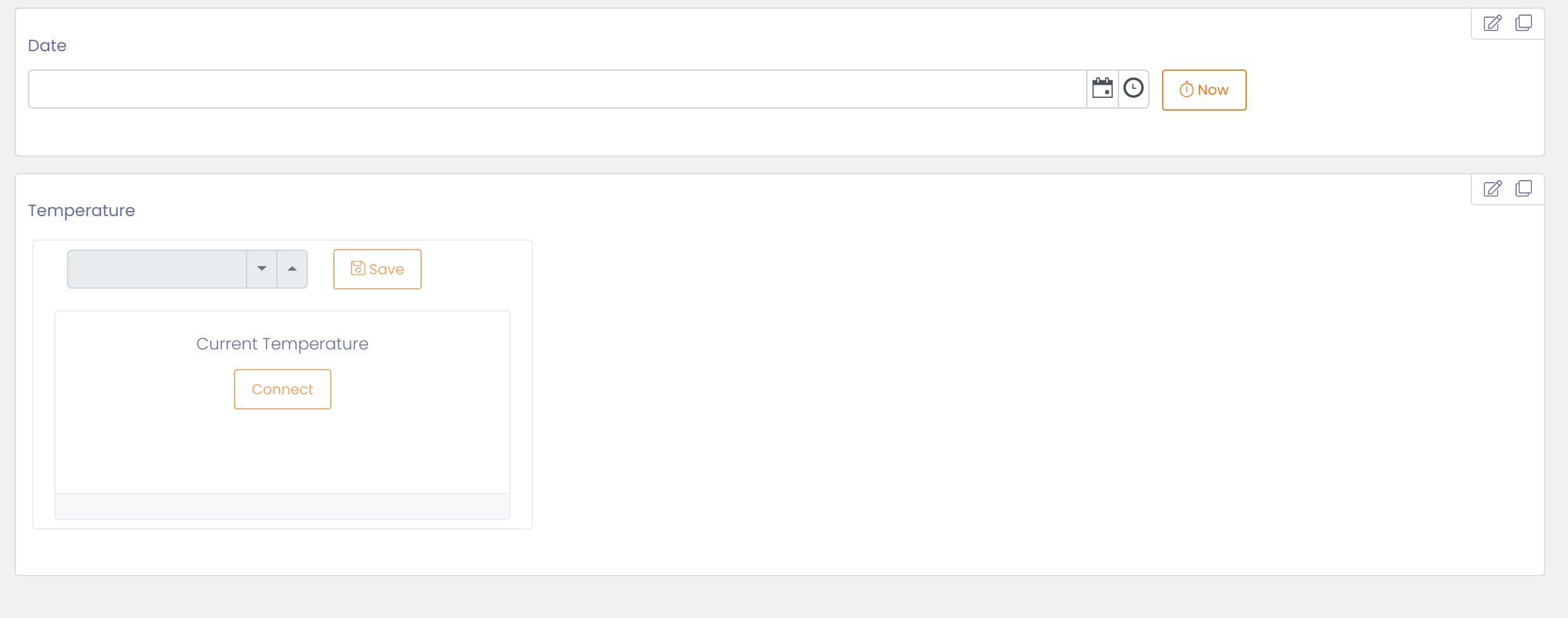
When using the component on a form it will try and connect to the Thermapen automatically, if it can't connect then the user will be prompted with a connect button.
When connection it successful the temperature will be displayed. To save a reading to the form click the 'Save' button within the Thermapen component.
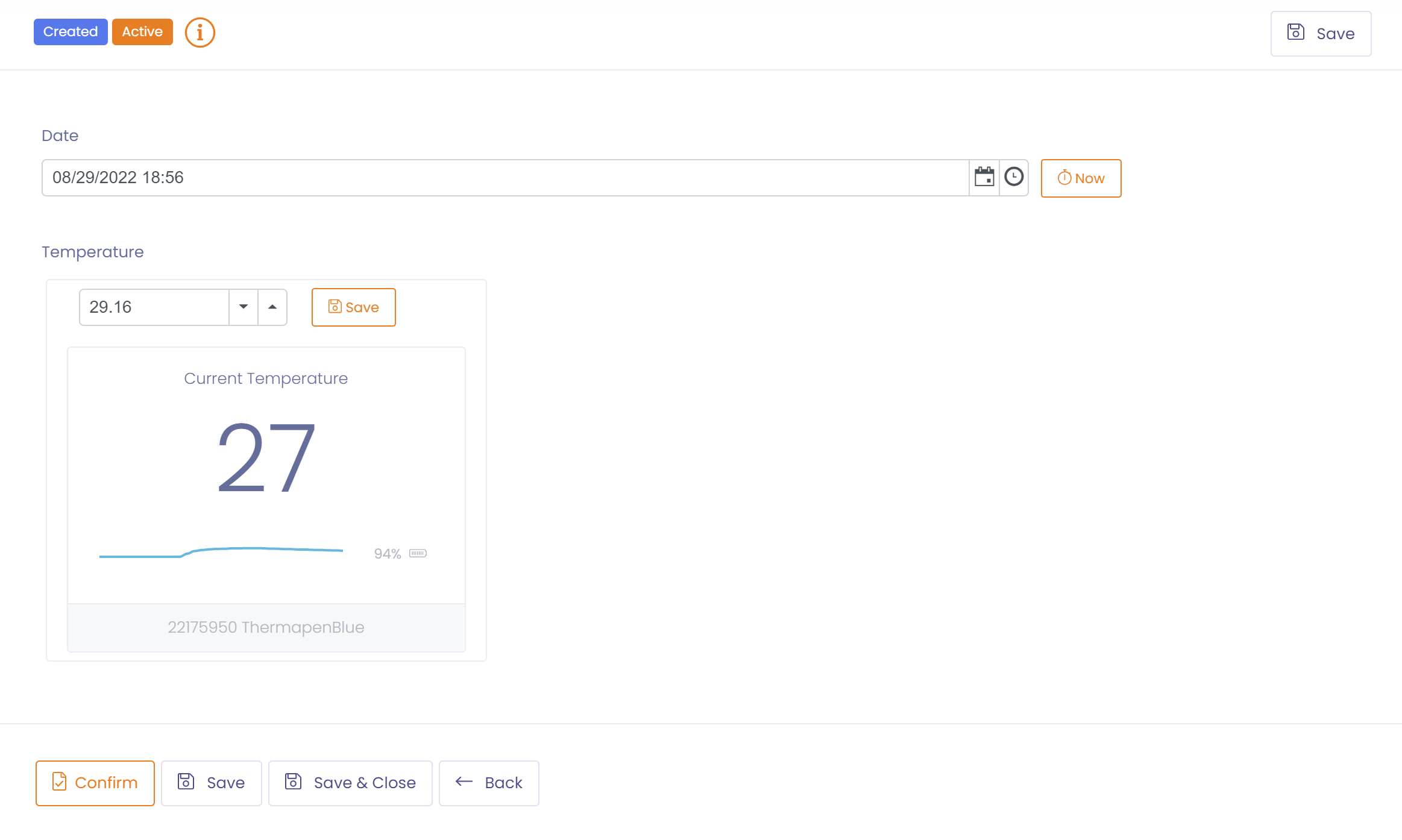
Along with the temperature the battery power is displayed and a graph of temperatures since opening the form.
The Thermapen may also be added to tables to take multiple reading.
Stop Manual Entry
If you would like to stop manual entry of the date and only allow it to be entered by pressing the 'Save' button then you can tick the 'No Manual Entry' flag for the field.
