
QTRACA allows you to synchronise your customer, vendors, and products from Quickbooks to QTRACA.
If you already have customers, vendors, or products in QTRACA then prior to setting up the Quickbooks integration you should map the records in QTRACA to those in Quickbooks.
If you wish to create records directly from Quickbooks then the manual mapping can be skipped.
Tip: You can create all customers, vendors, and products from Quickbooks to QTRACA initially, then switch off the automatic synchronisation, and finally remove the customers, vendors, or products not required in QTRACA.
Mapping Customers and Suppliers
A customer/supplier in QTRACA can be mapped to a customer/vendor in Quickbooks by adding the nameId to the external reference of the customer/supplier.

The nameId can be found in the Url when you view a customer/vendor contact in Quickbooks.

Note: If you do not enter an external reference in QTRACA the integration will try and find a customer/vendor where the name in QTRACA matches the name in Quickbooks.
Mapping Products
A raw material/packaging/product in QTRACA can be mapped to a product in Quickbooks by adding the nameID to the external reference field on the product.
However, as Quickbooks doesn't easily allow access to the nameId, it is recommended that you name your product code in QTRACA the same as the name of the product in Quickbooks.
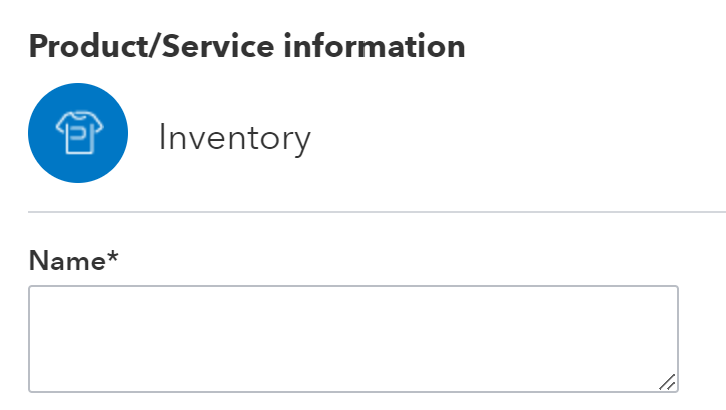
If you allow the products in QTRACA to be created directly from Quickbooks the external reference will automatically be populated with the nameId in Quickbooks.

Note: If you do not enter an external reference in QTRACA the integration will try and find a raw material/packaging/product where the code in QTRACA matches the code in Quickbooks.