
The batch schedule shows what each production line is making on each day. Planners use it to put batches on a day and a line and to set the order they run in; people on the floor use it to see what is next and open a batch to start recording it.
There are two versions of the screen. Accounts with Enhanced UI Batch Workflow switched on get the touch schedule, built for tablets: a week view, a day view and a schedule panel, with no dragging. Other accounts keep the classic schedule, where batches are dragged onto days.
Where to find it: Production › Schedule. The touch schedule is switched on with Enhanced UI Batch Workflow in Account Settings.
Concepts
| Term | Meaning |
|---|---|
| Scheduled batch | A batch with a day, and usually a production line. It appears on the schedule for that day. |
| Unscheduled batch | A Ready batch with no day yet. Unscheduled batches wait in the tray (touch schedule) or the side panel (classic schedule). |
| Run order | The order batches run in on one line on one day, shown as 1, 2, 3 in the day view. |
| Capacity | How much a production line can make in a day, set on the line as Capacity per day with a unit. The schedule compares each day's batches against it. |
| Started batch | Any batch past Ready (Making, Processing, Packing and so on). A started batch stays where it is on the schedule. |
Quick start (touch schedule)
- Go to Production › Schedule. The week view opens on the current week, with today highlighted.
- To schedule a batch that is already made up, tap it in the Unscheduled tray at the bottom of the screen, then tap Place here on the day and line you want. It goes to the end of that day's run order.
- To make a new batch, tap New batch, search for the product, set the batch size, then choose the day and line and tap Schedule on ….
- To see one day in detail, tap its heading in the week view, or switch to Day at the top of the screen.
The week view
Production lines run down the left and the days Monday to Sunday run across the top, each with its date and the number of batches that day. Use the arrows beside the week to move between weeks, and Today to come back to the current week.

- Each cell shows up to two batches. When a line has more that day, the cell shows +1 more (or however many); tapping it opens that day in the day view. This keeps a busy week readable on a tablet.
- Each card shows the batch number, its status, the product and the quantity. A started batch looks greyed out, because it cannot be moved.
- By line / All lines switches between one row per production line and a single row for everything. The account's Default Consolidated Lines on Batch Schedule setting chooses which one opens first.
- No line. A batch without a production line, or on a line that is no longer at this site, appears on a No line row, so it is never hidden. The row only shows while there is such a batch.
- The download button saves the week as a PDF.
With a batch picked up from the tray, every day from today on shows Place here:

The day view
The day view is for the floor: what is each line running today, and in what order. A strip across the top shows the seven days of the week, each with its batch count and a coloured dot per line showing how full the line is. Tap a day to show it.
Below the strip each production line has its own column, listing its batches in run order with their allergens. To change the run order, use the up and down arrows beside a batch.

- A started batch shows Started · can't move and has no arrows.
- The arrows will not move a batch past a started batch, so the order of work already underway is never disturbed.
- When a line is over capacity, a message at the bottom names the batch that took it over, and suggests moving it to another day or line.
- An empty line offers Schedule a batch here, which opens a new batch on that line and day.
Scheduling a batch
Tapping a Ready batch, or New batch, opens the schedule panel on the right of the screen. It takes you through everything in one place:

| Section | What it does |
|---|---|
| Product | New batches only. Search by code or name. Only finished goods and work-in-progress products are offered, since those are the products that are made in batches. The batch type follows the product. |
| Batch size | How many times the recipe is made, with − and + buttons or typed in. The quantity it produces is shown underneath. |
| Day | The seven days of the week, with arrows to move to another week. Days that have passed cannot be chosen. A day where the batch would put the chosen line over capacity is tinted red. |
| Line | Each production line, with what is already booked on it that day and whether this batch fits — for example Fits · 10 KG spare or Over by 140 KG. |
| Run order | Shown when the line already has batches that day: First, or After a particular batch. Left alone, the batch goes last. |
| Dates | The manufacture date, and the use-by or best-before date worked out from the product's shelf life, so you can check them before saving. |
For a batch that is already scheduled, the panel also offers Unschedule, which returns it to the tray, and Open batch.
Here a new Custard Tart batch is being scheduled on Saturday. Line 2 has room for it; Line 1 measures in litres and Custard Tart has no conversion from kilograms, so it shows the reason instead of a figure:

Scheduling a batch over capacity is allowed — the panel warns rather than refuses, because some days a line genuinely runs longer. The over-capacity marking then stays on the schedule as a reminder.
Line capacity
When a production line has a Capacity per day, each day on the schedule shows a bar of how full the line is: green while there is room, amber above 80%, and red when the day's batches add up to more than the line can make. The batch that takes the line over is marked Over capacity. See Creating a production line for setting a line's capacity.
A batch is measured by what goes into it — its recipe quantity — and converted into the line's capacity unit using the product's unit conversions. If a batch cannot be converted (for example the recipe is in kilograms, the line's capacity is in units, and the product has no conversion between them), it is shown as not counted with the reason, rather than being counted as nothing. Adding the missing unit conversion to the product fixes it.
Lines without a capacity show no bar.
The classic schedule
Without Enhanced UI Batch Workflow, the schedule shows batches in weekly groups by production line. The arrows at the top move between weeks, and the download button saves the week as a PDF.
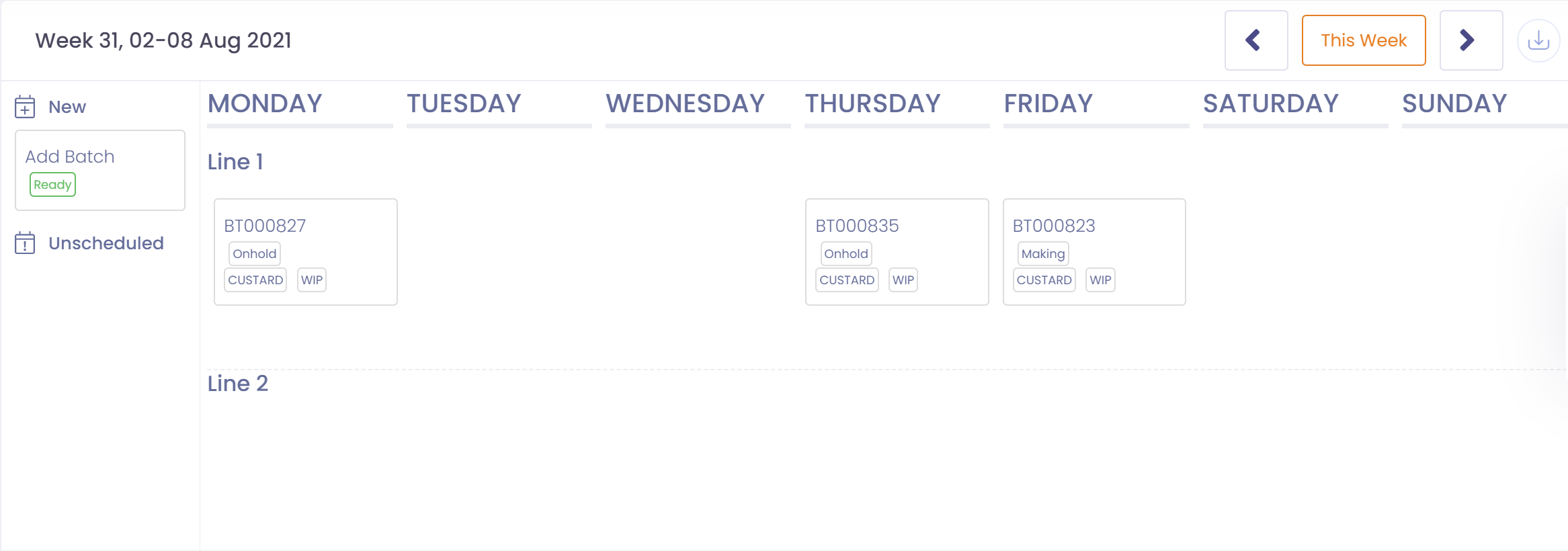
Batches are scheduled by dragging: drag a batch from Unscheduled onto a day, or drag the New card onto a day to create a batch and fill in its product and size. Only Ready batches can be dragged. Tapping a batch opens it.
Availability and permissions
- Viewing the schedule: administrators, production users and managers, QA users and managers, operators, external users and auditors.
- Creating and scheduling batches: administrators, production users and production managers.
- The touch schedule follows the account-wide Enhanced UI Batch Workflow setting, which also switches batches to the step-by-step workflow view. See Enhanced UI Layouts.
Things to know
- Started batches cannot be moved. Once a batch is past Ready, it keeps its day, line and place in the run order. Tapping it opens the batch instead.
- Released batches leave the schedule. The schedule shows work still to be done; released, reworked and disposed batches are not listed.
- A scheduled batch is set to midday on its day. This keeps it on the right day whatever time it was scheduled and whichever time zone the device is in. Its manufacture date is set to the same day.
- The schedule follows your current site. Batches and lines from other sites do not appear.
- Nothing is dragged on the touch schedule. It is deliberate: dragging on a tablet fights with scrolling. Tap to pick a batch up, then tap where it goes.