
The form designer consists of two panes, the size of each pane can be adjusted by moving the slider left and right to met your preference.
The left hand pane consists of the canvas, this is where you add your form components.
The right hand pane is where the properties of the selected component are displayed.
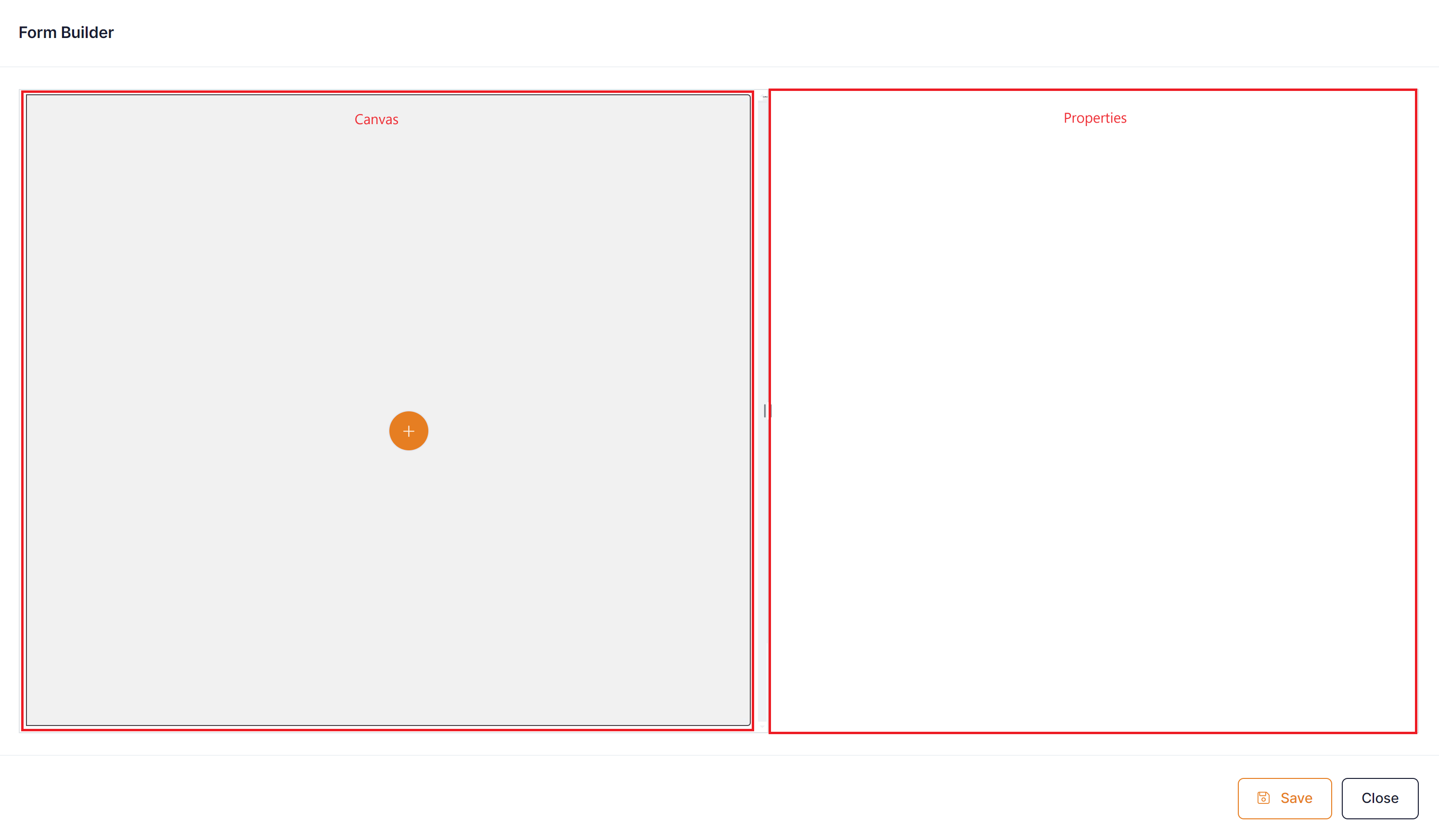
A form can be built using the components here.
There is no limit on the number of components that can be used on a form however care should be taken to produce forms that are of a size and footprint manageable by the user.
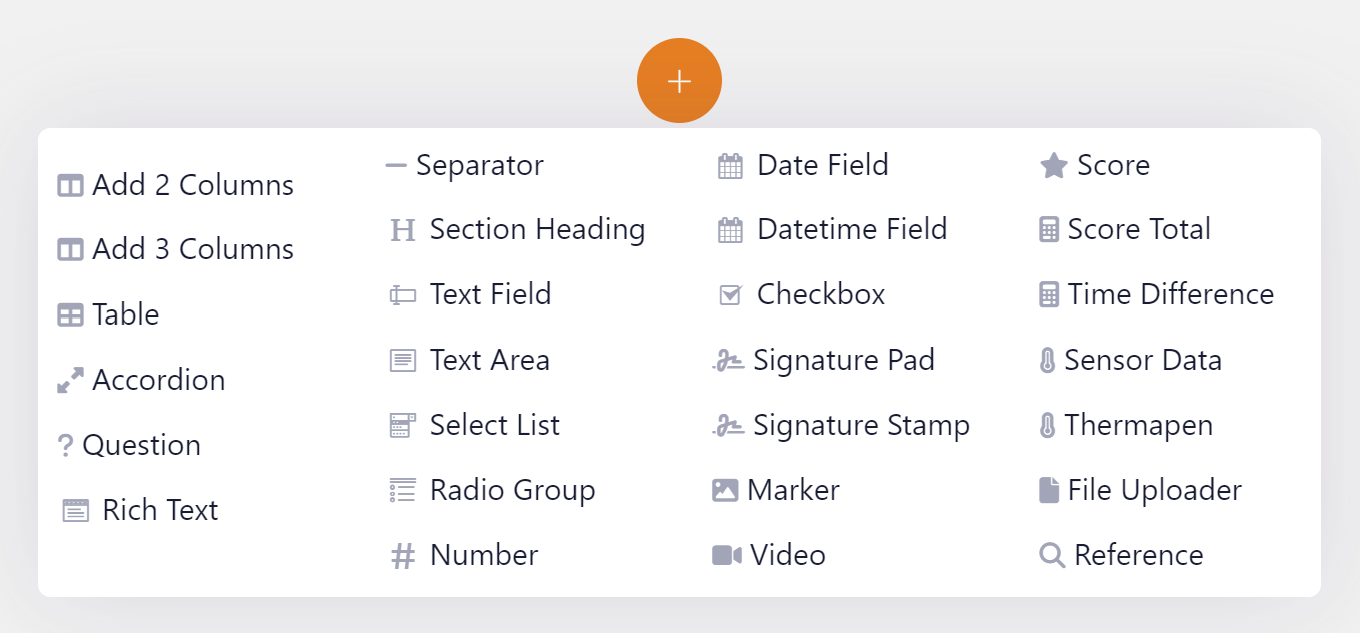
To add a component click on the orange circle with the plus icon

Select the component you wish to add, and it will be added where the orange circle is.
Once a component is added it will be displayed on the canvas.

Select the component to display the properties and further orange circles to allow you to add more components.
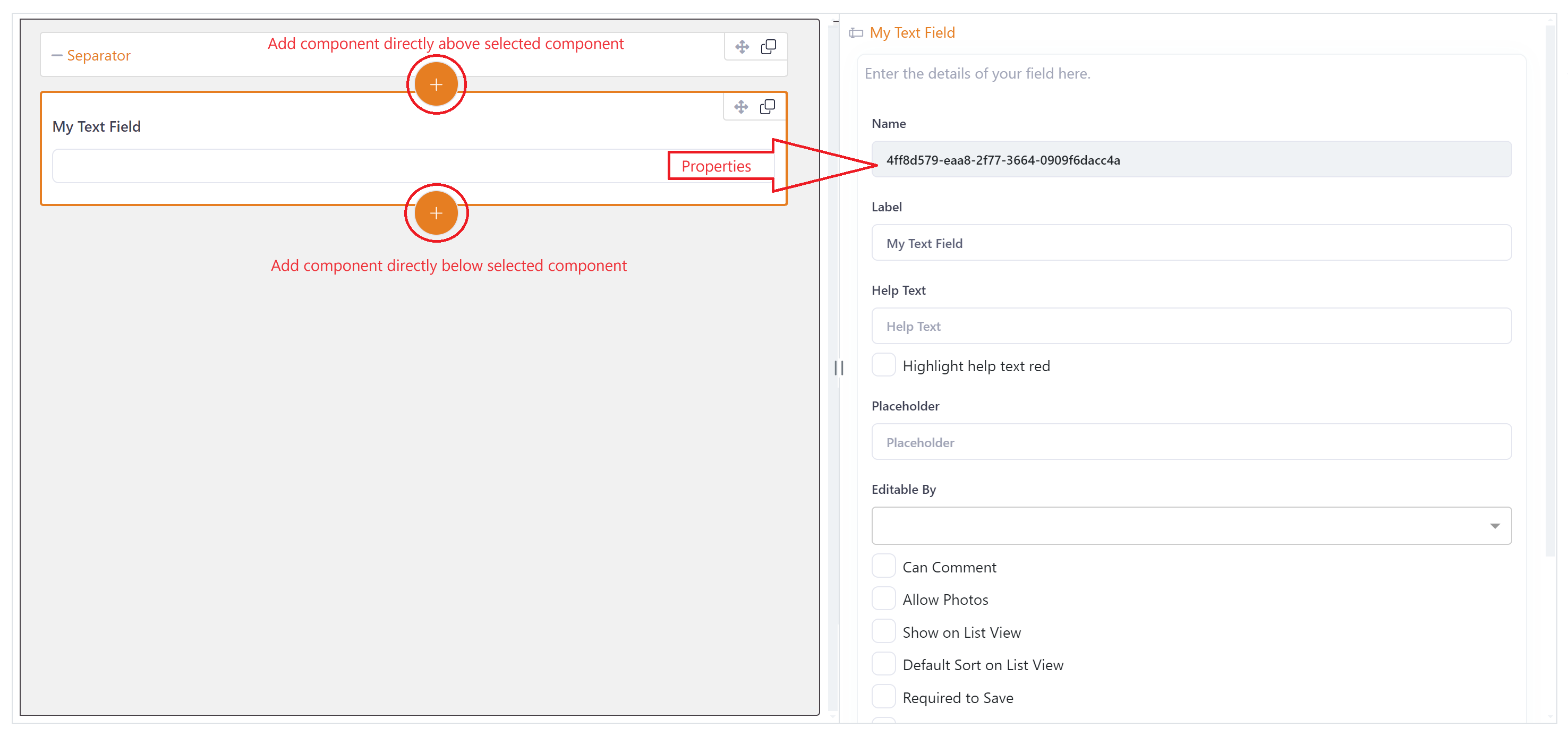
Click 'Save' in the properties windows once all changes to properties have been made.
You can changed the position of a component by using the drag handle  to drag the component up or down the canvas, or off the canvas to remove it from the form.
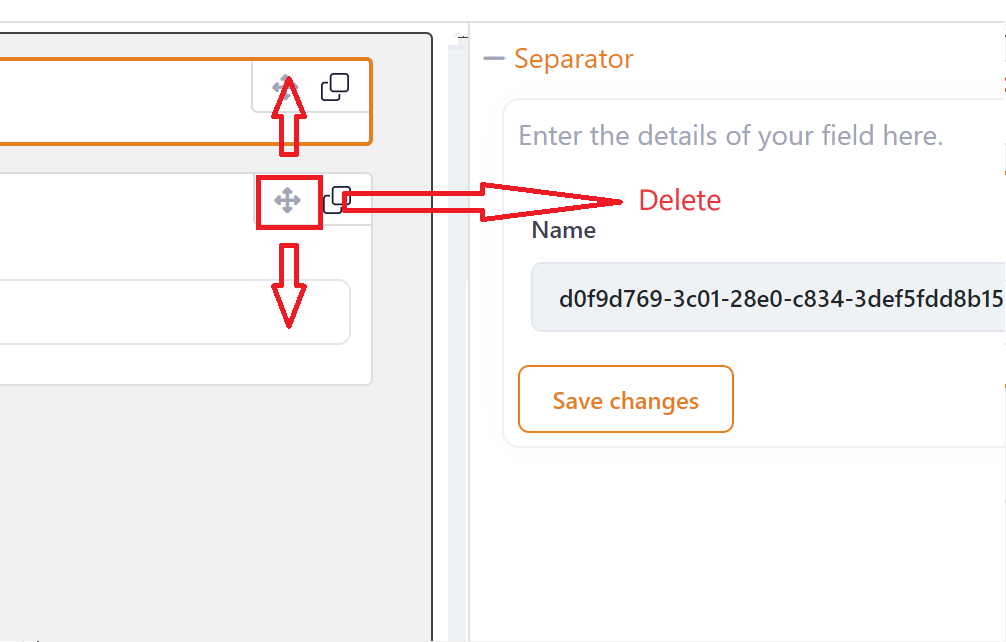
To copy the field you can click on the copy button in the top right corner of the field.
The new copy will be placed directly below the copied component.