
Prior to connecting to MYOB you should perform the necessary setup detailed here Setting up QTRACA to work with MYOB
You can connect to MYOB by performing the following steps:
- Go to Setup --> Integrations
- Click on 'New Integration'
- On the MYOB integration click 'Connect'
- You will now be taken to the MYOB website. Enter your MYOB username and password and sign in
- Click 'Allow Access' to give QTRACA access to your Company Files
- You will now be taken back to QTRACA and a MYOB integration record will exist
- Click 'Edit' on the MYOB integration
- Select the company you wish to integrate with
- Click the 'Login' button next to the selected company
- Enter the username and password for a user in that company. Note: You may wish to create a separate user to use to connect QTRACA. This user may have limited permission to only read customers, suppliers, products, sales invoices, and purchases.
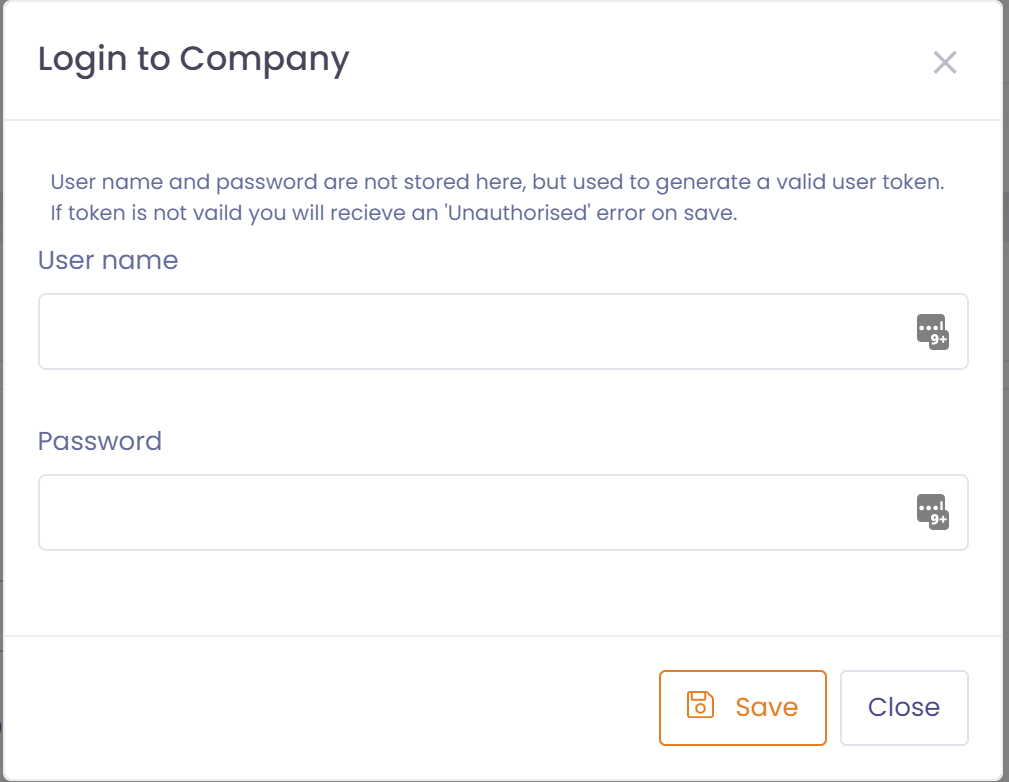
- Click 'Save' to validate login
- Select the sync options you wish to have
- Click 'Save' to save changes.
After performing the above step your MYOB integration will run continuously in the background. MYOB will be polled every 15 minutes for new changes.
Sync Options
Sync Customers for Dispatches
When switched on, customers will sync with MYOB every night.
Sync Suppliers for Inwards Goods
When switched on, suppliers will sync with MYOB every night.
Sync Sales Invoices for Dispatches
When switched on, sales invoices in MYOB will be created/updated every 15 minutes from new sales in MYOB.
A manual sync can also be done from any date. Performing a manual sync will create all invoices from the selected date in QTRACA as dispatches.
Sync Purchases for Inwards Goods
When switched on, inwards goods in MYOB will be created/updated every 15 minutes from new purchases in MYOB.
A manual sync can also be done from any date. Performing a manual sync will create all purchases from the selected date in QTRACA as inwards goods.
Choose whether to get either:
- Open Orders
- Bills
from MYOB.
