Operators's can access forms, batches, inwards goods, and dispatches through a separate portal. This is a simplified interface which provides operators with just the information they require.
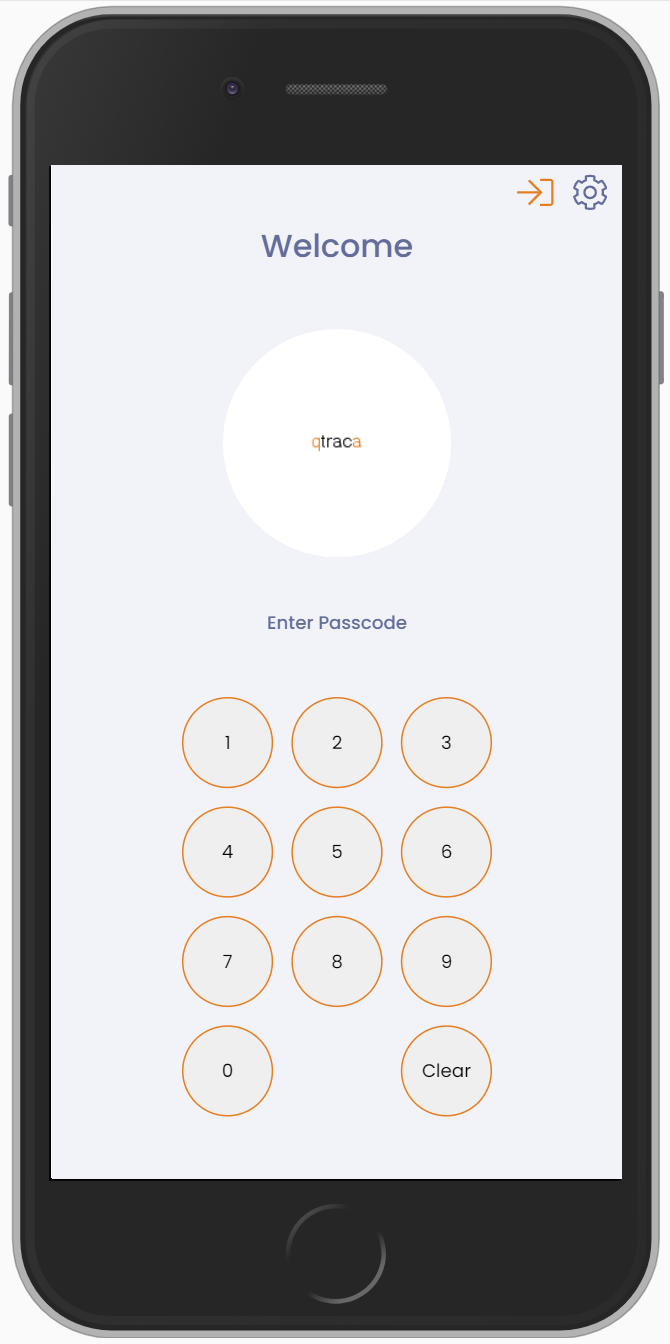
Once the operator enters their pin code successfully they will be taken to the main menu.
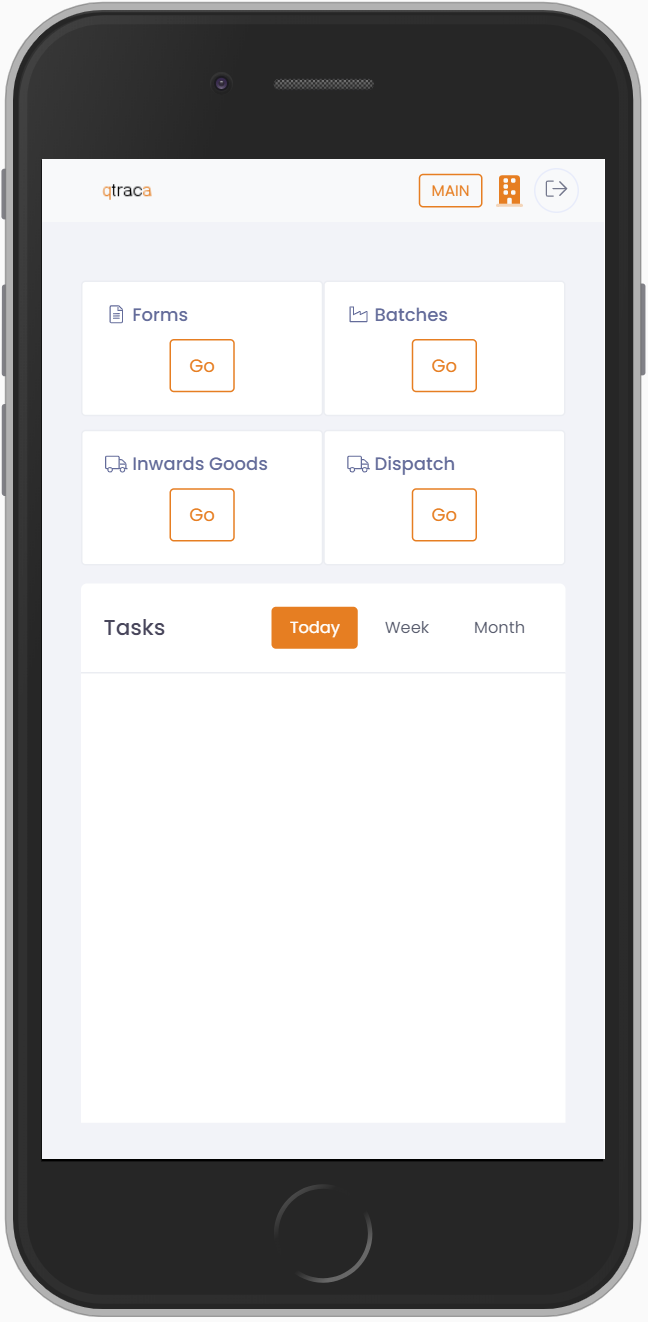

From the main menu the user can select the site they want to use by using the site selector.
The main menu has the following options available for operators:
- Forms Available for roles: ALL
- Schedule Available for roles: Admin, Operator, Production User/Manager, QA User/Manager
- Batches Available for roles: Admin, Operator, Production User/Manager, QA User/Manager
- Recipes Available for roles: Admin, Operator, Production User/Manager, QA User/Manager
- Inwards Goods Available for roles: Admin, Inwards Good User/Manager, QA User/Manager
- Dispatches Available for roles: Admin, Dispatch User/Manager, QA User/Manager
- Transfers Available for roles: Admin, Inwards Good User/Manager, Dispatch User/Manager, QA User/Manager
- User Task List Available for roles: ALL
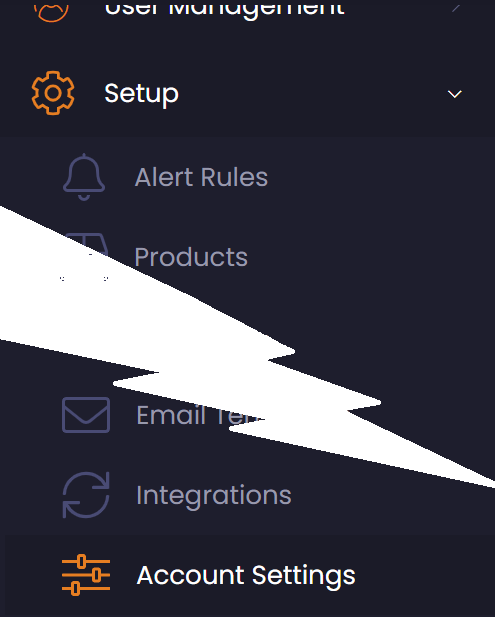
Note: The visibility of these components can be controlled through the main menu 'Setup --> Account Settings' under the 'Operator UI Layout' section (A user requires the 'Setup Admin' or 'Admin' role to access 'Account Settings') :
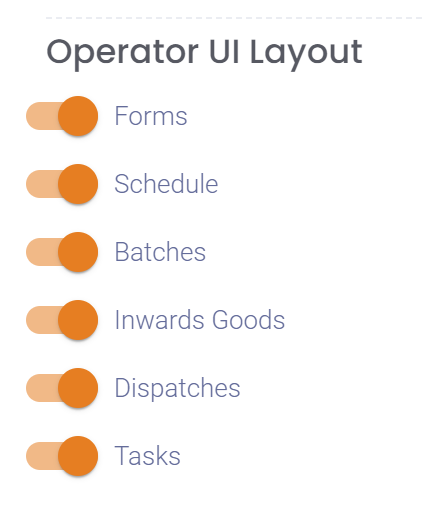 In addition visibility is controlled by user roles. A user must have one of the following roles mentioned above in order to see menu option.
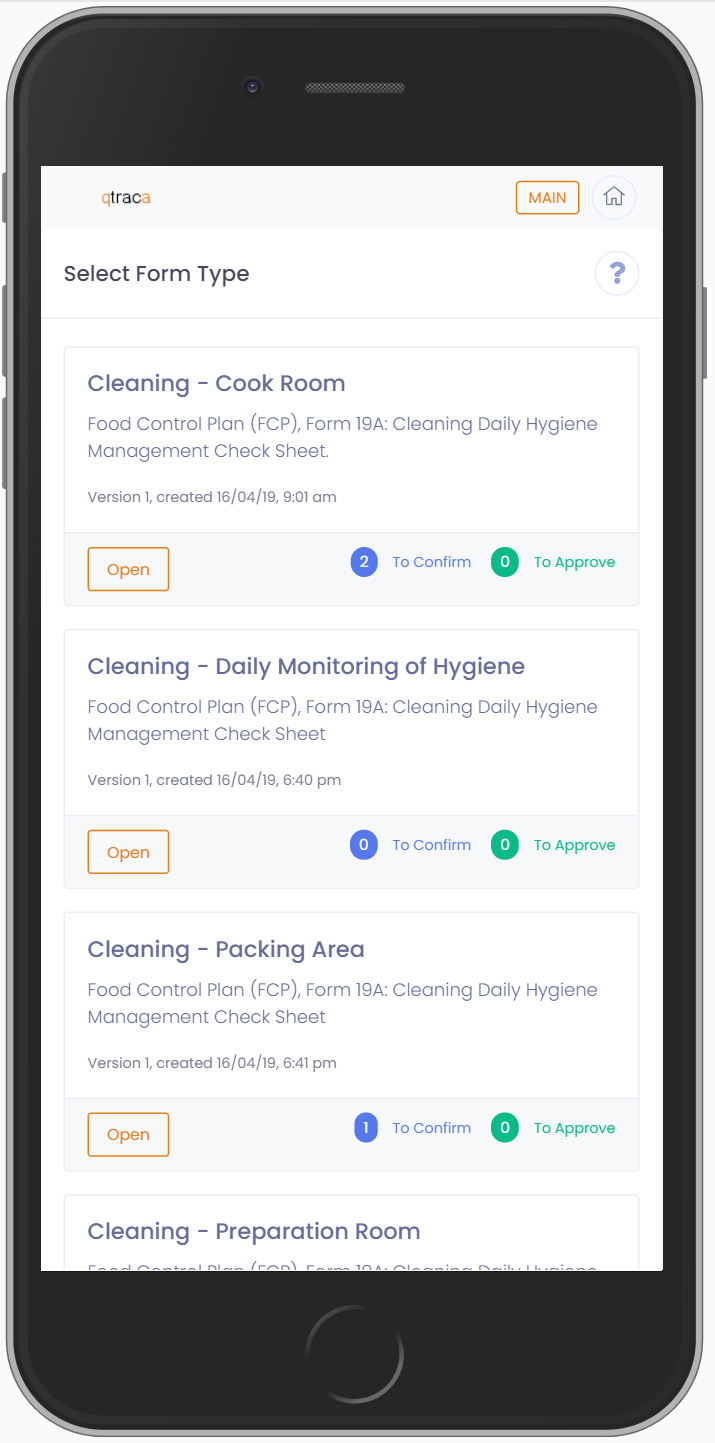
Click on any of these options will take the user straight to the standard QTRACA screens.
The user can return to the menu screen at any time by clicking on the 'Home' button on the top right hand side of the screen.
Training Centre
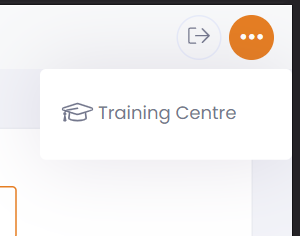
The training module can be accessed through the operator user interface by clicking on the ellipses on the top right of the screen and choosing the menu option 'Training Centre'. See the 'Trainee User Interface' section for more information.