Alerts can be setup to notify you when a certain condition is met. This enables you to be pro-active in determining where issues may exist, which in turn will reduce risk and cost to the business.
An alert can be set up for the following objects:
- Form
- Batch
- Supplier
- Inwards Good (a receipt)
- Inwards Good Line (a line on a receipt)
- Inventory Onhand
- Non Conformance
- IoT Device (Remote Monitioring)
- IoT Device Calibration
Alerts can be be triggered when the following occurs:
Forms
- On Create - Form is created
- On Update - Form is updated
- On Confirmed Form - Form is 'Confirmed'
Batch, Supplier, Inwards Good, Inwards Good Line, Non Conformance, IoT Device Calibration
- On Create - Form is created
- On Update - Form is updated
- Job - Hourly scheduled job
Inventory Onhand
- Job - Hourly scheduled job
IoT Device
- IoT Always - Constantly checking alert rules as occur
- IoT Active Forms Only - Only checking if sensor is linked to a form that is 'Active'.
To setup an alert rule perform the following steps:
- Go to 'Setup' --> 'Alert Rules'
- Click on the 'New Alert Rule' button
- Enter the name of the alert rule. Make it descriptive so you know what is used for
- Check the alert rule as being active
- Select the object you wish to create the rule for
- If a form was selected then select the form template to use. If and IoT device was selected then select the IoT device to use
- Build the triggering rule for the alert with the query builder
- Specify the trigger for the alert
- Select the alert interval. This is the amount of time that must pass from the last alert before to the next alert before you will be alerted again.
- To send an email notification click the send email flag
- Select the user to email the alert to
- Enter the subject and the message for the alert.
Alert Query Builder
The query builder lets you build any filter based off the fields available on the selected object. You can define the criteria for which the alert should fire.
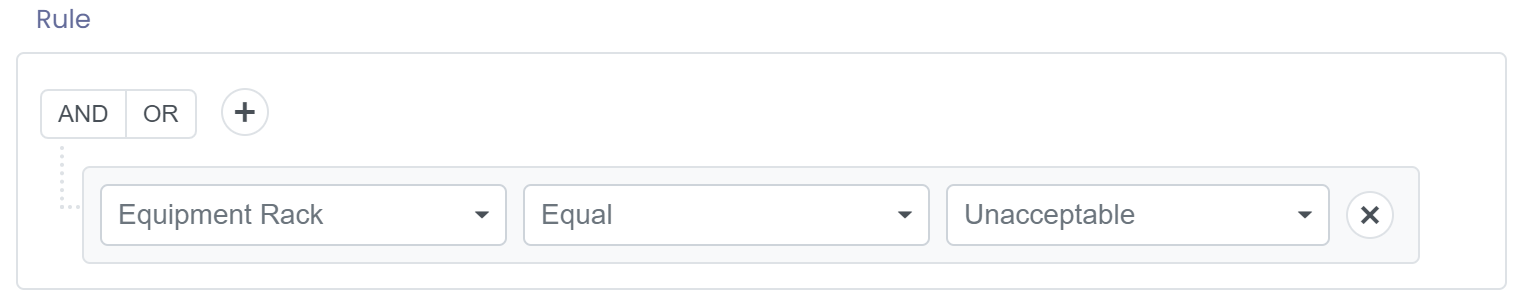
Groups of conditions can be added, and nested within each other.
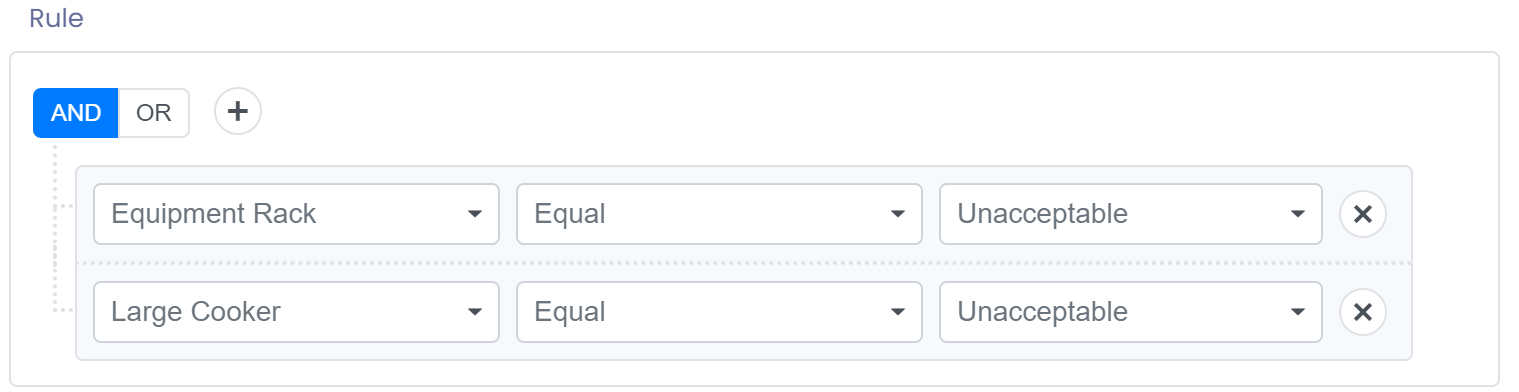
OR Group
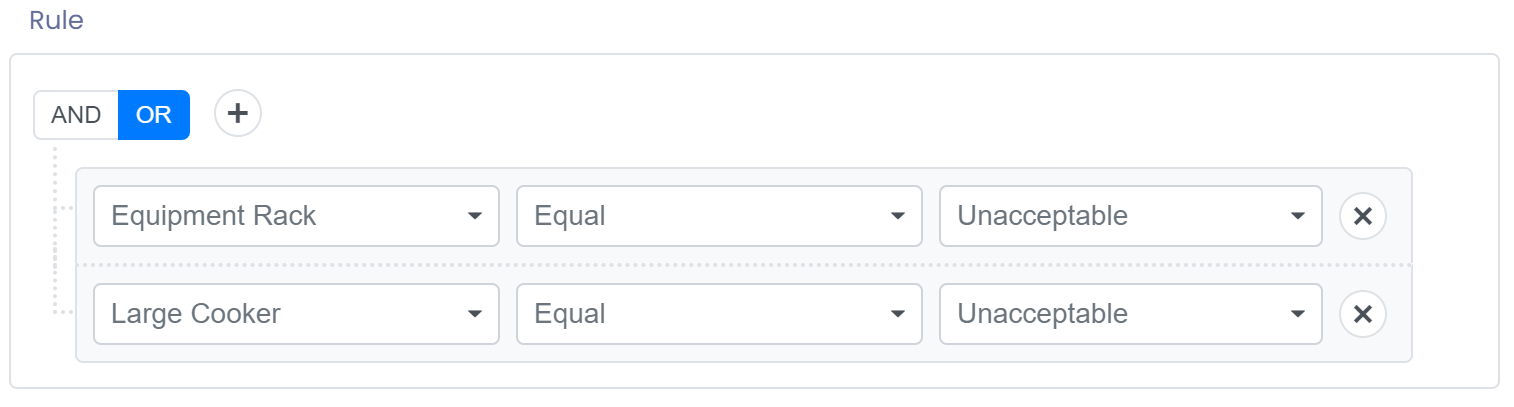
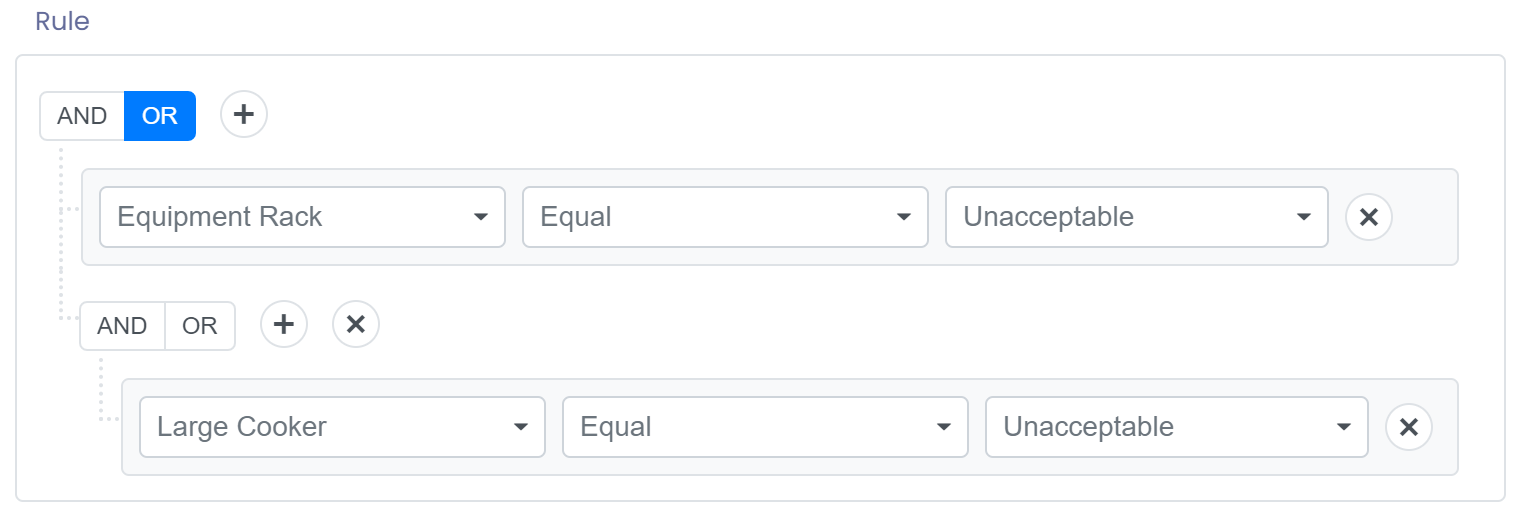
You can add multiple groups joined by an OR condition. This means that if any of the conditions are true then the alert rule will be fired.
For example, the below 2 filters would give the same result and would fire when the 'Equipment Rack' = 'Unacceptable' or the 'Large Cooker' = 'Unacceptable'.
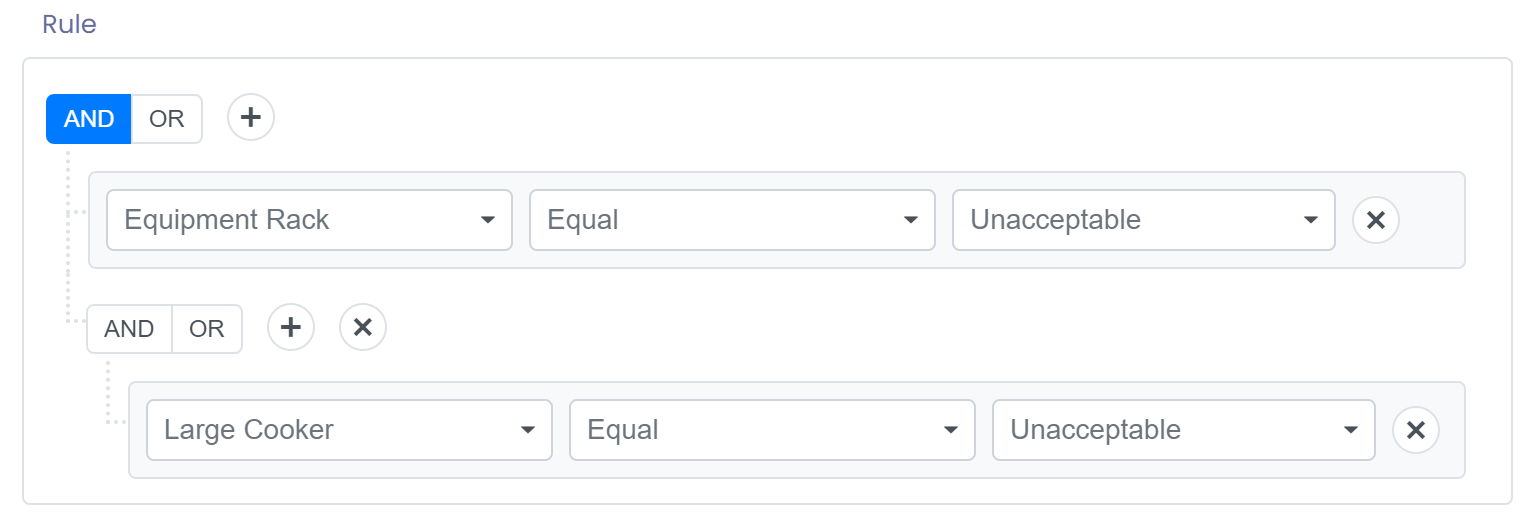
AND Group
You can add multiple groups joined by an AND condition. This means that ALL of the conditions must be true in order for the alert rule to fire.
For example, the below 2 filters would give the same result and would fire when the 'Equipment Rack' = 'Unacceptable' and the 'Large Cooker' = 'Unacceptable'.
Operators
Operators are used in conditions to help filter records. Available operators are:
| Operator | Available for | Notes |
|---|---|---|
| Starts With | Text | Matches any text starting with characters entered. |
| Ends With | Text | Matches any text ending with characters entered. |
| Contains | Text | Matches any text containing characters entered. |
| Equal | Text, Number, Date, Text Dropdown, Date Period | Anything that equals value entered exactly. |
| Not Equal | Text, Number, Date, Text Dropdown | Anything that doesn't equal value entered exactly. |
| Greater Than | Number, Date | Anything higher than value entered. |
| Greater Than or Equal | Number, Date | Anything higher or equal to the value entered. |
| Less Than | Number, Date | Anything less than value entered. |
| Less Than or Equal | Number, Date | Anything less than or equal to the value entered. |
| In | Text Dropdown | Anything that has one of the selected values. |
| Is in next (x days) | Date Relative | Anything with a date from today up to x days ahead. |
| Is in the last (x days) | Date Relative | Anything with a date from x days ago up to today. |
| Was more than (x days ago) | Date Relative | Anything with a date before the start of the day x days ago. With x = 1, that is anything before the start of yesterday. |
| Minutes passed greater or equal to | Time Passed | At least this many minutes have passed since the date and time. |
Period Dates
Some date fields will appear with the text (Period) after the field name. If a date field like this is available then you are able to filter that date by the following periods:
- Last week
- This week
- Last month
- This month
- Last year
- This year
Weeks run Monday to Sunday.
This filter can be used to create monthly or yearly reports to view data within that period. 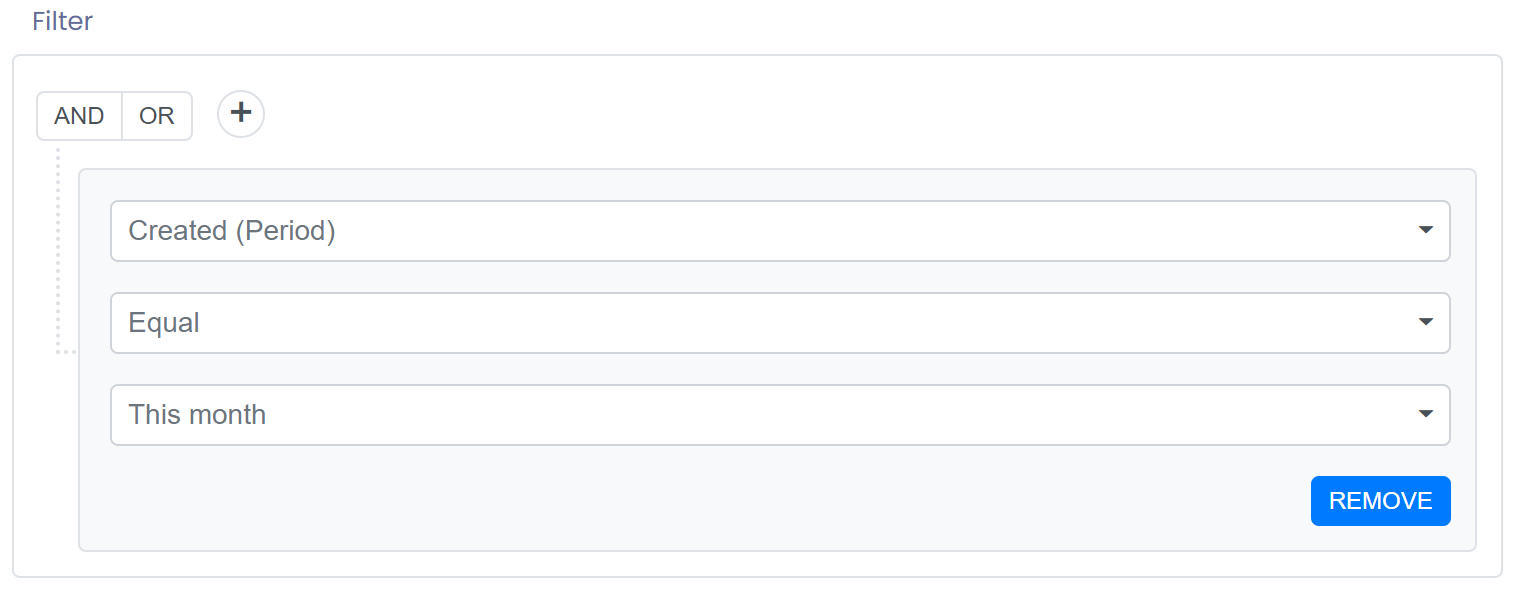
Time Passed
See Time Passed below.
Dates follow your account's time zone. Period, Relative and Time Passed filters all work in whole days where your business is, midnight to midnight. For example, This month on a created date includes a form created at 11pm on the last evening of the month and leaves out one created at 11pm the evening before the month began.
Relative Dates
Relative dates allow you to alert on data that will happen in the future or past. You can alert on something that has happened more than a certain number of days ago, or something that will happen in the next number of days.
All date field will also have a relative date field associated with it. These can be identified by the (Relative) text at the end of the field name.
There are three filter options with a relative date, these are:
- 'Is in next (x days)' : Alert will fire if the selected date falls between today and x days ahead.
- 'Is in the last (x days)' : Alert will fire if the selected date falls between x days ago and today. For example, forms created in the last 7 days.
- 'Was more than (x days ago)' : Alert will fire if the selected date is before the start of the day x days ago.
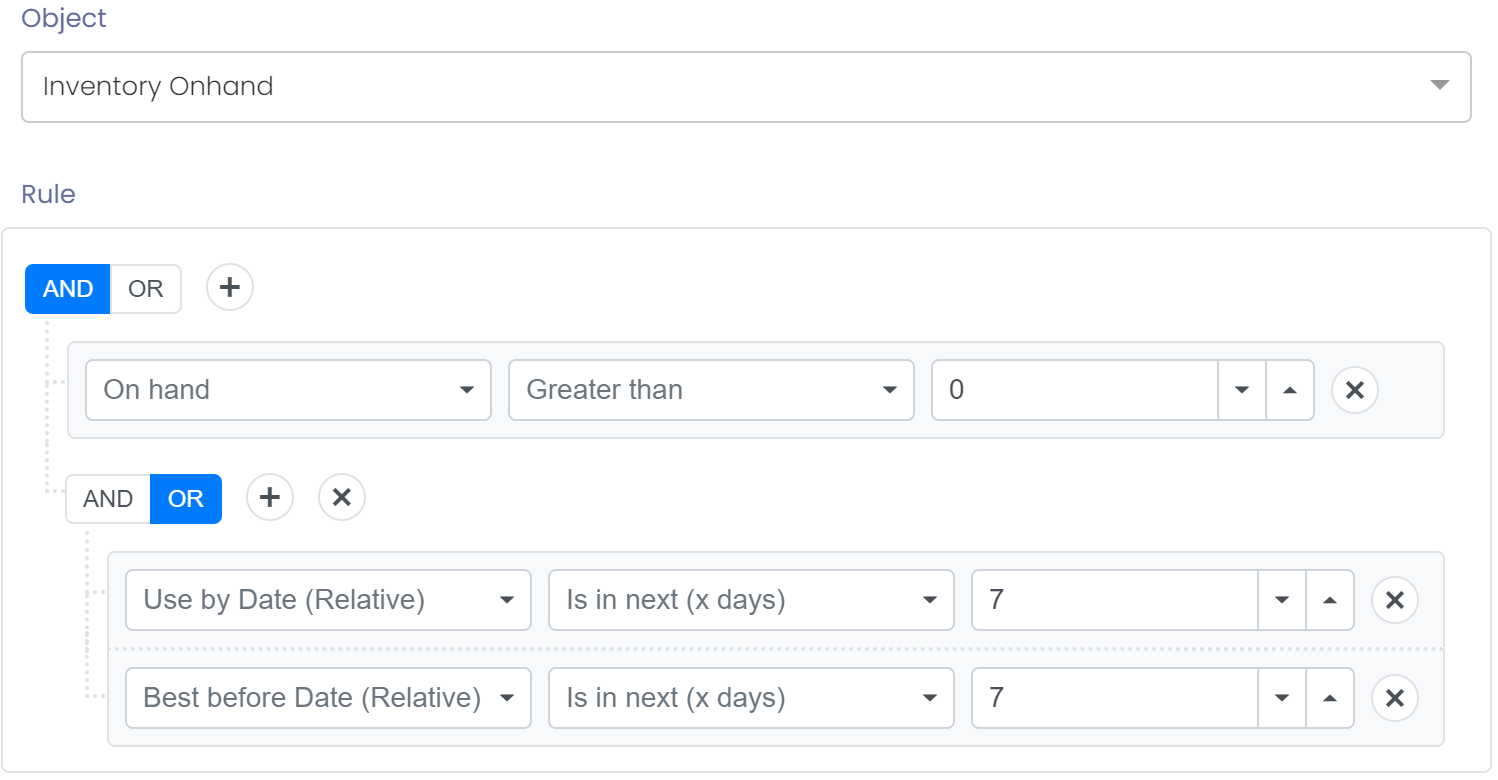
An example of use might be to alert you if you have any raw material stock that will be past its use by date in the next week.
To do this you would setup and alert on 'Inventory Onhand' with the following rule:
Time Passed
Date and time fields also have a (Time Passed) version, with one option, Minutes passed greater or equal to. It counts from the actual date and time, so a rule of 60 minutes on a form's Created (Time Passed) matches the form about 60 minutes after it was created, not as soon as it is created.
Use it to alert when something has been waiting too long, for example a form still active 60 minutes after it was created. The alert fires once the time has passed, not when the form is created.
Receipt QA holds and rejections
To be alerted when goods are put on QA hold or rejected at receiving, set up an alert on Inwards Good Line:
- Object: Inwards Good Line.
- Rule: QA Status, Equal, Rejected (or On Hold). To catch both, add two conditions joined with OR.
- Alert Trigger: On Update. Holding and rejecting both change a line that already exists. A line that is only partly rejected is split, and the rejected part also counts as an update, so On Update catches it too.
QA Status on a line can be None, On Hold, Released or Rejected.
To be alerted when a whole delivery is put on hold, use Object Inwards Good with QA Status Equal On Hold and trigger On Update. A receipt has no Rejected status of its own: rejection is recorded on its lines, so rejecting a whole receipt rejects each line and a line rule sends one alert per line.
The email for either object can include %{qa_status}, %{qa_reason} and %{qa_notes}, and a line alert can include %{product}. For example, a subject of %{product} %{qa_status}: %{qa_reason} reads “RM-FLOUR rejected: Damaged”. The link in the email opens the receipt.
Alert Email
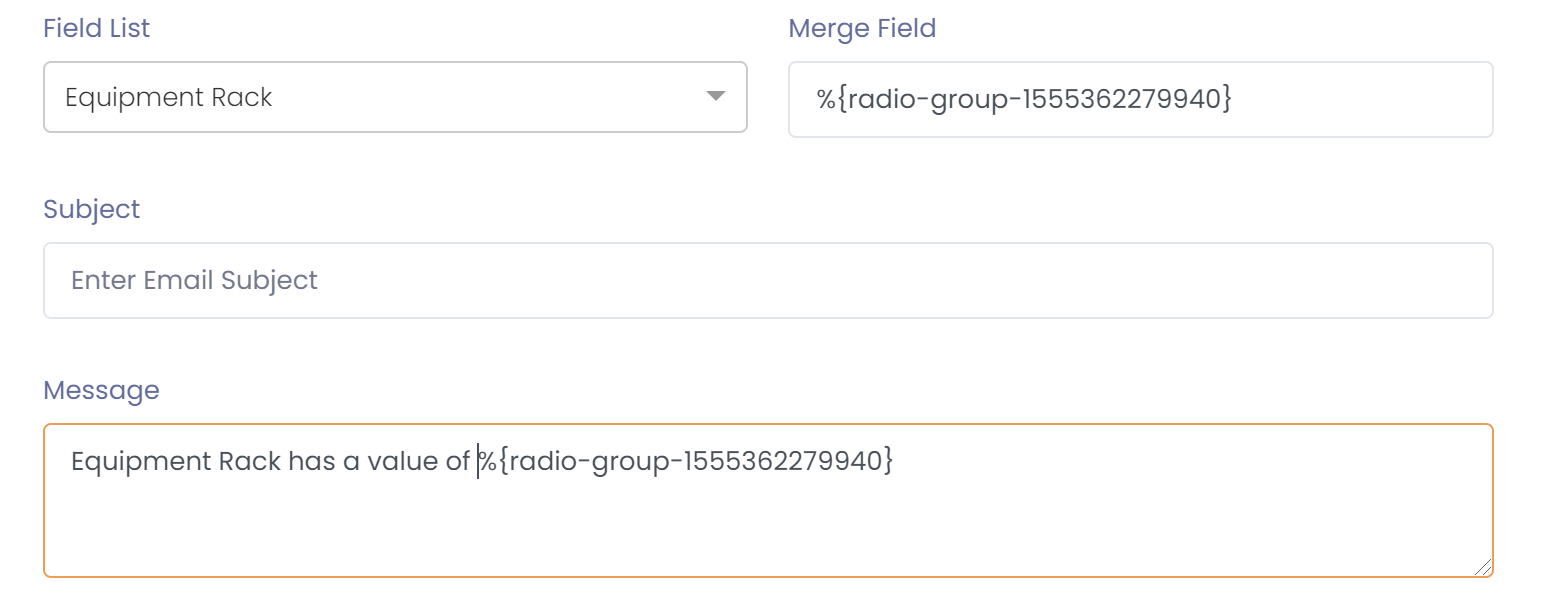
When building an email to send, you can use the merge field to merge a field value into the subject or message of the email.
Just select the field from the field list, and then copy and paste the merge field into either the subject or message.