The report builder allows you to generate a template for a report which can then be accessed and run from the main report menu.
A report definition contains a default filter and the columns which you want to display on the report. From the definition you can create any number of reports you require.
In order to create a report definition perform the following steps:
- Go to 'Setup --> Report Definitions'.
- Click on 'New Report'.
- Enter your report name, this will be displayed in the report menu when selecting to run this report.
- Select the table you would like to report on.
- Build the default filter.
- Select the columns you want to display on the report, and their order.
Tables
The following tables are available for reporting:
| Form | When report on a form you will be prompted to choose the form you wish to report on. All form templates will be available for selection here. The latest version of the template will be used for reporting. |
| Product | Use to report on product detail |
| Product Recipe | Use to report on product recipe along with ingredient on-hand |
| Batch | Use to report on production batches |
| Consumer | Use to report on consumer details |
| Customer | Use to report on customer details |
| Consumer Complaint | Use to report on consumer complaints |
| Customer Complaint | Use to report on customer complaints |
| Non Conformance | Use to report on non-conformances |
| Inventory | Use to report on inventory transactions |
| Inventory Adjustment | Use to report on inventory adjustments |
| Inwards Goods | Use to report inwards good lines |
| Dispatch | Use to report on dispatch lines |
Filter
The filter builds up query logic to help you select the record you want to see. To add logic you can either add a 'Group' or a 'Condition'. All groups and conditions are combined either using an AND or an OR.
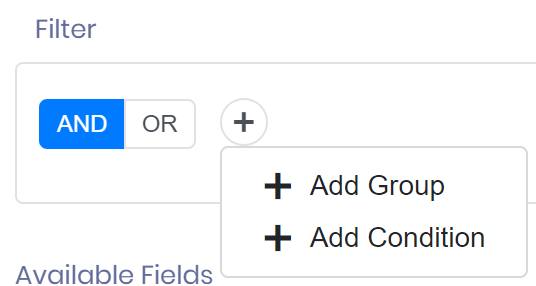
Condition
The condition is the simplest form of logic. They are set of condition combined using an AND or an OR. You can add one of more conditions to a group.

The logic above is simply saying our report should contain all products that start with 'P001'.
Operators
Operators are used in conditions to help filter records. Available operators are:
| Operator | Available for | Notes |
|---|---|---|
| Starts With | Text | Matches any text starting with characters entered. |
| Ends With | Text | Matches any text ending with characters entered. |
| Contains | Text | Matches any text containing characters entered. |
| Equal | Text, Number, Date, Text Dropdown, Date Period | Anything that equals value entered exactly. |
| Not Equal | Text, Number, Date, Text Dropdown | Anything that doesn't equal value entered exactly. |
| Greater Than | Number, Date | Anything higher than value entered. |
| Greater Than or Equal | Number, Date | Anything higher or equal to the value entered. |
| Less Than | Number, Date | Anything less than value entered. |
| Less Than or Equal | Number, Date | Anything less than or equal to the value entered. |
| In | Text Dropdown | Anything that has one of the selected values. |
| Is in next (x days) | Date Relative | Anything with a date from today up to x days ahead. |
| Is in the last (x days) | Date Relative | Anything with a date from x days ago up to today. |
| Was more than (x days ago) | Date Relative | Anything with a date before the start of the day x days ago. With x = 1, that is anything before the start of yesterday. |
| Minutes passed greater or equal to | Time Passed | At least this many minutes have passed since the date and time. |
Special Fields
Relative Dates
This is more relevant to alerts but some report fields still offer this type of field. See for alerting more detail.
Period Dates
Some date fields will appear with the text (Period) after the field name. If a date field like this is available then you are able to filter that date by the following periods:
- Last week
- This week
- Last month
- This month
- Last year
- This year
Weeks run Monday to Sunday.
This filter can be used to create monthly or yearly reports to view data within that period. 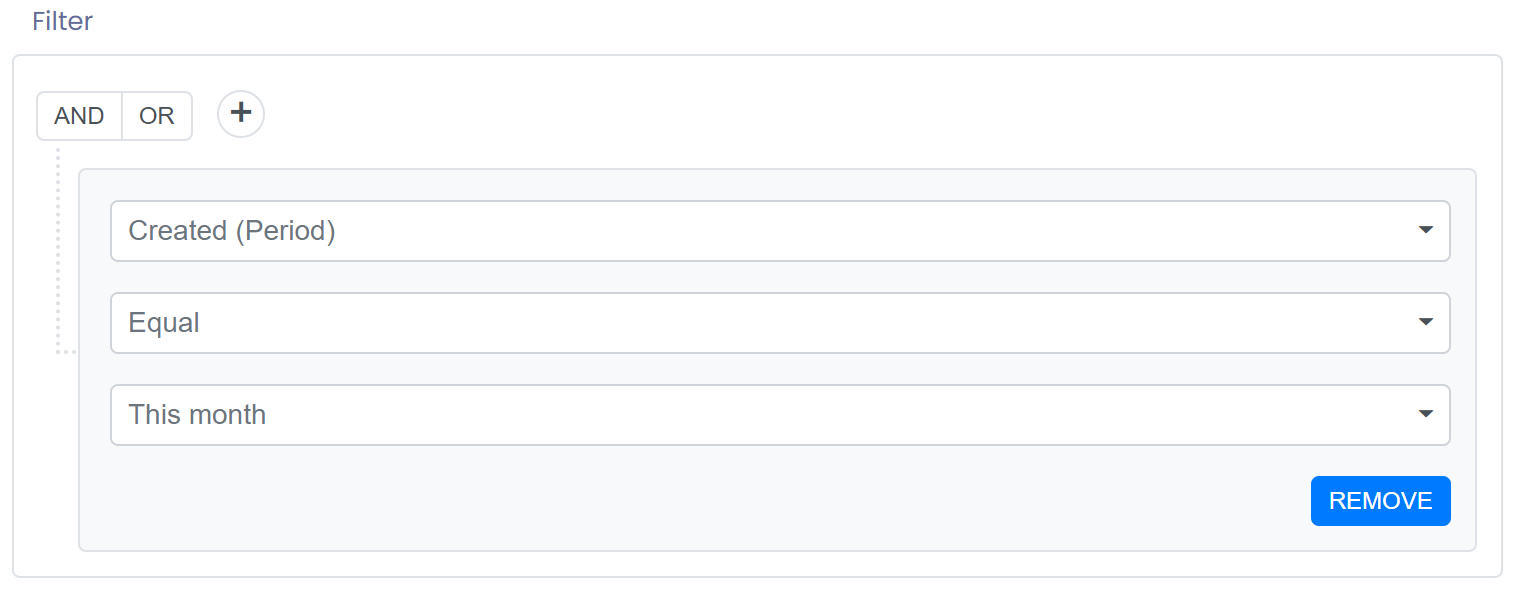
Time Passed
Date and time fields also have a (Time Passed) version, with one option, Minutes passed greater or equal to. It counts from the actual date and time, so a rule of 60 minutes on a form's Created (Time Passed) matches the form about 60 minutes after it was created, not as soon as it is created.
Dates follow your account's time zone. Period, Relative and Time Passed filters all work in whole days where your business is, midnight to midnight. For example, This month on a created date includes a form created at 11pm on the last evening of the month and leaves out one created at 11pm the evening before the month began.
Group
A group can help you form complex logic by separating conditions into groups and combining the groups using AND/OR logic.
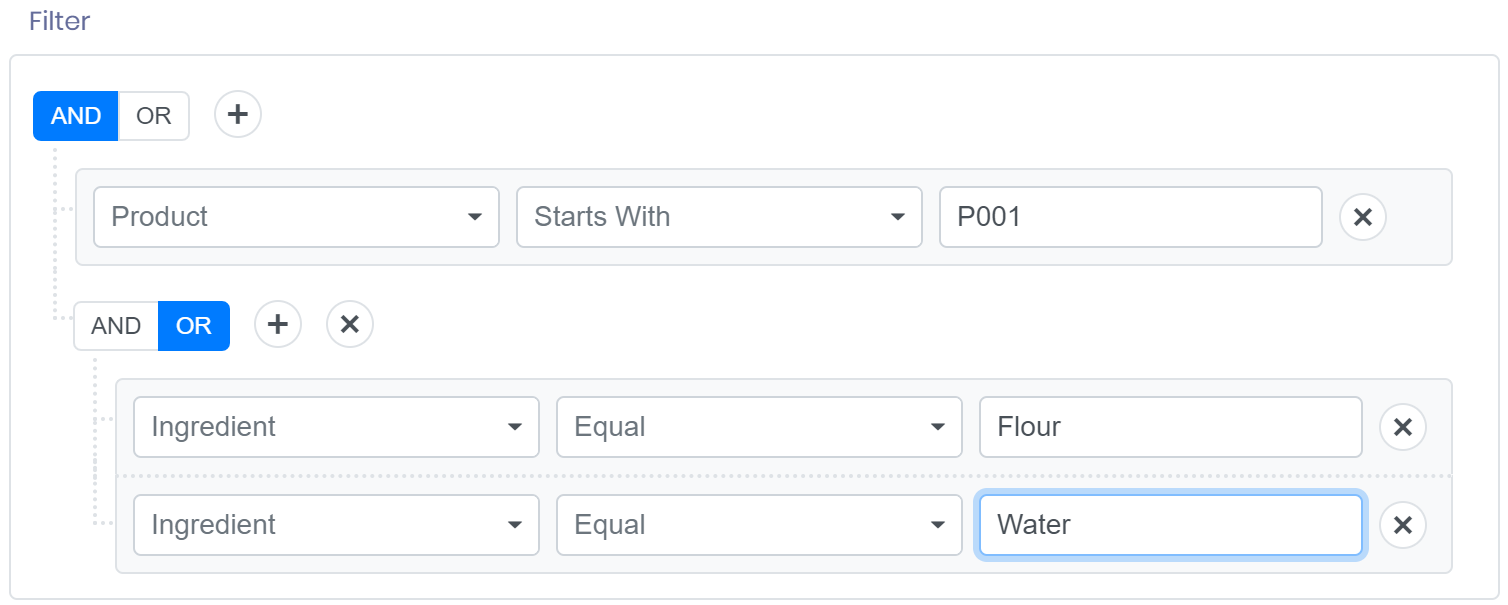
The logic above has a group added to it. This is now saying our report should contain all products that start with 'P001' AND that has either an ingredient of 'Flour' OR 'Water'.
Columns
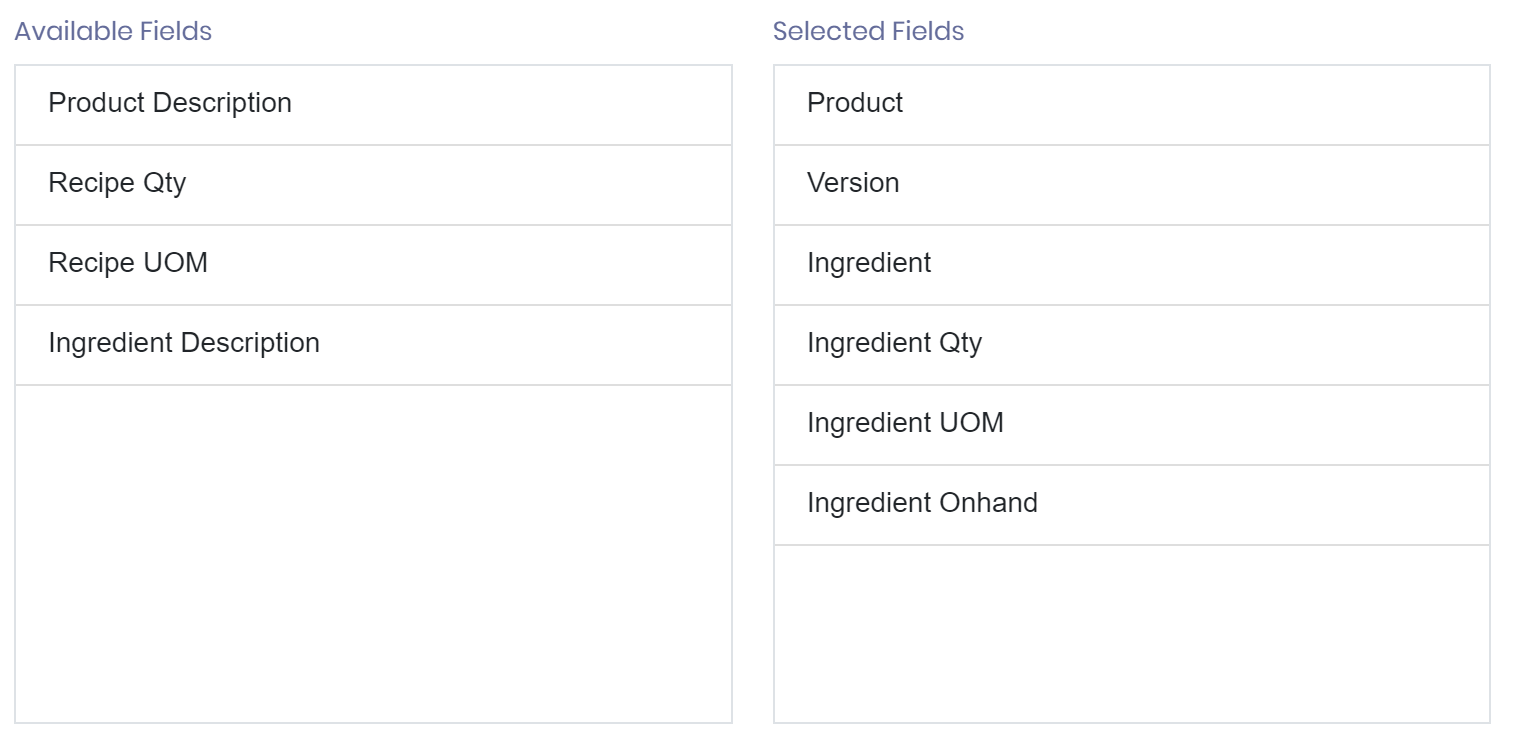
The left hand list displays all the available columns. To display a column on a report it should be dragged to the right hand list. The columns should be then ordered by dragging up and down the right hand list to display the desired order.