
When a batch is completed then it is in stock as finished product and ready to be dispatched.
If a customer has already created the dispatch record then it should be found and updated as follows:
- Go to Dispatch
- Find the correct Dispatch record
- Click on the Edit button for the dispatch record row in the list
- Enter a Reference for this dispatch
- Enter the dispatch date
- Enter transport vehicle company and registration
- Add any notes regarding the dispatch
- Click the button 'Save' to update details
- For each line in the dispatch:
- Click on the Edit button for the dispatch line row in the list
- If using locations, enter the location to dispatch stock from. Note that the batches available for selection will be filtered by this location.
- Enter the batch number. To filter a batch number by UB/BB date then select the required date and batches will be filtered. To remove the UB/BB date filter just press the cross available in the date field. Note that only batches with stock on-hand are displayed for selection.
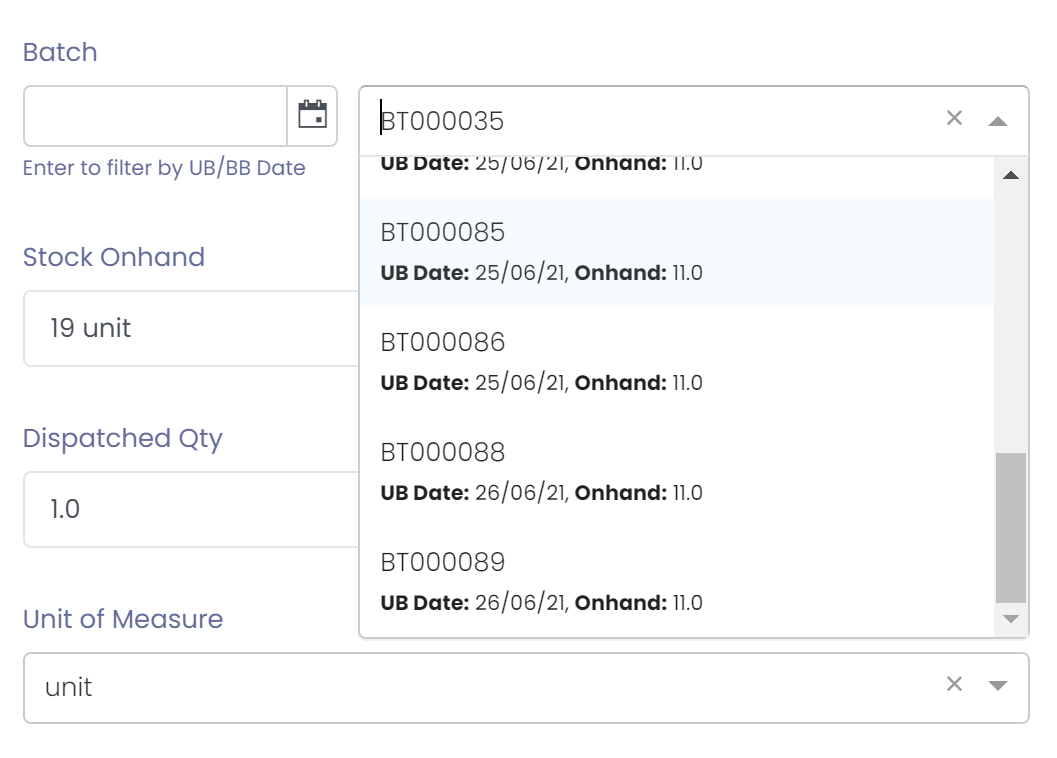
- Enter other compliance information - temperature, e-cert (varies by product)
- Enter the dispatched quantity
- When everything in the dispatch checked the dispatch record should be posted.
Notes:
- Dispatch lines are sorted by the pack order specified on a finished good product
- If dispatch record doesn't exist a new record can be created.
- If a dispatch line doesn't exist it can be created.
- When a dispatch line record is posted the stock will be removed from inventory.
- If you are using a supported mobile device you can take photos of goods during dispatch as supporting evidence.