To adjust the onhand of a supplier batch perform the following steps:
- Go to Stock Adjustment
- Click the button 'New Stock Adjustment'
- Select the Finished Good tab

- Enter date
- Enter product you are counting
- If this is an existing batch, select the batch number you have counted.

- If this is a batch that is not in the system, enter the batch number manually.

- Enter the quantity type
- Onhand: The quantity entered will be the new onhand quantity
- Adjust: The quantity entered will be an adjustment quantity to adjust stock by.
- Dispose: The quantity entered will be disposed, i.e. taken off onhand quantity.
- Enter the quantity. Note: Onhand and Dispose must be a positive number, Adjust may be positive (add to onhand) or negative (take off onhand).
- Enter the unit of measure of the quantity
- Click the button 'Save' to save the adjustment.
When you are ready to post the adjustment to inventory find the adjustment record in the list and then post it by clicking on the post button.

Manually Entered Batch Number
If you need to bring in stock for a batch that has been produced outside the system you can do so by manually entering the batch number. The batch number entered should allow you to uniquely identify the batch.
When the adjustment is posted a batch will be created as a place holder for the stock. You will be able to view this batch through the production batches screen.
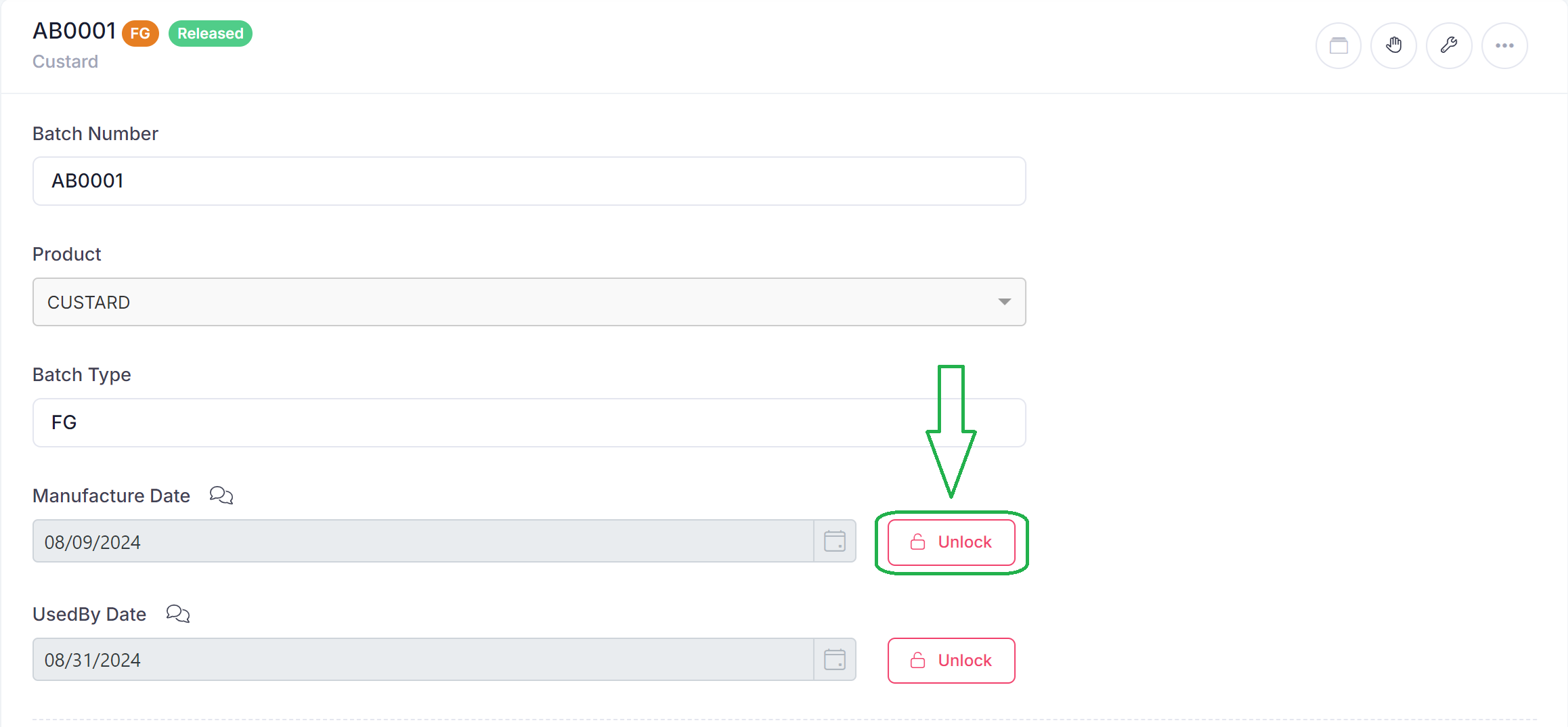
Once this batch is created a user with the 'QA Manager' role should go to the batch, unlock it and update it with the actual manufacture, and BB/UB dates.