
Overview
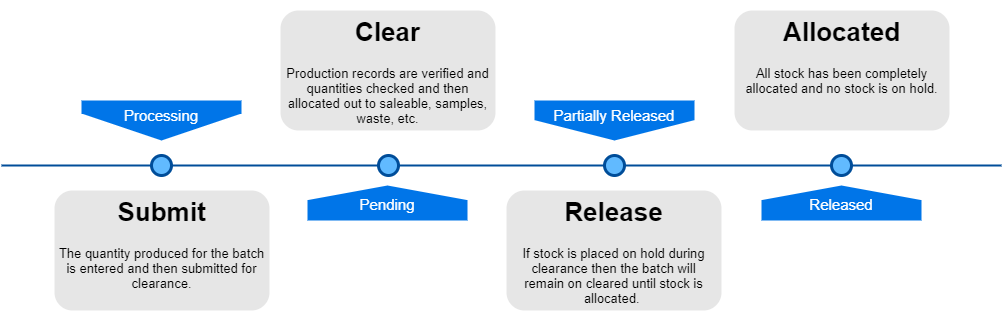
Completing a batch involves submitting a request for clearance, having the production records validated and stock verified, and then allocating and releasing stock to inventory.
During this process stock can be partially allocated to inventory by putting some stock 'On Hold'. Once all stock has been moved 'Off Hold' and allocated then the batch status will move to 'Released'.
If batch validation has failed then a manual 'Re-Validate' button will be displayed. Click this to re-validate the batch so that below processing can commence. See here for more detail. |
Submit for Clearance
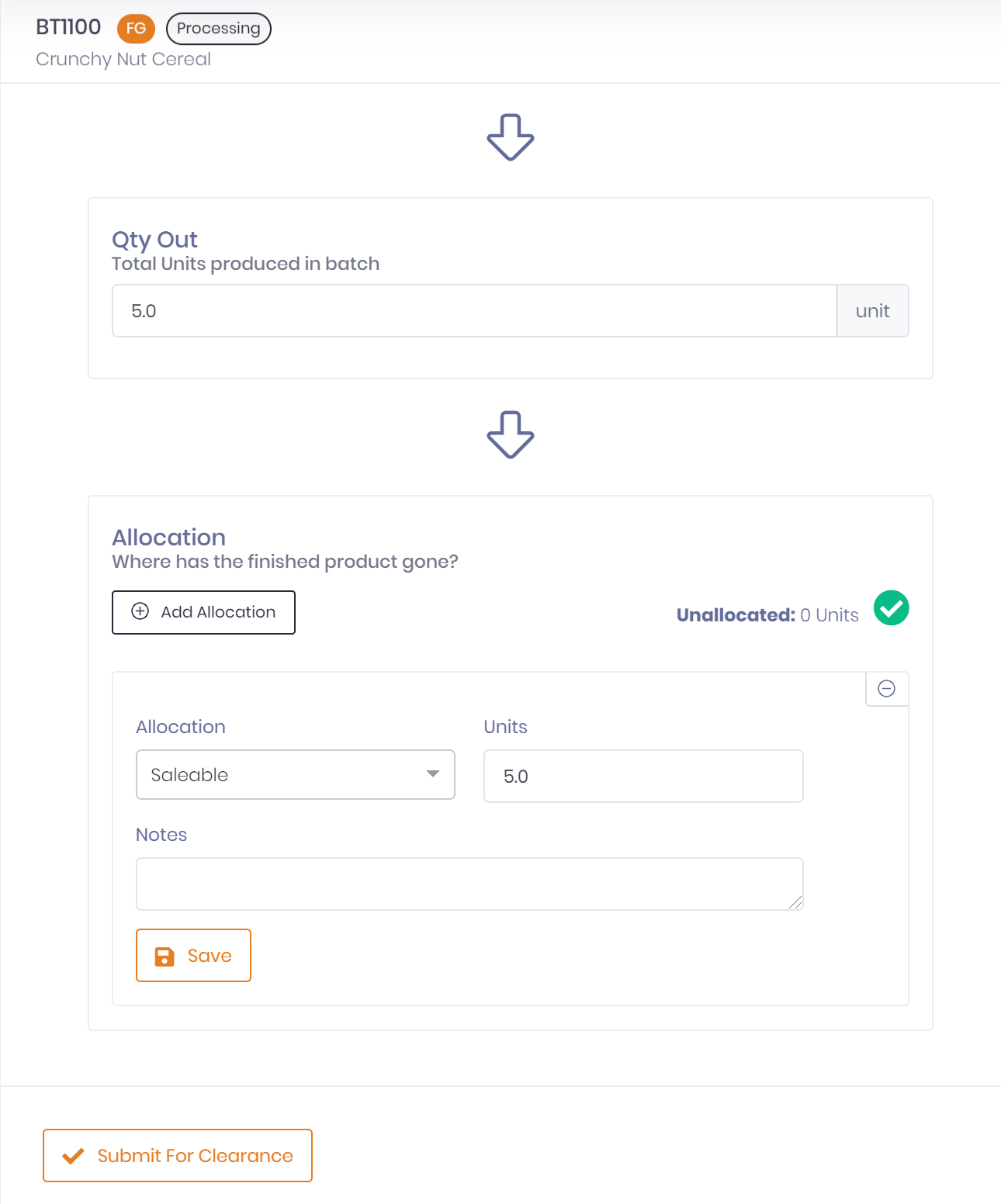
To complete a batch you need to enter the total quantity produced in the 'Qty Out' field. Care should be taken to enter the correct amount in the output unit of measure.
You may then do the initial allocation of stock, or this can be done during the clearance stage.
Options for allocation are:
- Saleable
- Onhold
- Staff Sales
- Retention
- Samples
- Spoils/Wastage
You can have multiple allocations, but the sum of the allocated quantity needs to match the total quantity out before you can clear the batch and commit it to stock.
Allocations can be performed by clicking on the 'Add Allocation' button. Once an allocation is entered press the 'Save' button to save the allocation.
Once you have confirmed the quantities are correct the batch may be submitted for clearance by pressing the button 'Submit for Clearance'.
The batch will now be in a 'Pending' status awaiting clearance.
| Note: If you have setup forms to be required to be 'Confirmed' or 'Approved' before batch can be completed the 'Submit for Clearance' button will not be available until forms have been confirmed or approved. |
Clear Batch
Role Required: Admin or Production Manager |
Once a batch is in a 'Pending' status the production records should be checked and validated. Quantities should also be validated at this point.
If only part of the stock is to be released then an 'Onhold' allocation should be entered for the quantity of stock to be withheld. An 'Onhold' allocation will be able to be released at a later date after clearance.
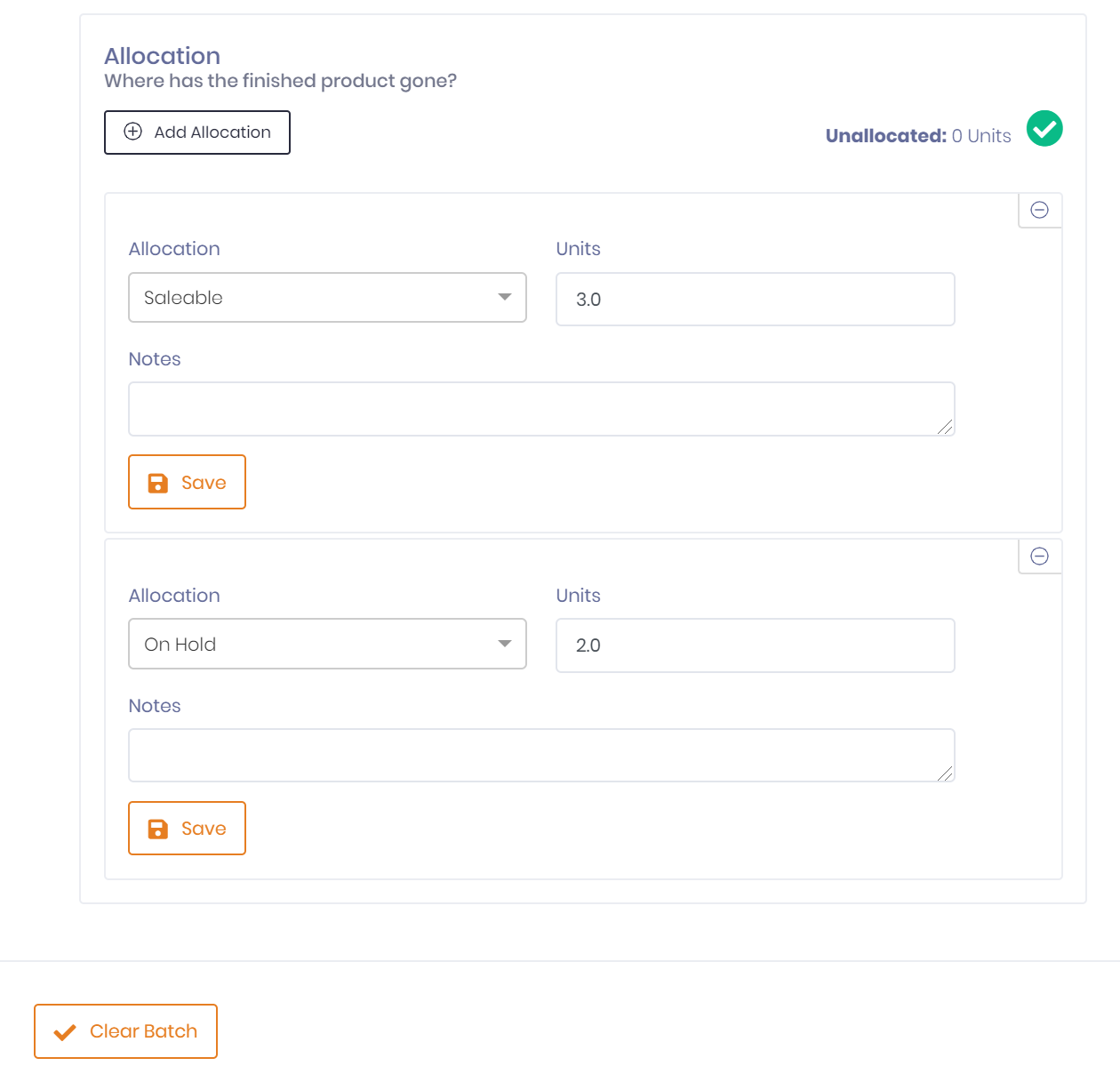
Clicking the 'Clear Batch' button will commit all saleable allocations to stock and move the batch to a 'Partially Released' status.
If there is no stock 'OnHold' the batch will moved straight to a status of 'Released'.
Release to Inventory
Role Required: Admin or Production Manager |
A batch will remain on a status of 'Partially Released' until all stock 'Onhold' as been allocated elsewhere, for example to 'Saleable'.
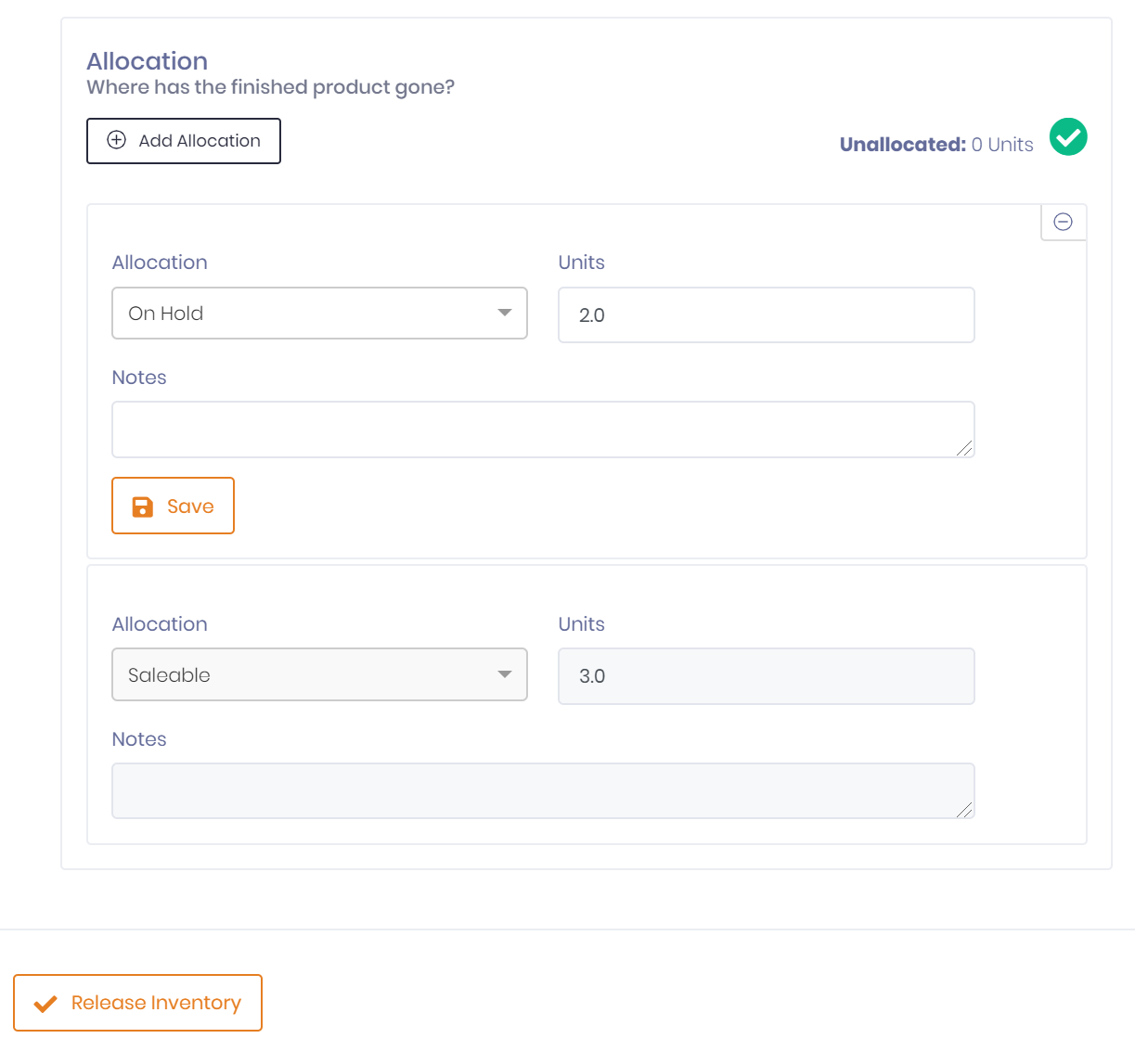
Any 'Saleable' allocations already released will be read only as they have been committed to inventory.
Once everything has been allocated, i.e. no 'On Hold' allocations, the batch will automatically move to status 'Released'.
Changing Batch Qty Out While Status Partially Released
Role Required: Production Manager |
The Qty Out value of the batch can be changed while the batch is at partially released if the user has the production manager role. The quantity must be adjusted to a value that is higher than the currently allocated stock.
Released
Once the batch is at status 'Released' then all stock has been released into inventory and no more action is required on the batch.