
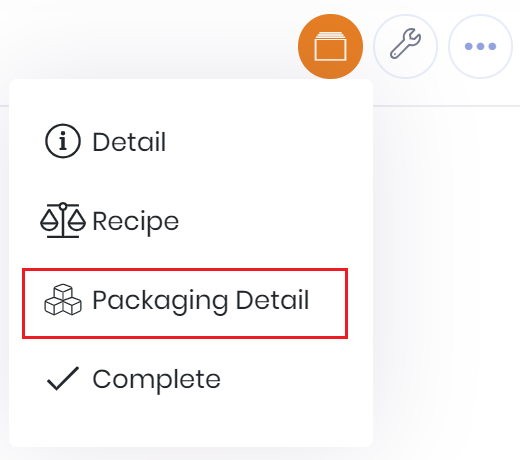
To assign batch packaging select 'Packaging Detail' from the tabs menu button on the batch detail.
The packaging component version linked to the finished product is copied to the batch when the batch is created. This defines the packaging and quantities required in order to make this batch.
For each packaging component you should record the supplier details of the packaging and the quantity used from each supplier batch. As with the ingredients you can enter multiple supplier batches per packaging component if required.
If you would like the expected qty to display for the packaging and to default through as you add packaging you can switch this setting on through account settings:
Product Packaging Quantities To enter a quantity to be used as an expected qty and default during batch packaging entry then you must turn the 'Use Product Packaging Quantities' flag on in Setup --> Account Settings. |
This quantity will be taken from the product packaging record and then multiplied by the batch recipe multiplier giving you the total expected packaging to be used. Note that this is only the expected qty, a user is able to enter the actual qty of packaging used.
If using product packaging quantities you will see:

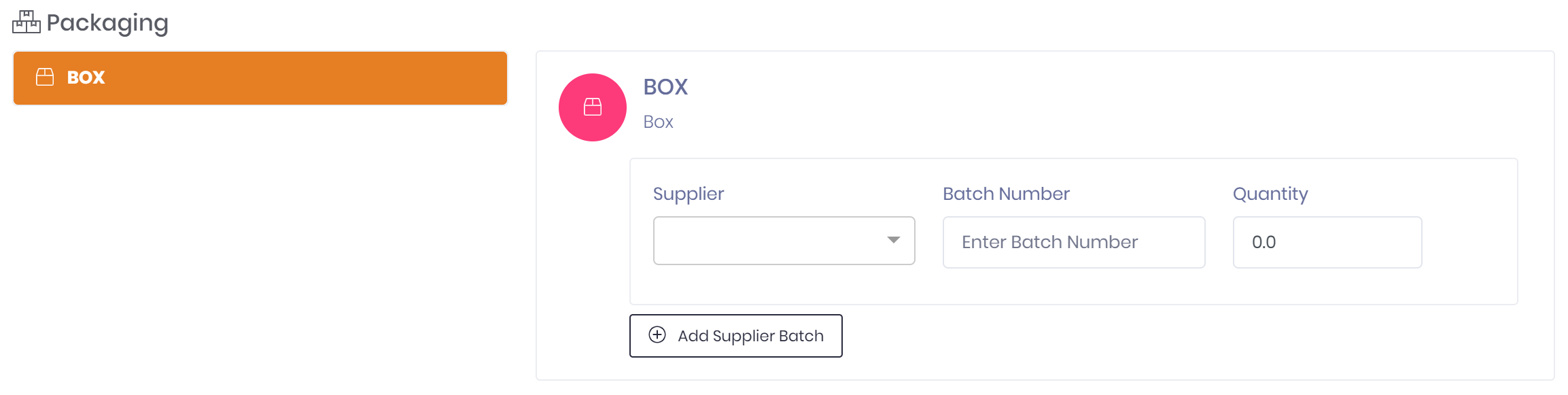
If not using product packaging quantities you will see:
Optional Packaging
If you would like to choose packaging used in a batch and not have to enter all packaging defined against the product then you can turn on the 'Allow Optional batch Product Packaging' flag in setup --> Account Settings.

Turning this flag on will allow you to set the batch number/ UB Date / BB Date and qty on any of the packaging components displayed on the batch.
If you do not want to use packaging leave it in its default state with no values defined, or set the quantity to 0.
If this flag is off (default setting) then you must enter traceability detail and qty for all packaging components displayed.
Show Comment Box on Batch Packaging
If you would like to be able to be able to enter comments on batch packaging you can do this by turning on comments.
Go to Setup --> Account Settings and switch the 'Show comment box on batch ingredients and packaging' setting on.

Note: Turning this setting on will display the comment box in ingredients as well.
Once switched on a comment box will display for each batch packaging component.
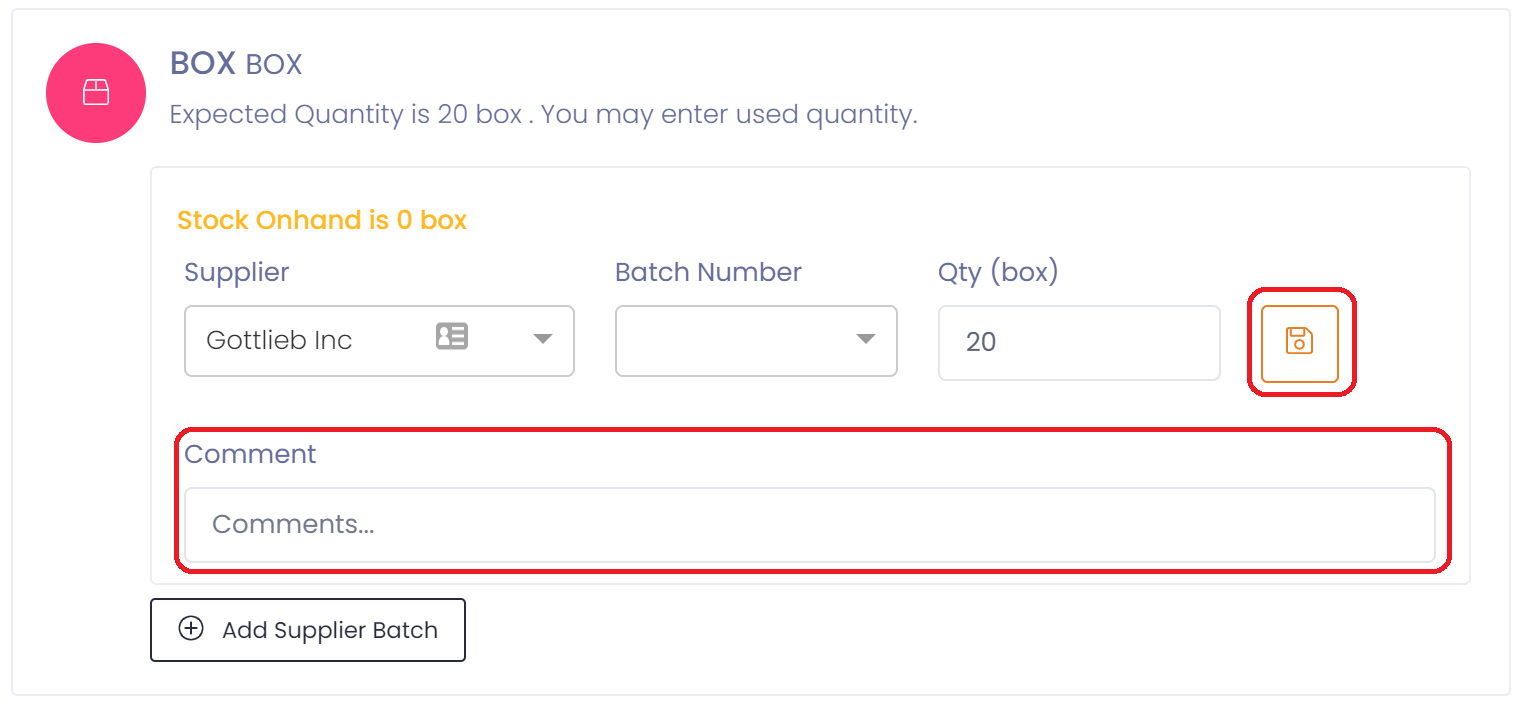
After entering a comment make sure to save the batch packaging component by pressing the save button.
Now that that you have added the packaging used to make the batch, the batch is ready to complete: