
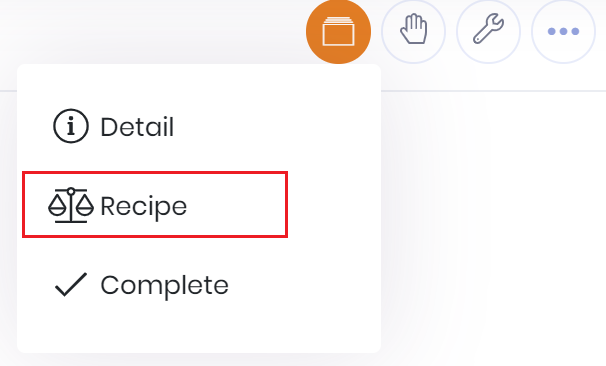
To assign batch ingredients select 'Recipe' from the tabs menu button on the batch detail.
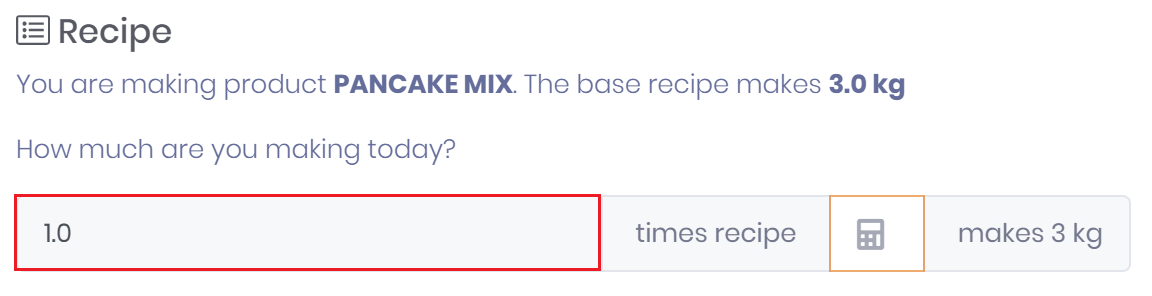
The recipe version linked to the finished product is copied to the batch when the batch is created. This defines the raw materials and quantities required in order to make this batch.
The user has the option to change the recipe quantities by using a multiplier. Use this field to get the correct batch weight/volume that you are producing. The quantities in the raw materials will also be changed to reflect the effect of the multiplier.
Once the production quantity has been determined you should enter the supplier and batch information for each ingredient listed.
This can be achieved by clicking on an ingredient in the list and then adding one or more allocations to a supplier batch.
Once you have allocated the required quantity for an ingredient out to supplier batches the ingredient will turn green. This means that entry has been validated and is correct for the ingredient.
| If using locations then raw material stock will be selected from the site production location. Stock should be moved to this location before using it in a batch. |
Once all ingredients are green then you are ready to process the batch further.
Ingredient not fully allocated and invalid

Ingredient allocated and valid

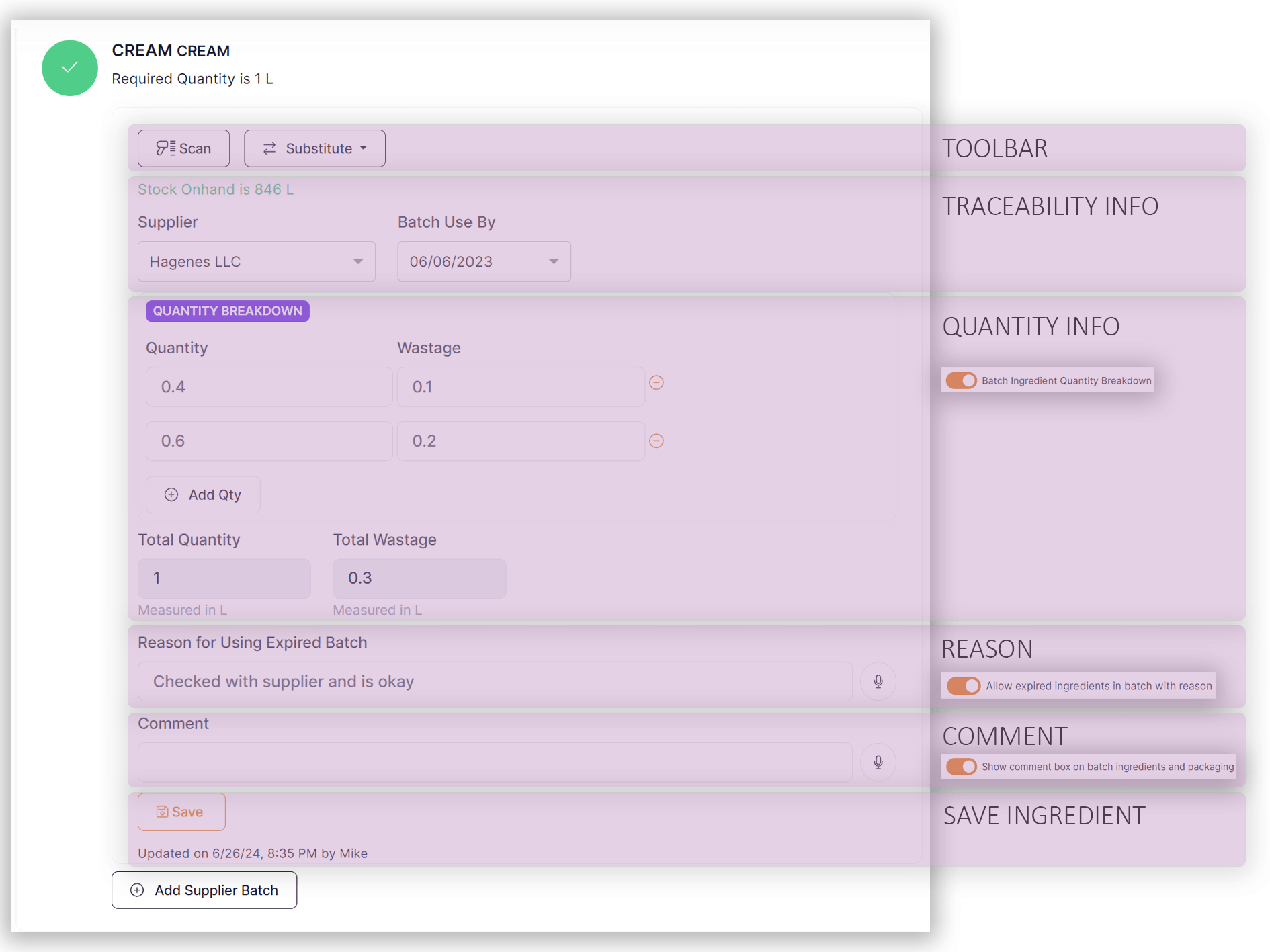
New Batch Ingredient Screen Layout
The current batch ingredient screen is formatted as follows:
Multiple Supplier Batches
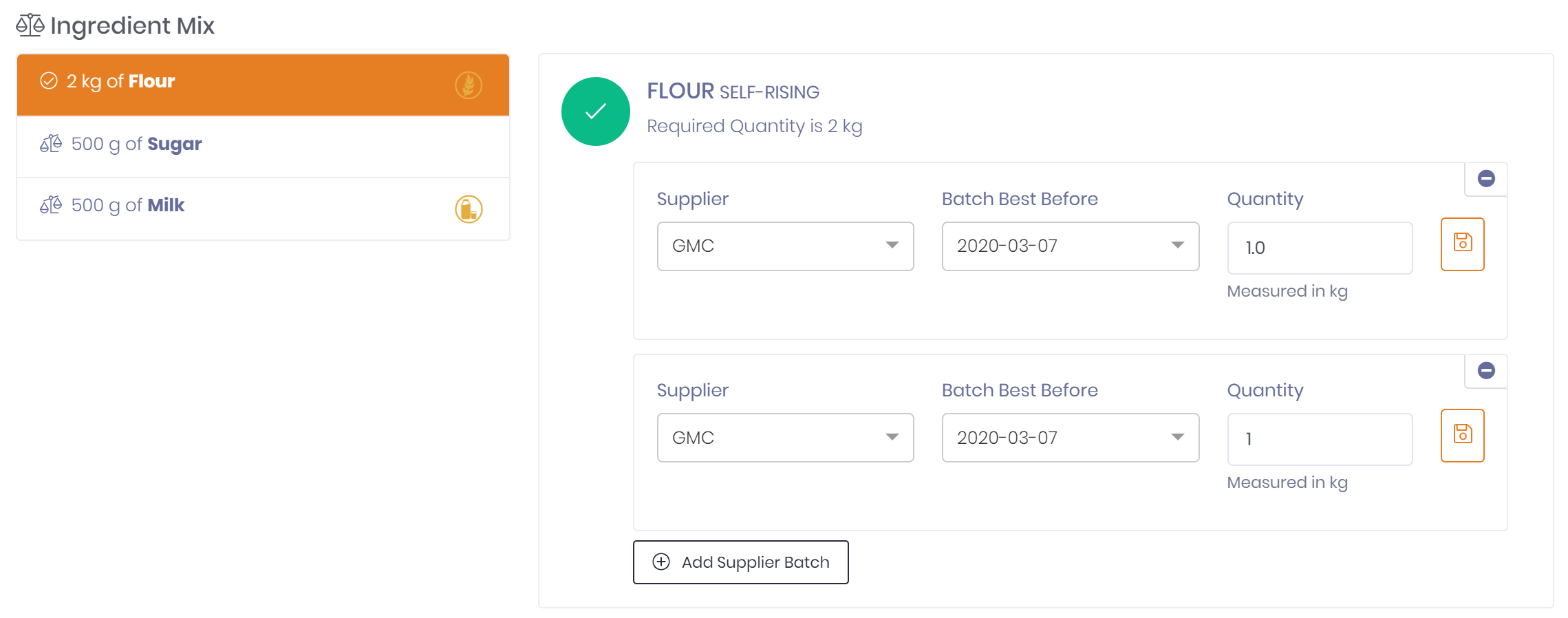
If you need to split an ingredient across multiple batches you can do this by adding multiple supplier batch records per ingredient.
For example if you required 2kg of flour but only had 1kg left from batch 00010 you could use batch 00010 and 00013 to make up the numbers.
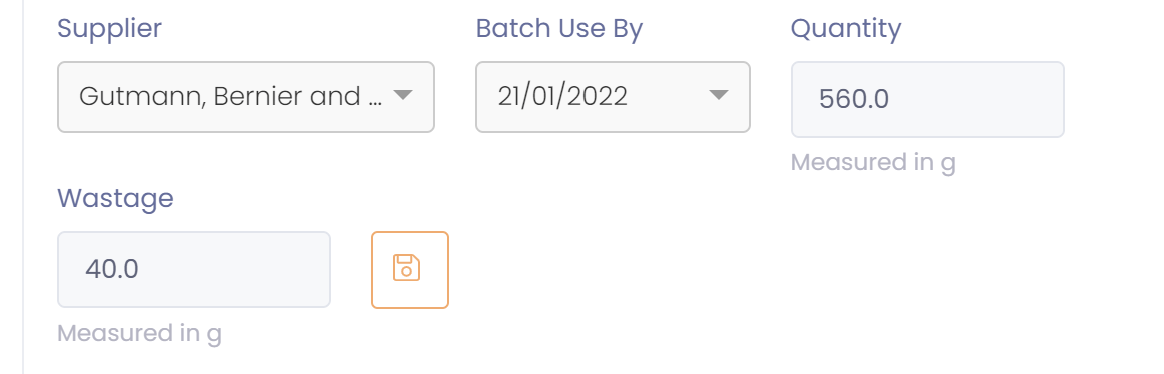
Record Wastage
If the raw material is setup to record wastage then you will be able to enter the amount of wastage for the ingredient. This will be recorded in the same UOM as the ingredient.
When the batch is released the wastage quantity plus the quantity used will be taken out of inventory.
Substitute Ingredient
There are two methods for ingredient substitution.
- Substitute ingredient defined on a raw material.
- Substitute ingredient(s) defined on recipe.
Substitutes defined on recipe will override the substitute defined on the raw material.
If a substitute ingredient is available then you will be able to select it when entering batch ingredients. If the substitute is sourced from the recipe you will need to choose the ingredient from the dropdown.
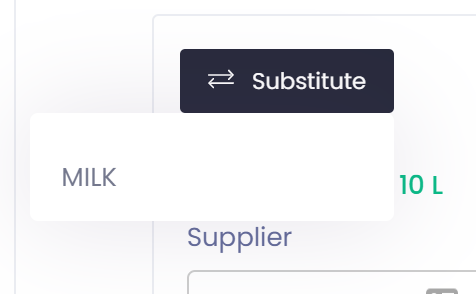
Otherwise it will automatically be selected when the button is clicked.
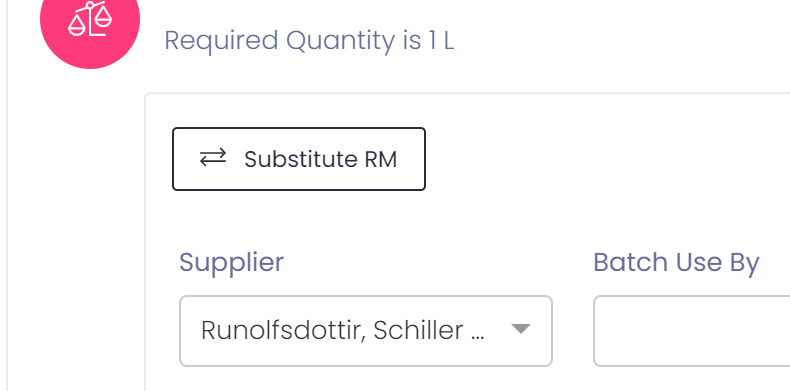
When you substitute a raw material the substituted raw material will be displayed for reference.
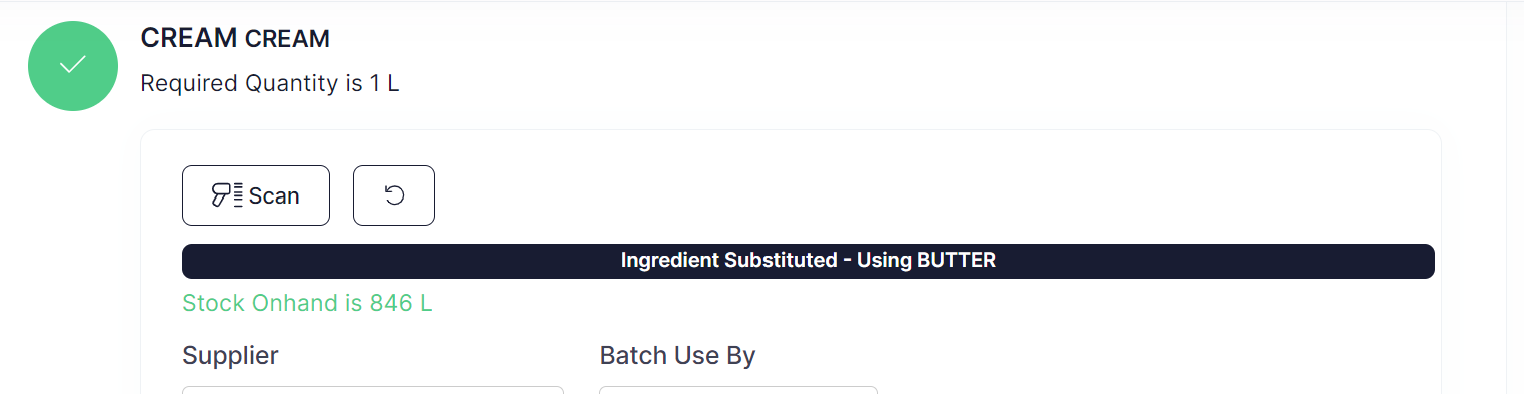
You can go back to the original raw material by clicking on the 'undo' button.

Note: Substitute ingredients should be of the same specification
Must have Stock Onhand
You can set the system up to require that there be enough SOH in order to use a quantity of a batch.
The Stock Onhand is displayed for each ingredient, if there is enough stock it will be displayed green, if there is not enough stock for indicated batch then it will be displayed red.
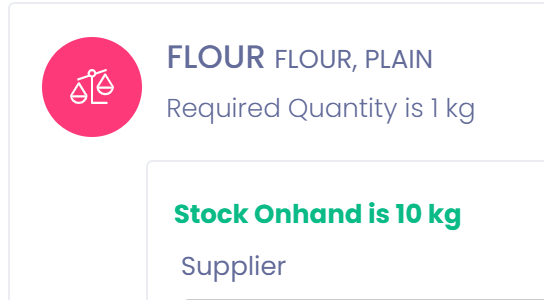
To force that stock is available go to Setup --> Account Settings and switch the 'Batch raw material must have stock available' flag on.

Once this flag is switched on a user can only use batch if enough stock is available. If there is not enough stock and validation message will be displayed.
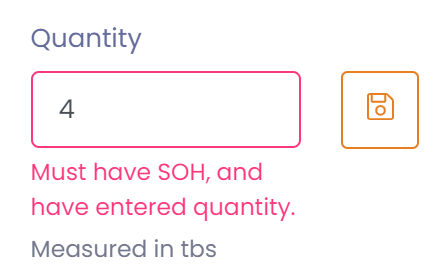
Allow Entry of Used Quantity Rather Than Required Quantity
If you require that the used quantity of a product be entered rather than the required quantity on the recipe you can allow this by setting the following flag on the raw material, or WIP product.

Once ticked you will be able to enter any quantity for the ingredient in the recipe.

Use Quantity Breakdown to Enter Ingredient Quantities
Say you had a recipe that required 60 Kg of a raw material, however your scales could only measure 20 Kg or for health and safety reasons you can only measure 20 Kg at a time, then you can use quantity breakdowns to enter part weighs of a raw material.
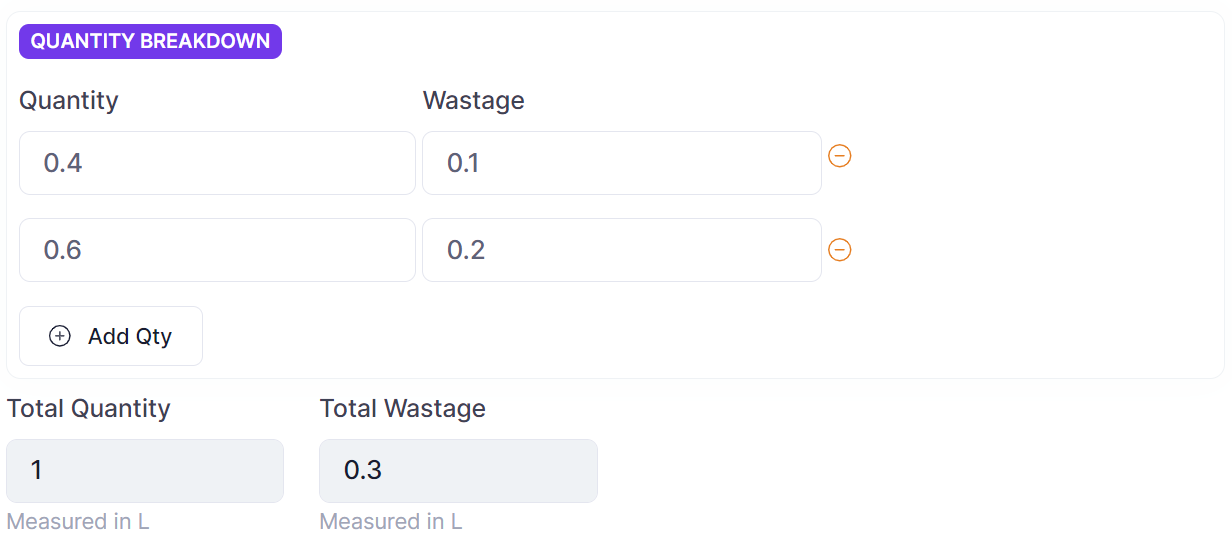
Quantity breakdown will allow you to enter the supplier and batch once and then record multiple qty and wastage values which will provide a total quantity and wastage amount.
To use quantity breakdowns you can do so by switching the 'Batch Ingredient Quantity Breakdown' system setting on.
Go to Setup --> Account Settings and switch the 'Batch Ingredient Quantity Breakdown' setting on.

Switching this setting on will show the quantity breakdown box and allow you to enter multiple quantities for the selected ingredients supplier and batch. The total quantity will then be calculated from the breakdown.
Then tick Use Quantity Breakdown on each finished good or work-in-progress product that should use it, under Batch Settings on the product's Detail tab. The breakdown box only shows on batches of products with that setting ticked; it is off for new products. If a product is made as several separate mixes, also tick Made in Mixes — see Making a batch in mixes.
Allow Selection of Expired Batches in Batch Ingredients
If you would like to be able to select and use batches that have expired in a recipe you can do so by switching the 'Allow expired ingredients in batch with reason' system setting on.
Go to Setup --> Account Settings and switch the 'Allow expired ingredients in batch with reason' setting on.
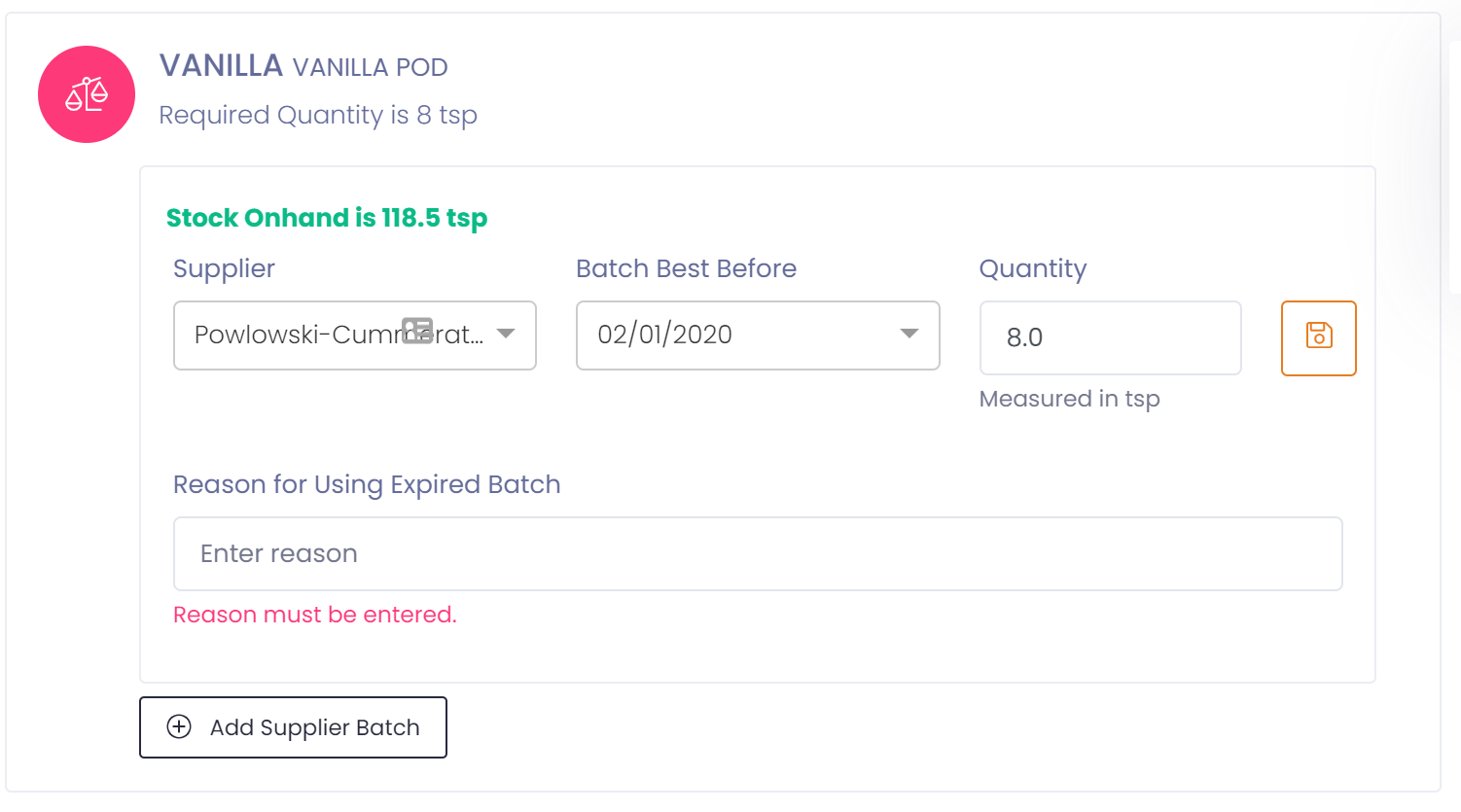
Switching this setting on will allow you to select expired batches, i.e. batches with a BB/UB date prior to the batches manufacture date, that have onhand stock available.
A valid reason must be entered as to why this batch is being selected for use.
Note: If you have a shelf life extension on a product you should perform a stock adjustment to take the old stock out and adjust in with the new extended date. This will mean you can use the correct date in batches and don't have to enter a reason every time stock is selected.
Show Comment Box on Batch Ingredient
If you would like to be able to be able to enter comments on batch ingredients you can do this by turning on comments.
Go to Setup --> Account Settings and switch the 'Show comment box on batch ingredients and packaging' setting on.

Note: Turning this setting on will display the comment box in packaging as well.
Once switched on a comment box will display for each batch ingredient.
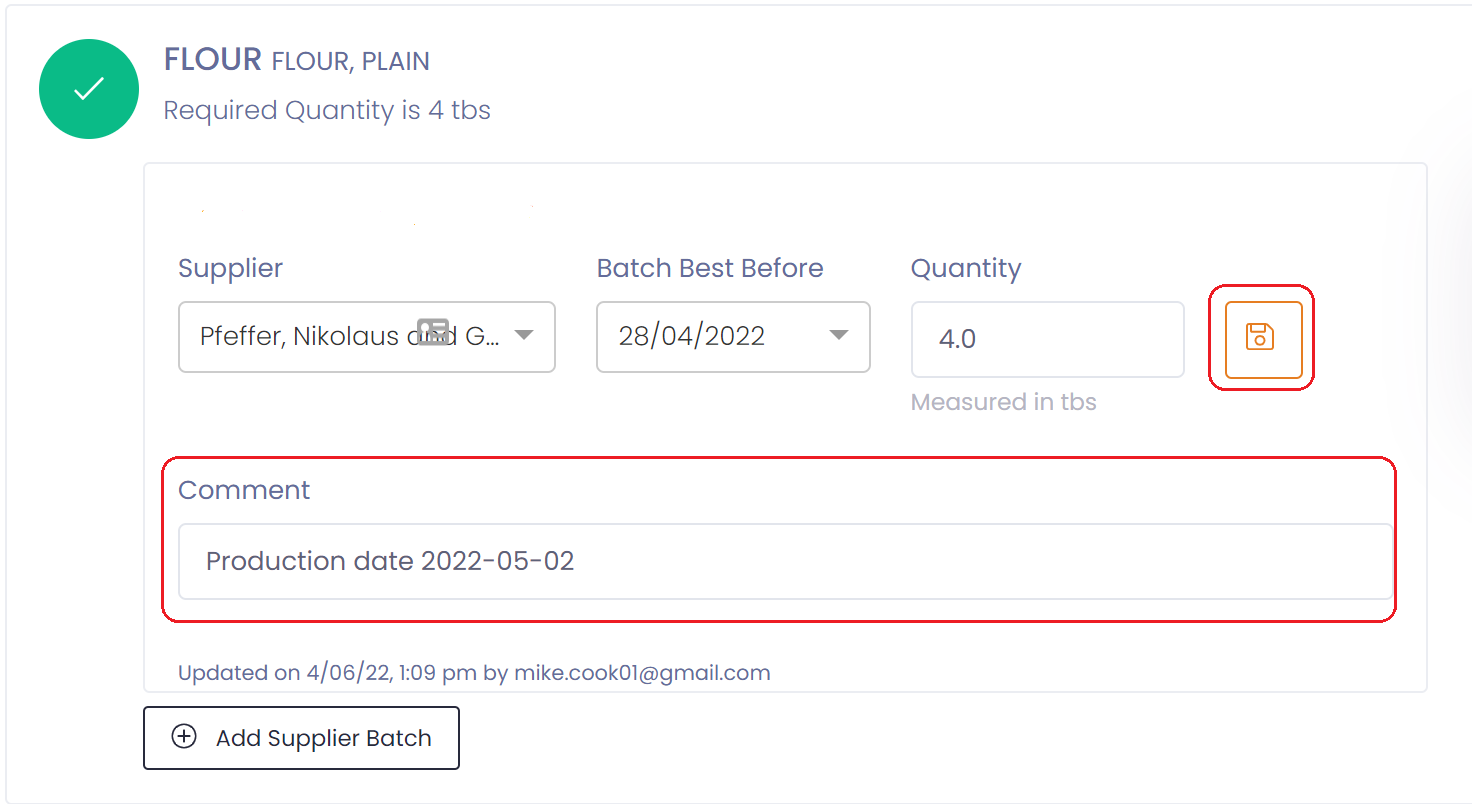
After entering a comment make sure to save the batch ingredient by pressing the save button.
Now that that you have added the ingredients used to make the batch, if you are tracking packaging you can add packaging details:
Otherwise the batch is ready to complete: