
Contract Manufacturing Mode
If you are using a contract manufacturing then create a batch to record stock by performing the following steps:
- Go to Batches
- Click the button 'New Batch'
- If the batch number is not being auto generated, enter the batch number for this batch
- Select the product that is being made
- Enter the manufacture date (Note: When the manufacture date is changed the UB/BB date will be automatically re-calculated off the products shelf life)
- Depending on the selected product, enter the best before or used by date.
- Enter the quantity that was manufactured for the batch.
- Click the button 'Save' to save the batch detail.
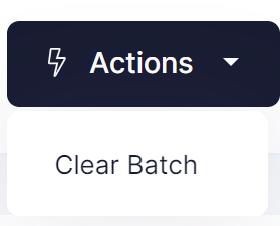
- When you are ready 'Clear' the batch through the action menu to commit the inventory.
Production Mode
If you are manufacturing, once you are ready to do a production run a batch may be created.
To create a batch record perform the following steps:
- Go to Batches
- Click the button 'New Batch'
- If the batch number is not being auto generated, enter the batch number for this batch
- Select the product that is being made
- Enter the manufacture date (Note: When the manufacture date is changed the UB/BB date will be automatically re-calculated off the products shelf life)
- Depending on the selected product, enter the best before or used by date.
- Click the button 'Save' to save the batch detail.
Now that that you have created a batch the next step is to add ingredients used to make the batch: